Tech is Easy
How to Set Time Limit for Apps on Android (App Timers)
To set a time limit for apps on Android, open Settings, go to Digital Wellbeing, tap App timers, then tap the hourglass icon next to an app and pick how long you can use it each day. It is built into Android, so you don't need any extra app, and it works well if you want to cut down your own screen time or keep a check on a social media or video app.
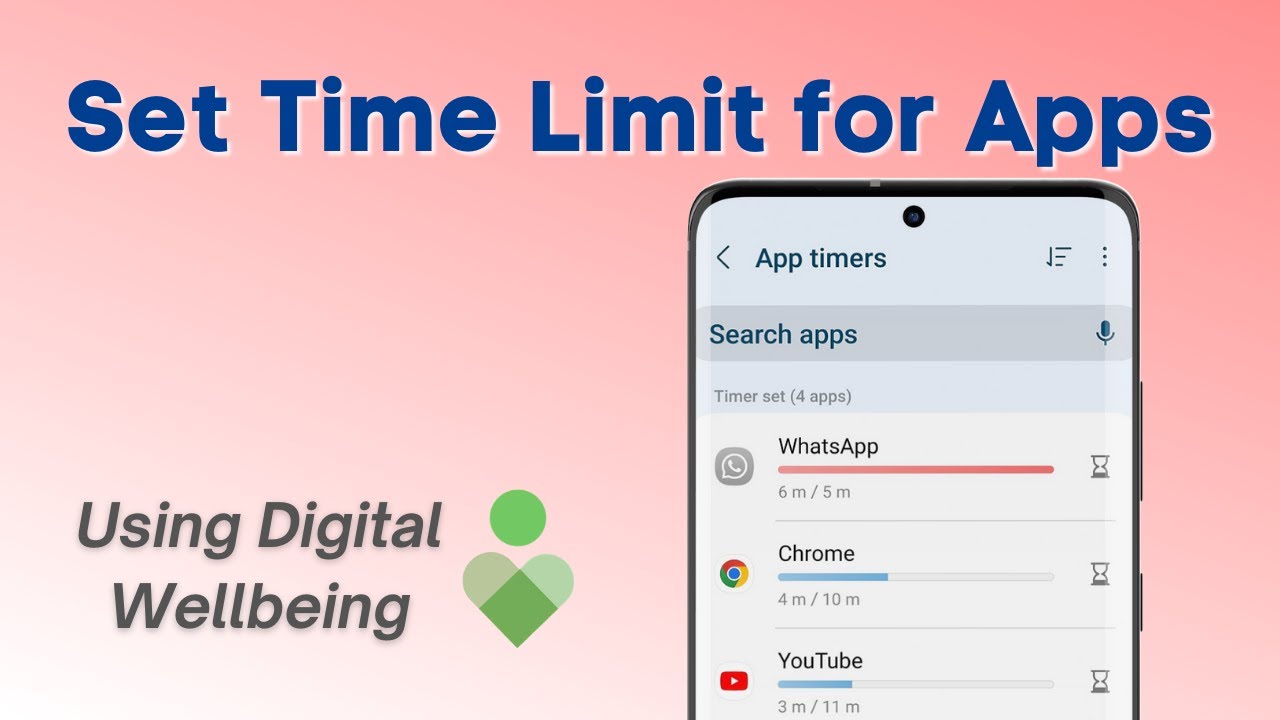
Some Android phones call this an app limit or an app timer, and Samsung lists it under Digital Wellbeing and parental controls. The steps below were recorded on a Samsung Galaxy phone, but the feature works the same way on most Android phones. The video is from 2023, so menus may look slightly different on your phone now.
What you need
- An Android phone with Digital Wellbeing (built into Samsung Galaxy, Google Pixel and most phones running Android 9 or later)
1Search for Digital Wellbeing in Settings
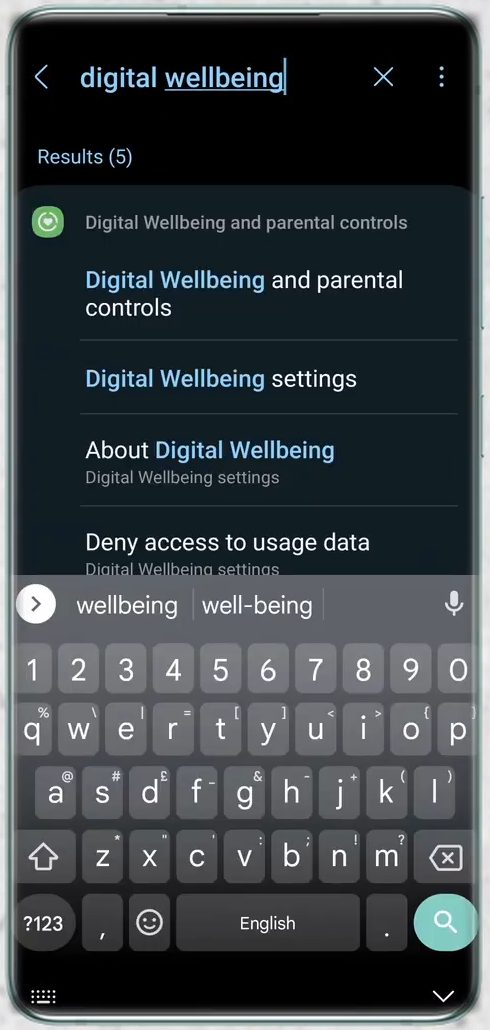
Open the Settings app and tap the search icon at the top. Type digital wellbeing and tap Digital Wellbeing and parental controls in the results.
2Check your screen time
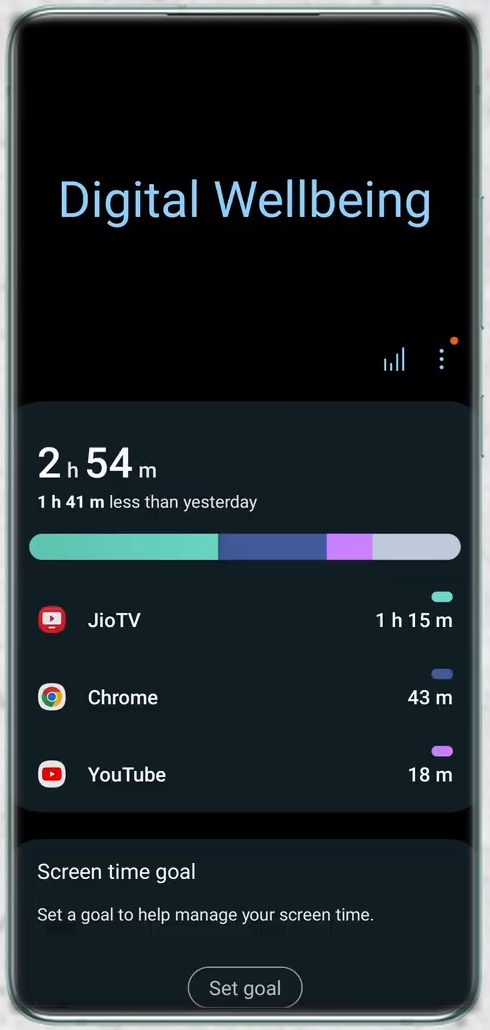
The Digital Wellbeing page opens with your total screen time for today and the apps you used most. In our example the phone had been used for 2 hours 54 minutes, with JioTV, Chrome and YouTube at the top.
3Open App timers
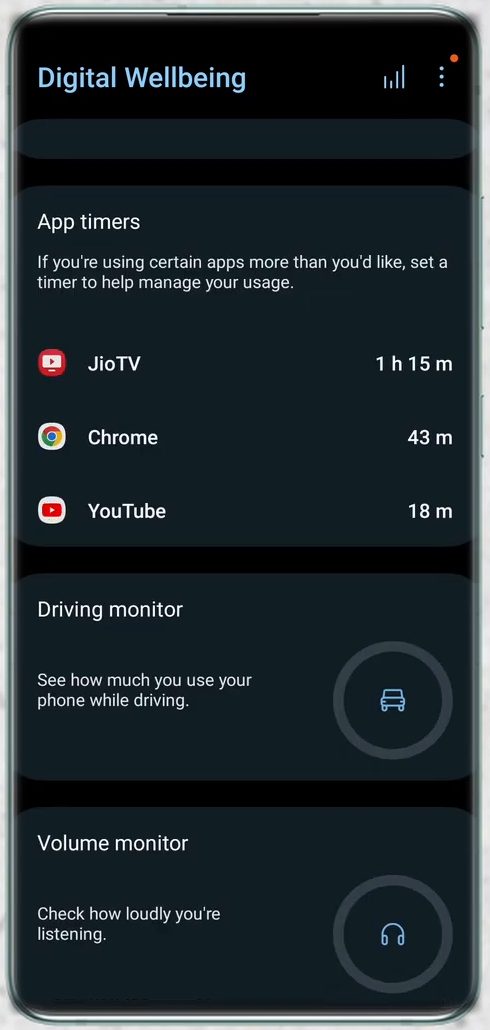
Scroll down until you see the App timers card. Tap it to see the full list of apps on your phone.
4Change how the app list is shown
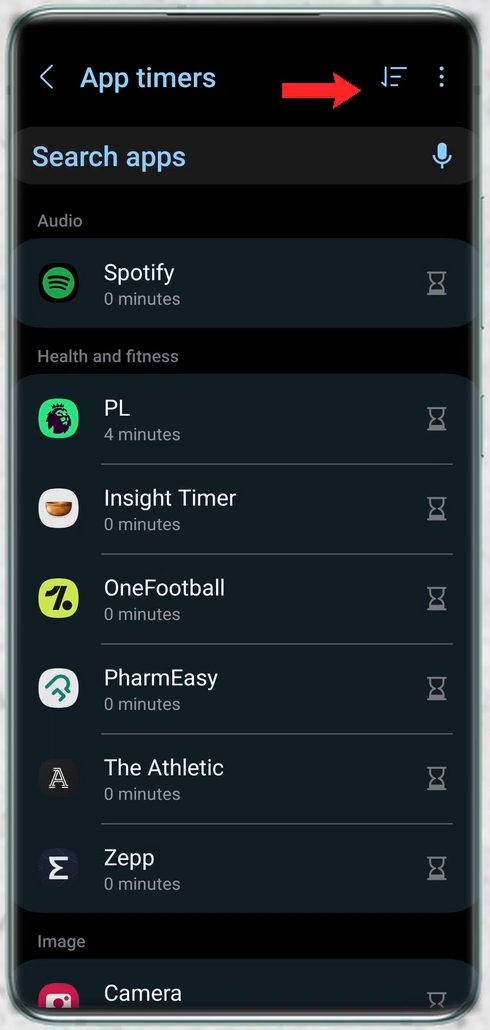
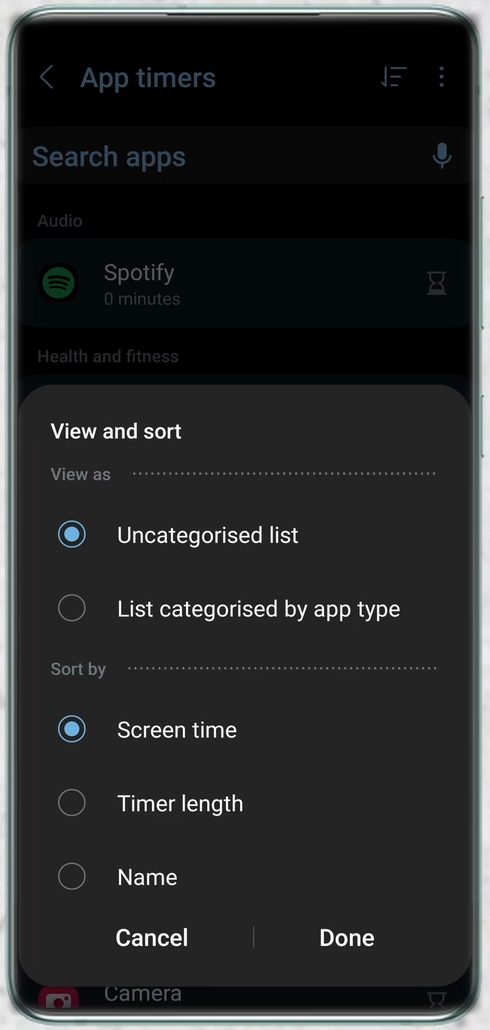
By default the apps are grouped by type, such as Audio or Health and fitness. To change this, tap the sort icon at the top right, next to the three dots.
5Sort apps by screen time
In the View and sort box, pick Uncategorised list under View as, and Screen time under Sort by. Tap Done.
6Find the app you want to limit
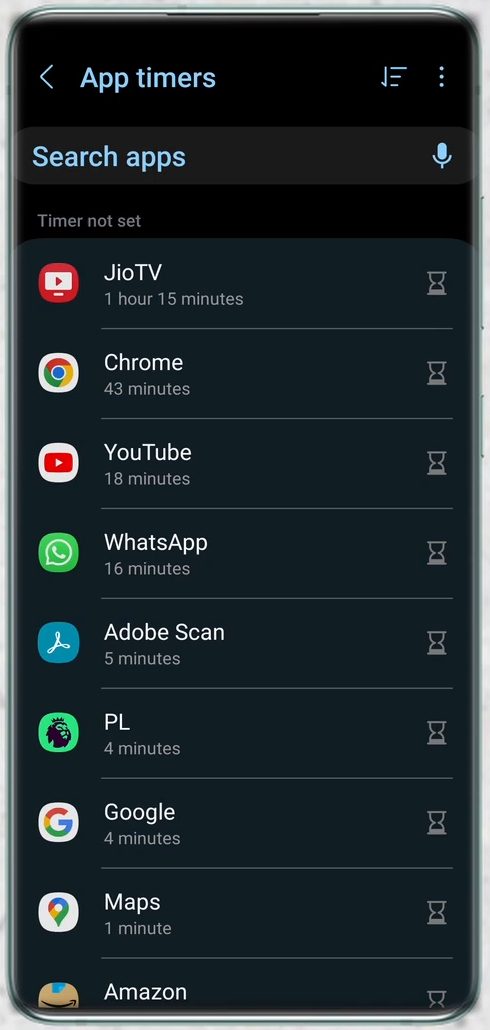
The apps you use the most now sit at the top, with today's usage under each name. Each app has an hourglass icon on the right. That icon is the timer button.
7Set the daily time limit
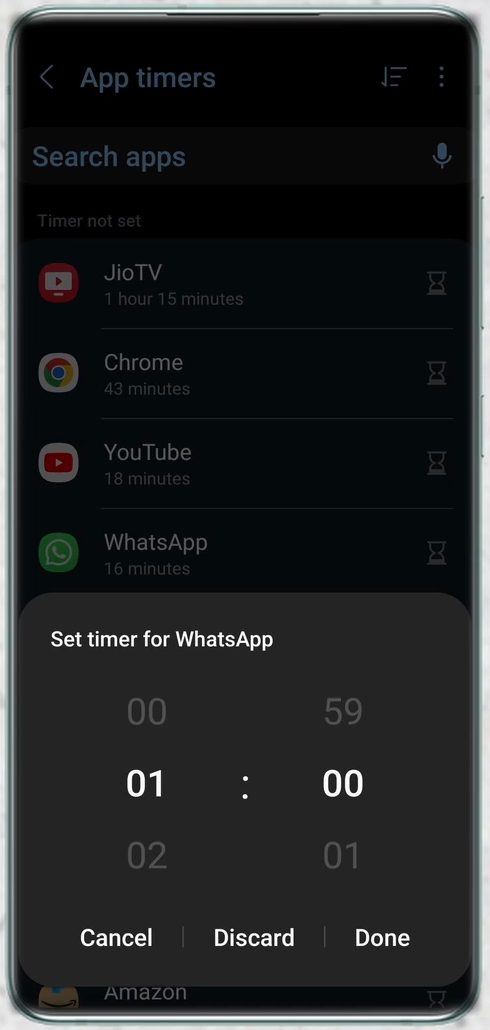
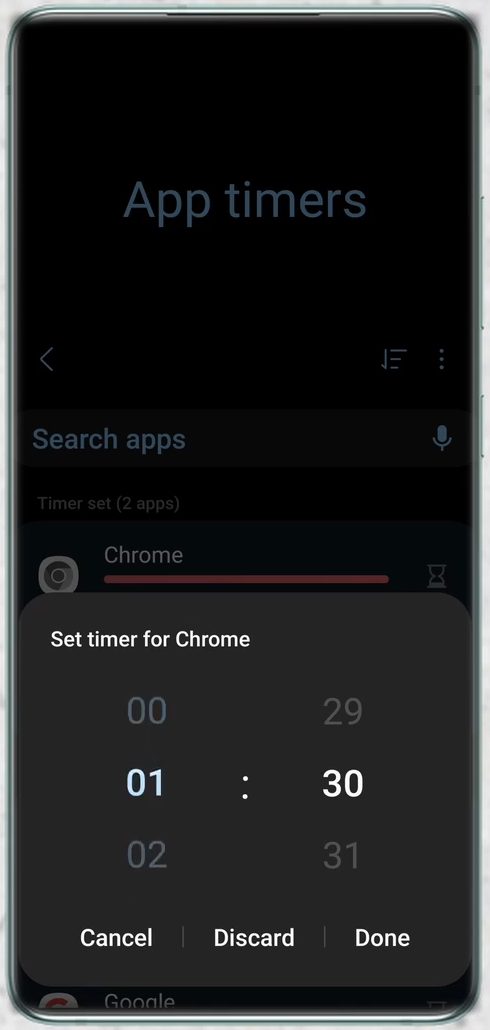
Tap the hourglass next to the app. A Set timer box opens with hours on the left and minutes on the right. Scroll to the time you want, for example 01 : 00 for one hour, and tap Done.
8Check that the timer is active
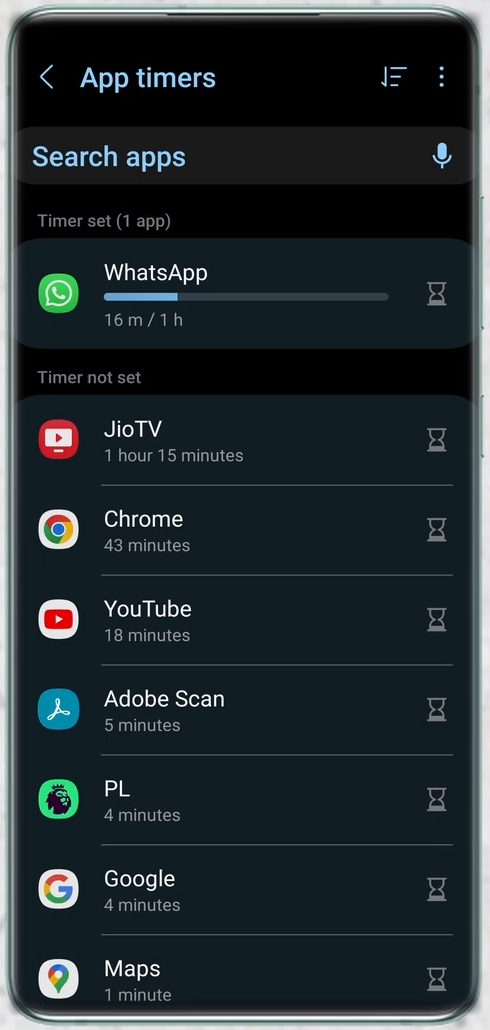
The app moves to a new Timer set section at the top of the list. A progress bar shows how much of the limit you have used, such as 16 m / 1 h for WhatsApp in our test. Repeat steps 7 and 8 for every app you want to limit.
9See what happens when the time runs out
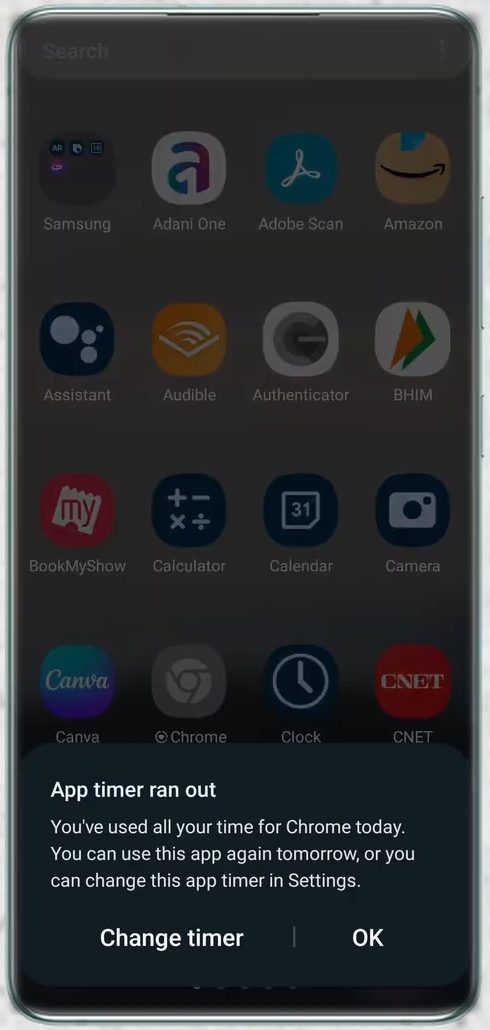
If you set a limit lower than the time you have already spent, or you reach it later in the day, the app is paused. Its icon turns grey in the app drawer, and opening it shows App timer ran out: "You've used all your time for Chrome today. You can use this app again tomorrow." You can tap OK, or tap Change timer to adjust it.
10Change an existing time limit
Go back to App timers and tap the hourglass next to the app again. Pick a new time, for example from 30 minutes to 01 : 30, and tap Done. The new limit applies straight away.
11Remove an app timer
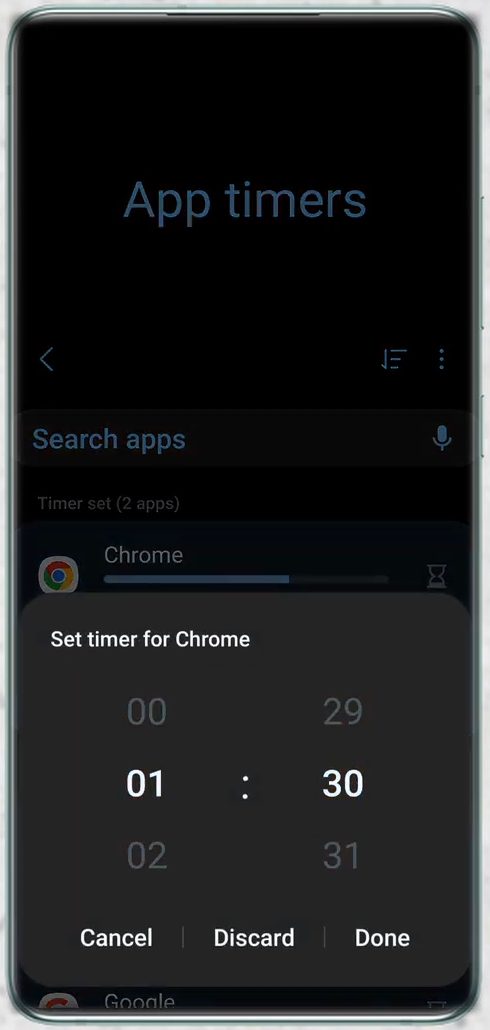
To delete a limit, tap the hourglass next to the app and tap Discard in the Set timer box. The app moves back to the Timer not set list and you can use it without limits again.
Things to know before you set a timer
- Timers reset every night. Google's help page on Digital Wellbeing says app timers reset at midnight, so a paused app works again the next day.
- It's a daily limit, not a schedule. The timer counts total minutes per day. It doesn't block an app during certain hours. For that, look at Bedtime mode or Focus mode in the same Digital Wellbeing menu.
- Nothing is deleted. The app is paused, not uninstalled, so your chats and data stay safe while the timer is up.
- It's easy to undo. Anyone holding the phone can change or discard the timer in a few taps. That makes it a self-control tool rather than a lock. For a child's phone, use parental controls instead (see the FAQ below).
Troubleshooting
- Can't find Digital Wellbeing in Settings. Use the search bar in Settings as shown in Step 1. On Samsung it is called Digital Wellbeing and parental controls, and on Pixel it is Digital Wellbeing & parental controls. Some older or heavily customised phones from other brands use their own screen time tool with a different name.
- No hourglass next to an app. Some system apps can't be limited. Google also notes that some work and school accounts might not work with app timers.
- The app still opened after the limit. Check that the timer shows under Timer set and that you tapped Done, not Cancel.
Related guides: Google Family Link Parental Controls: How to Set Up and How to Use Do Not Disturb on Android.
FAQ
How do I set a time limit for apps on a Samsung phone?
Open Settings, tap Digital Wellbeing and parental controls, scroll to App timers and tap it. Tap the hourglass next to an app, choose the hours and minutes, then tap Done. These are the exact steps shown above, recorded on a Samsung Galaxy.
Can I use an app after its timer runs out?
Not until midnight, when the timer resets, unless you raise or remove the limit. Tap Change timer on the "App timer ran out" message, or go back to App timers and tap Discard next to the app.
Can I stop my child from removing an app timer?
App timers on your own phone can be changed by anyone who can open your phone. Pixel phones offer an App limits PIN in Digital Wellbeing, but this isn't shown in the video. For a child's phone, Google Family Link lets a parent set daily app limits from their own phone, and the child can't remove them.
Does setting an app timer delete any data?
No. The app is only paused for the rest of the day. Your messages, files and settings stay as they are, and the app opens normally once the timer resets or is removed.
Related guides