Tech is Easy
How to Transcribe Voice Messages in WhatsApp (Audio to Text)
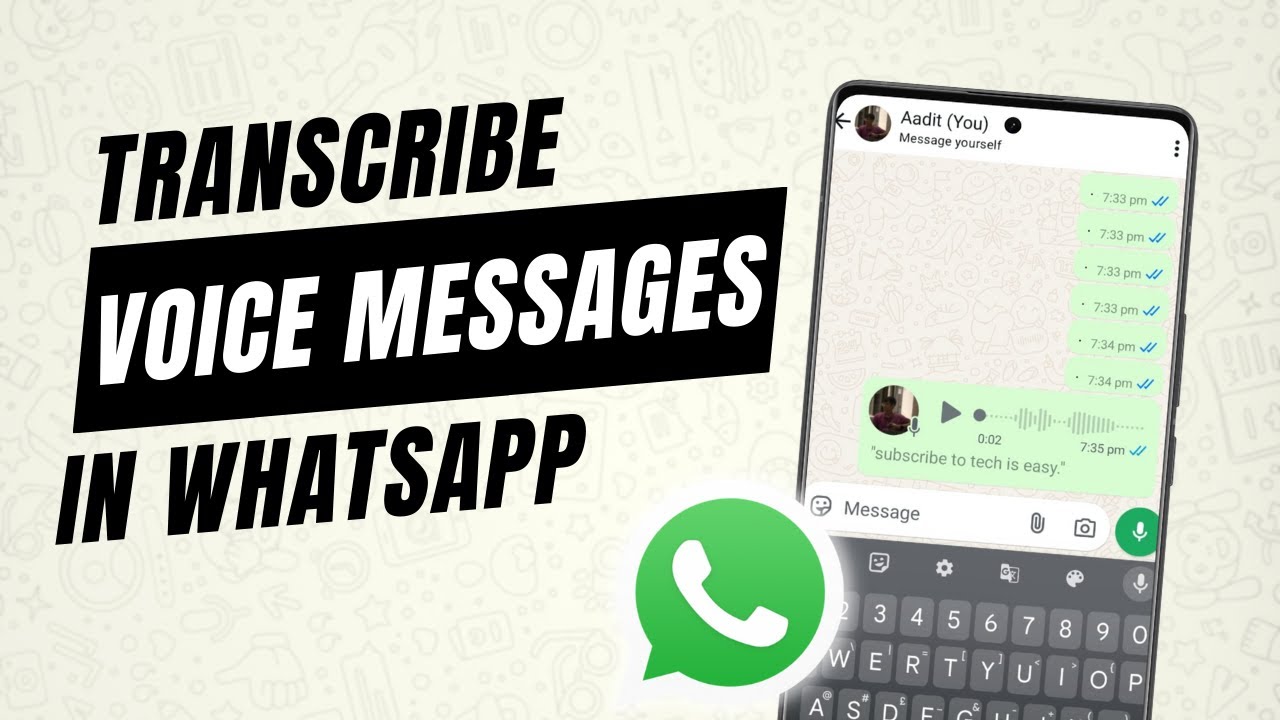
To transcribe a voice message in WhatsApp, first turn on Settings > Chats > Voice message transcripts and choose a language, then long press any voice message, tap the three dots at the top right and tap Transcribe. The text appears right under the voice note. This is handy when you are in a meeting, on a train, or anywhere you can't play audio out loud.
The feature is free and built into WhatsApp, so there's no separate app to install. You only need the latest version of WhatsApp and a one-time language download.
What you need
- WhatsApp updated to the latest version. The video uses an Android phone; the App Store has the same update for iPhone.
- Around 140 MB of free space and a decent connection for the language pack (ours was 136 MB).
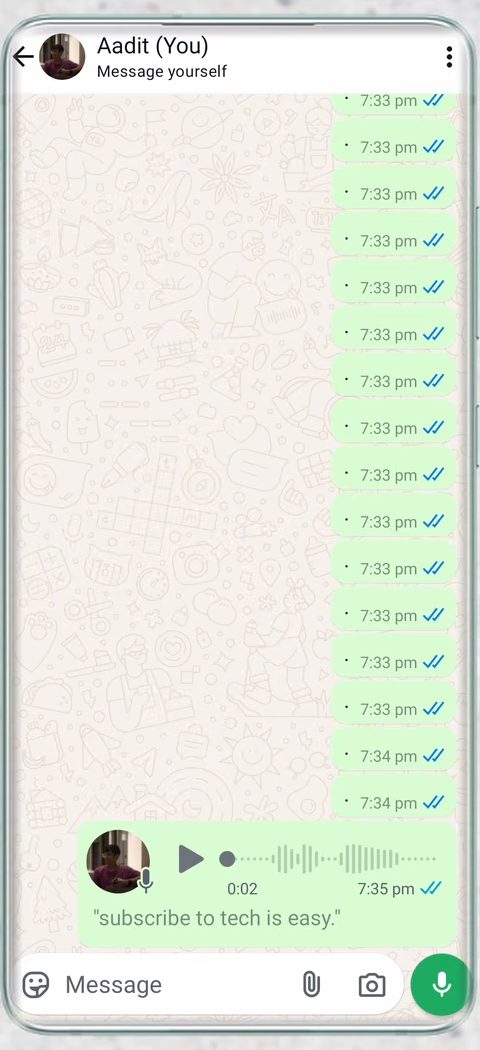
- A voice message to test with. You can send one to yourself in your own "Message yourself" chat, which is what we did.
1Update WhatsApp
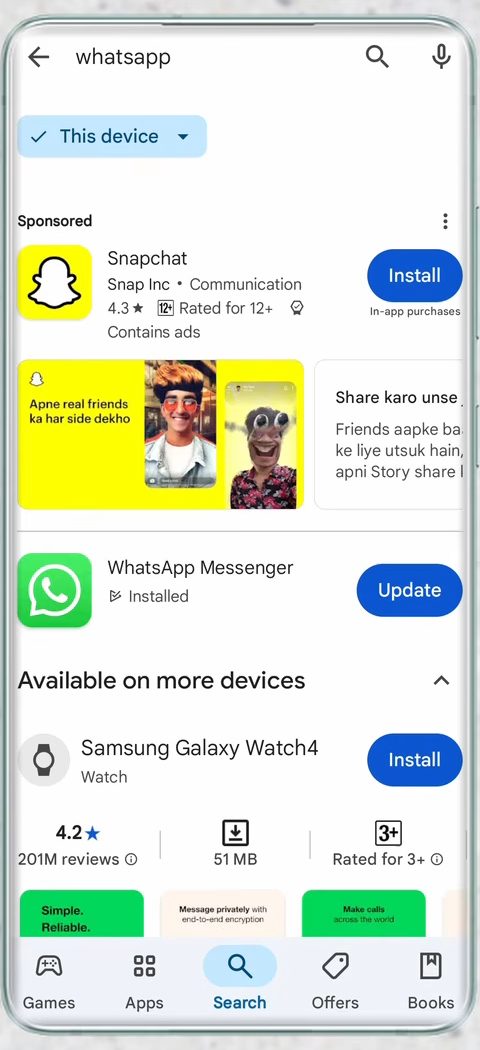
Open the Play Store (or the App Store on iPhone) and search for WhatsApp. If you see Update next to WhatsApp Messenger, tap it and wait for it to finish. Older versions don't have the transcripts option, so this step matters if you can't find it later.
2Open WhatsApp settings
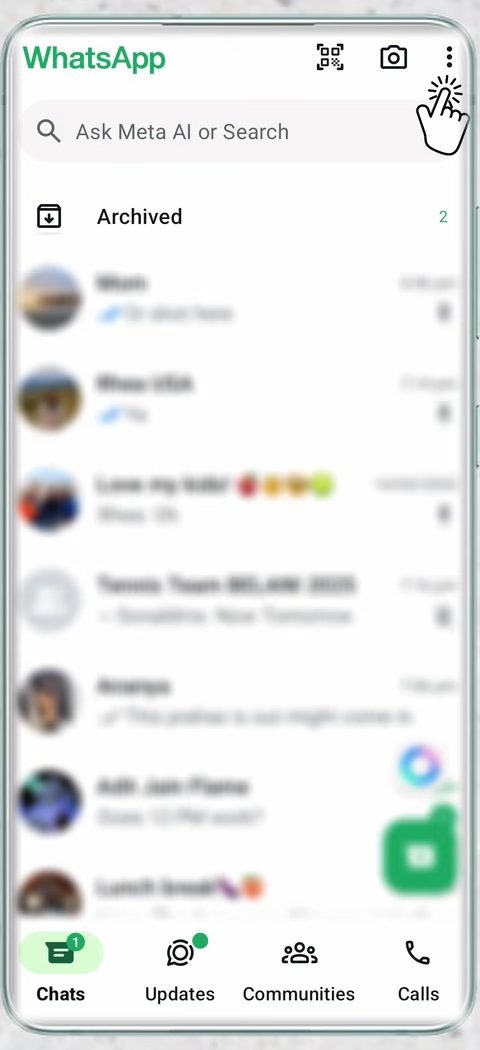
Open WhatsApp and tap the three dots at the top right of the Chats screen, then tap Settings.
3Go to Chats
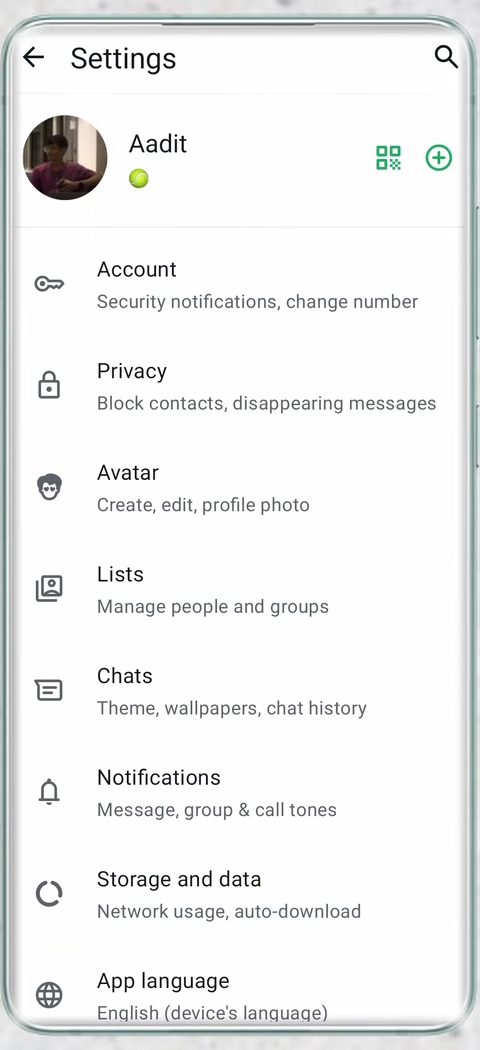
In Settings, tap Chats (the entry that says "Theme, wallpapers, chat history").
4Turn on Voice message transcripts
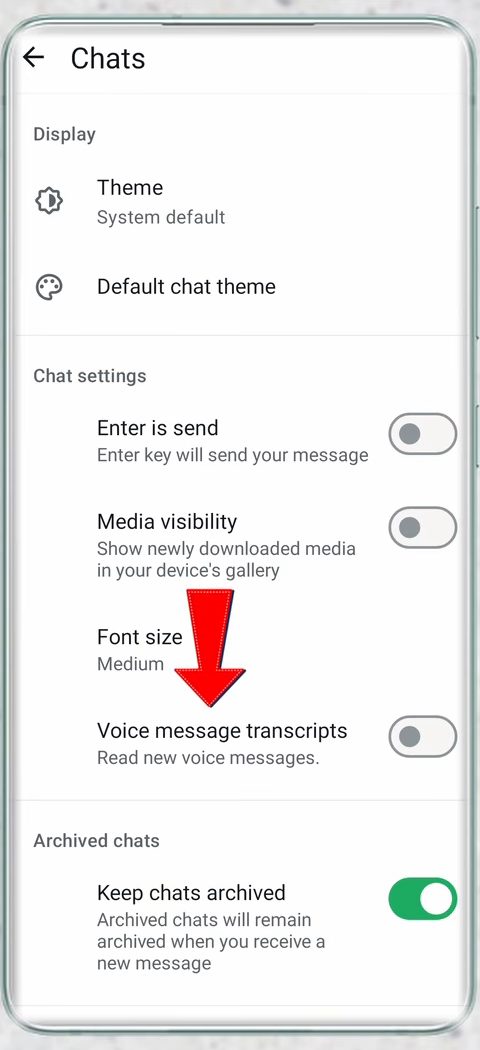
Under Chat settings, you'll see a new switch called Voice message transcripts with the note "Read new voice messages." It is off by default. Tap it.
5Tap Choose language
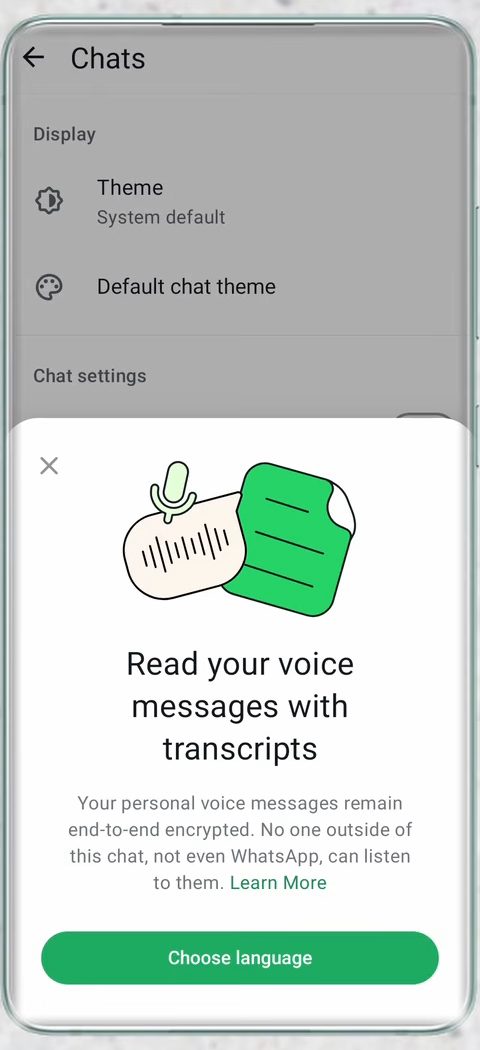
A sheet titled Read your voice messages with transcripts opens. It explains that your personal voice messages stay end-to-end encrypted and no one outside the chat, not even WhatsApp, can listen to them. Tap Choose language.
6Pick the language and set it up
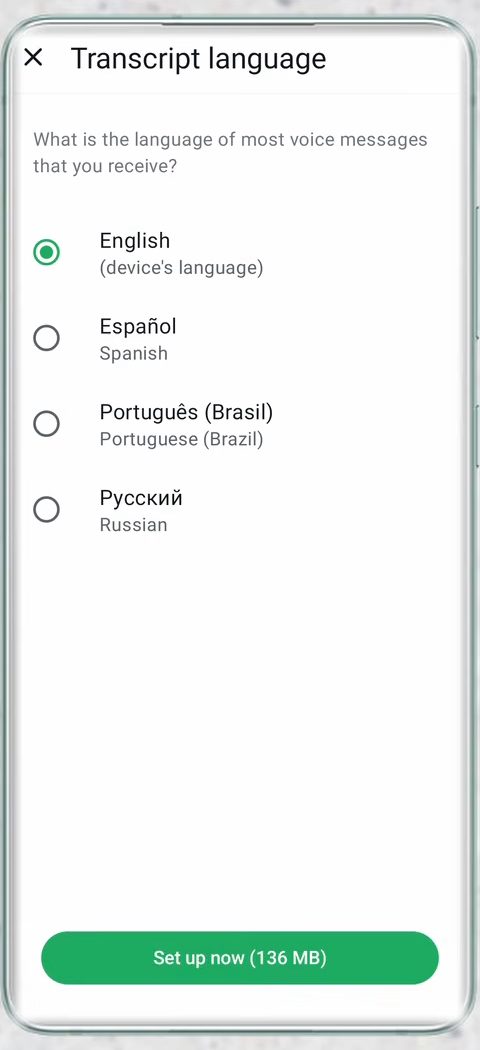
WhatsApp asks which language most of your voice messages are in. Our phone offered English, Español, Português (Brasil) and Русский. Select the language your contacts usually speak, then tap Set up now. The button shows the download size (136 MB here).
7Wait for the download
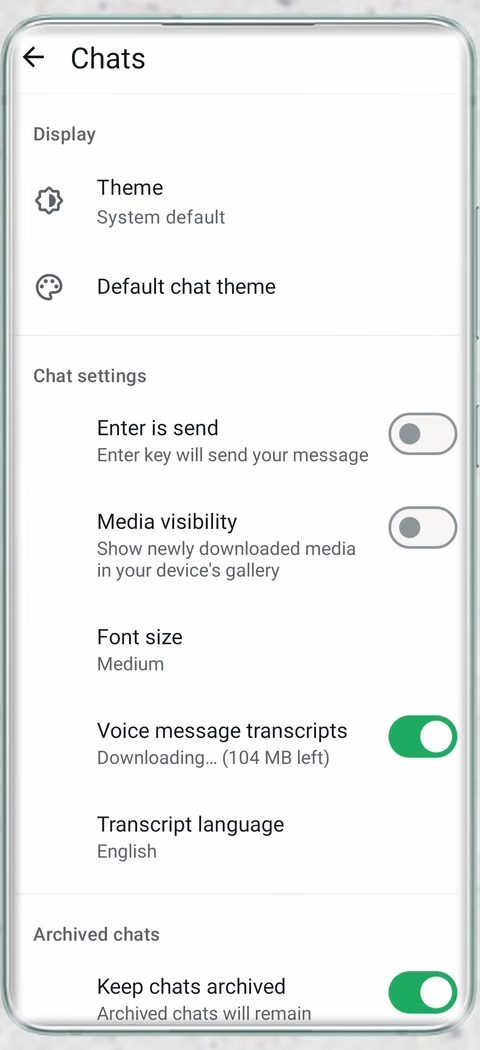
Back on the Chats settings screen, the switch is now on and shows "Downloading..." with the amount left. A new row, Transcript language, also appears so you can change the language later. Once the download finishes, transcripts are ready to use.
8Long press a voice message
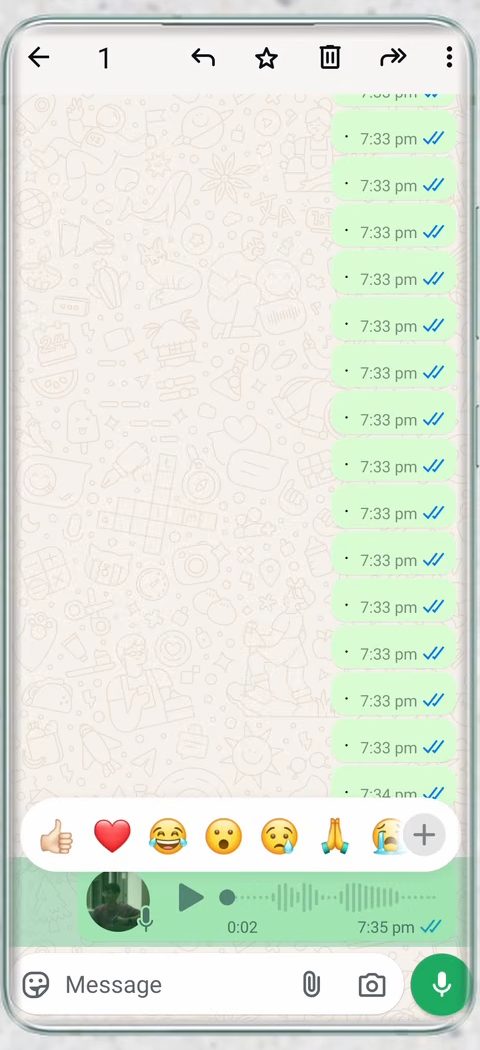
Open any chat with a voice message. Long press the voice note until it's highlighted and the reaction bar appears.
9Tap the three dots and choose Transcribe
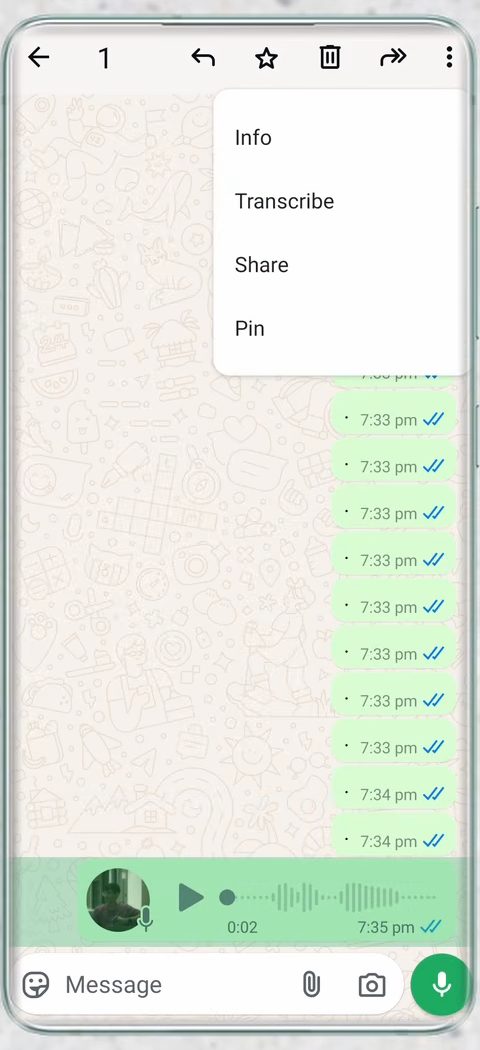
With the message selected, tap the three dots at the top right. From the menu (Info, Transcribe, Share, Pin) tap Transcribe. This is how you transcribe a voice message in WhatsApp any time after setup.
10Read the transcript
After a moment, the text shows up inside the voice message bubble. Our two-second test message read "subscribe to tech is easy." The transcript stays under the voice note, so you can scroll back and read it again later.
Tips and troubleshooting
- No Voice message transcripts switch in Settings > Chats. Your WhatsApp is probably out of date. Update it from the Play Store or App Store, close the app fully and open it again. WhatsApp also rolls features out in stages, so it can show up for a friend a few days before it shows up for you.
- No Transcribe option in the menu. Check that the switch from Step 4 is on and the language download finished. If the download was interrupted, turn the switch off and on again to restart it.
- The text is wrong or full of nonsense. The transcript is made for one language at a time. If someone sends voice notes in a different language from the one you chose, the result will be poor. Change it under Settings > Chats > Transcript language.
- Your language isn't listed. Only a handful of languages were available when we recorded this. If yours is missing from the list, check back after future WhatsApp updates.
- Background noise and fast speech make transcripts less accurate. Play the audio when you can if the exact wording matters, for example addresses or numbers.
WhatsApp's help article How to turn voice message transcripts on or off covers the same setting and is the place to check for changes to the steps.
Privacy: who can see the transcript?
The setup screen states that personal voice messages stay end-to-end encrypted and that nobody outside the chat, including WhatsApp, can listen to them. The transcript appears in your copy of the chat after you tap Transcribe; nothing extra is sent to the other person.
Can you turn it off?
Yes. Go back to Settings > Chats and switch off Voice message transcripts. Voice messages work exactly as before; you just lose the Transcribe option until you turn it on again.
If you use WhatsApp a lot, you may also like How to Turn Off Read Receipts on WhatsApp, which lets you read messages (and now transcripts) without showing blue ticks.
FAQ
How do I transcribe WhatsApp audio to text?
Turn on Settings > Chats > Voice message transcripts, pick a language and let it download. Then long press the voice message, tap the three dots and tap Transcribe.
Is WhatsApp voice message transcription free?
Yes. It is part of the WhatsApp app and costs nothing. The only cost is the one-time language download, which was 136 MB on our phone.
Does it work on iPhone?
The video shows Android, but the feature is part of WhatsApp on iPhone too and is turned on in the app's Chats settings in the same way. Update WhatsApp from the App Store first. The exact menu positions on iPhone are not shown in the video.
Why can't I see the Transcribe option?
Either the transcripts switch is still off, the language pack hasn't finished downloading, or your WhatsApp isn't the latest version. Update the app, turn the switch on and wait for the download to complete.
Related guides