Tech is Easy
How to Format Text in WhatsApp: Bold, Italic, Lists and More
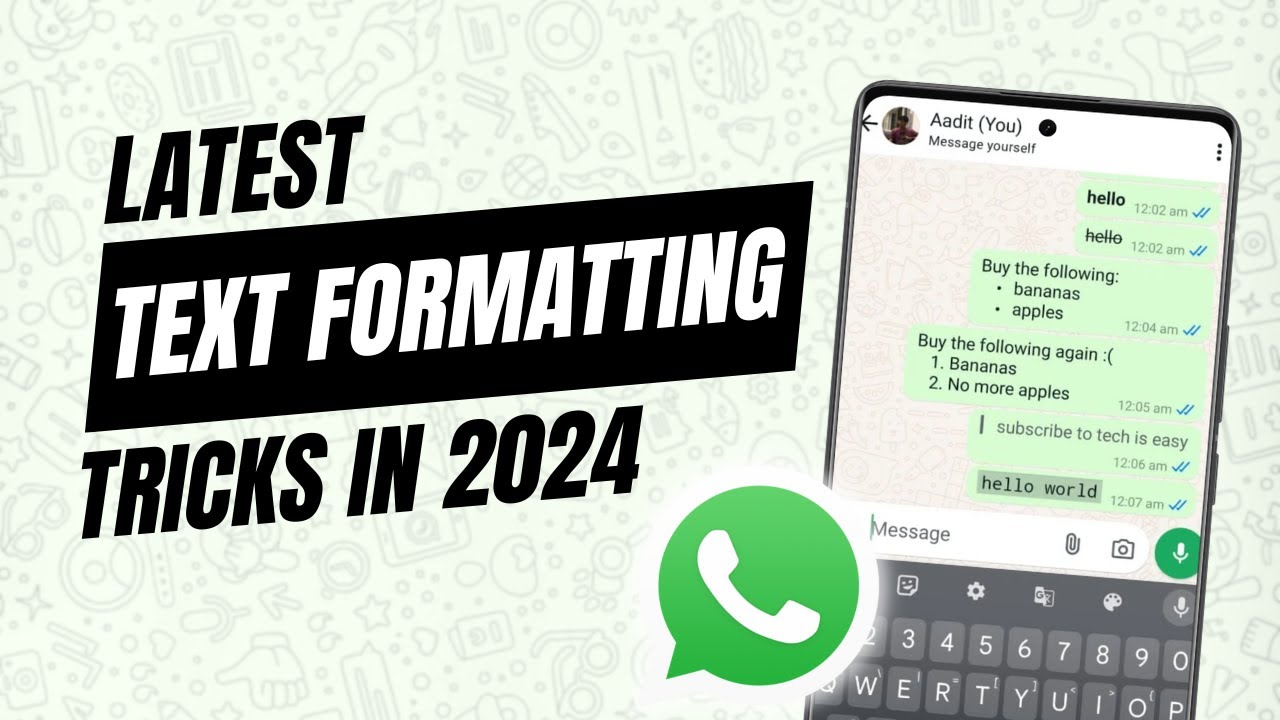
To format text in WhatsApp, wrap the words in a symbol before you send them: _text_ for italic, *text* for bold, ~text~ for strikethrough and `text` for inline code. Start a line with - for a bullet, 1. for a numbered list or > for a quote. This guide covers all seven, with the exact symbol for each, for anyone who wants their WhatsApp messages to stand out or be easier to read.
Quick reference
| Style | Type this | You get |
|---|---|---|
| Italic | _hello_ |
hello |
| Bold | *hello* |
hello |
| Strikethrough | ~hello~ |
|
| Bulleted list | - item |
a bullet point |
| Numbered list | 1. item |
a numbered line |
| Quote | > text |
an indented quote with a line on the left |
| Inline code | `text` |
text in a code font with a shaded background |
The symbols go directly against the text, with no space between the symbol and the first or last letter. The list and quote symbols are the exception: they need a space after them.
Method 1: Change the style of words
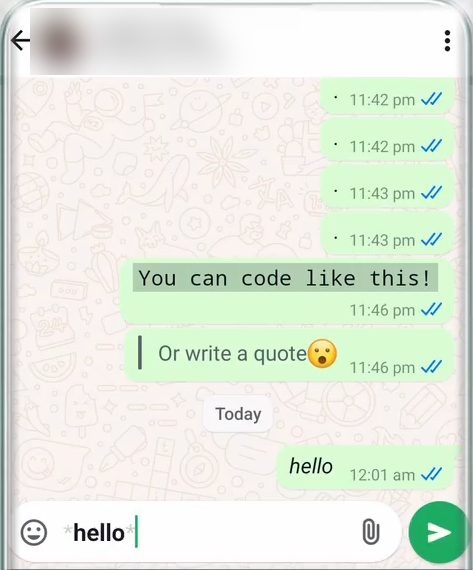
1Make text italic
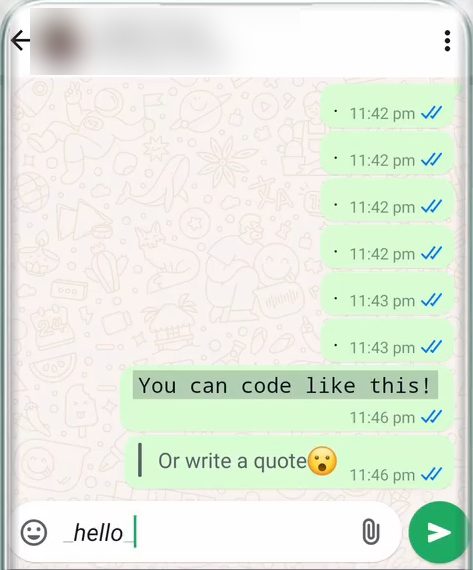
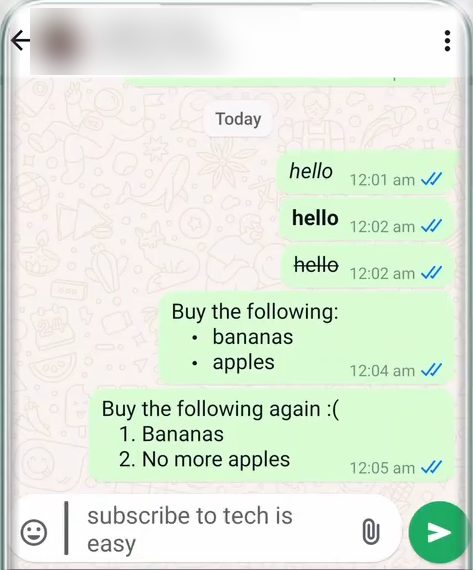
Type an underscore, then your text, then another underscore, for example _hello_. As soon as you add the closing underscore, WhatsApp shows the word in italics in the message box. Tap send and it arrives in italics.
2Make text bold
Put an asterisk on both sides of the text: *hello*. This is the most common one and works well for highlighting a date, a price or a key instruction in a long message.
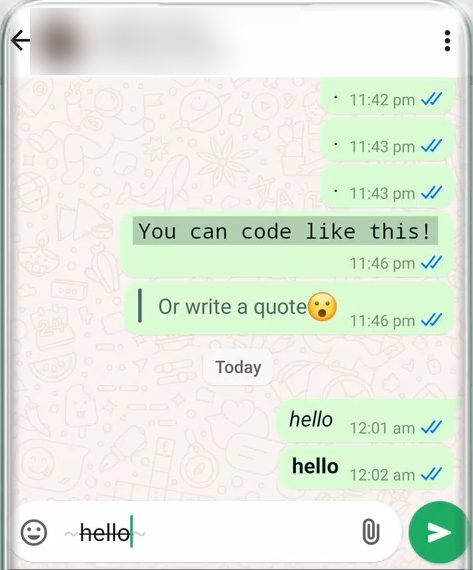
3Strike through text
Use the tilde sign ~ on both sides: ~hello~. A line runs through the text, which is handy for crossing something off a list or showing a correction. The tilde isn't on the main keyboard on most phones. On our Android keyboard it was on the second symbols page, reached by tapping ?123 and then the extra symbols key.
Method 2: Make lists and quotes
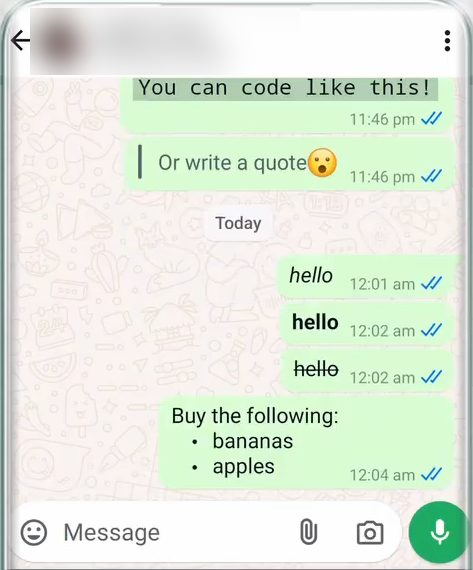
4Create a bulleted list
Type a hyphen followed by a space (-) at the start of a line. WhatsApp turns it into a bullet point straight away. Type your first item and press Enter on the keyboard: the next bullet appears on its own, so you can keep adding items. In our example we wrote a short shopping list with bananas and apples.
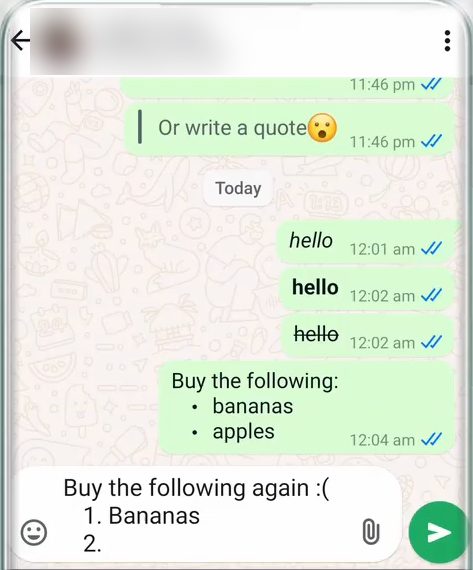
5Create a numbered list
Type a number, a full stop and a space (1.). The line indents like a list. Write the first item, press Enter, and WhatsApp adds 2. for the next line automatically.
6Add a quote
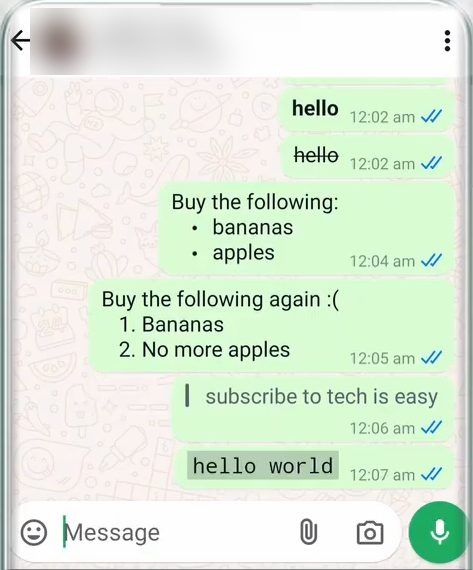
Type the angle bracket > followed by a space, then your text. A line appears on the left, and the font and colour change so it looks like a quoted passage. On our keyboard > was also in the extra symbols. Once sent, the quote stands out clearly from normal messages.
Method 3: Show text as code
7Use inline code
Put a backtick ` on both sides of the text: `hello world`. Don't confuse the backtick with the normal apostrophe; it leans the other way and sits in the symbols keyboard. The sent message uses a fixed-width code font with a light shaded background, which is useful for sharing a command, a code, or anything that must be copied exactly.
Tips / troubleshooting
- Formatting didn't apply? Check there is no space between the symbol and the text.
* hello *stays as plain text with asterisks, while*hello*turns bold. - Can't find ~, > or the backtick? These are on the symbols pages of most phone keyboards. On Gboard tap ?123, then =\< to see more symbols. You can also long-press some keys to find them.
- List not continuing? Press the keyboard's Enter key, not the send button. If your keyboard is set to send on Enter, the message goes out instead of adding a new line.
- Combine styles. You can stack symbols, for example
*_hello_*for bold italic. - Monospace for longer text. The "You can code like this!" message at the start of the video uses monospace, which is three backticks on each side:
```text```. WhatsApp's help page lists it with the others. - It works for the reader too. The formatting is part of the message, so the other person sees the same styles on Android, iPhone, WhatsApp Web and desktop.
WhatsApp's help page How to format your messages lists every formatting option it supports.
Related guides: How to Create Stickers in WhatsApp and How to Send a WhatsApp Message Without Saving the Number.
FAQ
How do I write bold text in WhatsApp?
Put an asterisk right before and right after the text, like *hello*, with no spaces next to the asterisks. WhatsApp shows it in bold before you send it.
How do I send italic text in a WhatsApp chat?
Wrap the words in underscores: _your text_. The words turn italic in the message box, and the other person sees them in italics too.
How do I make a bulleted or numbered list in WhatsApp?
Start the line with a hyphen and a space (-) for bullets, or a number, full stop and space (1.) for a numbered list. Press Enter after each item and WhatsApp adds the next bullet or number for you.
Does WhatsApp text formatting work on iPhone?
Yes. The video uses an Android phone, but the same symbols work on iPhone, WhatsApp Web and the desktop app. The only difference is where the symbols sit on your keyboard.
Related guides