 Tech is Easy
How to Transfer Contacts from Android to iPhone (Using Gmail)
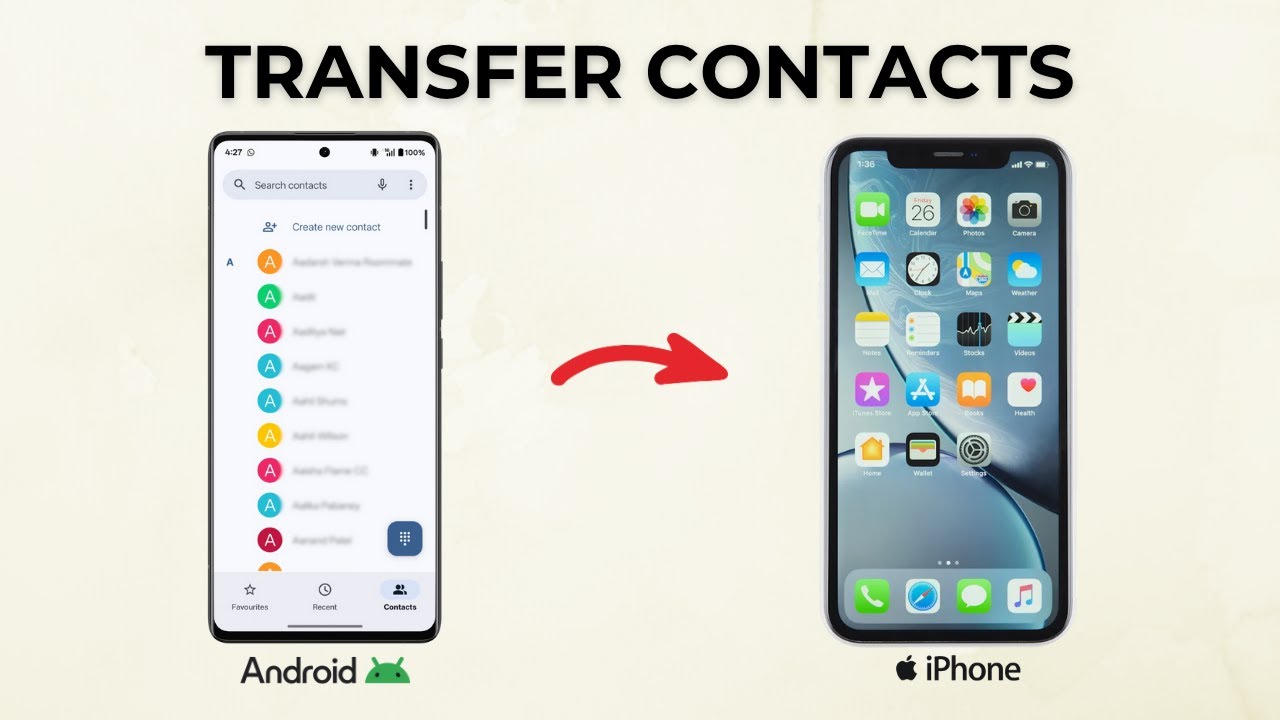
To transfer contacts from Android to iPhone, first move all your Android contacts into one Google account (on a Samsung: Phone > Contacts > three dots > Manage contacts > Move contacts). Then on the iPhone open Settings > Mail > Mail Accounts > Add Account > Google, sign in with that same Gmail account and make sure Contacts is switched on. Your contacts appear on the iPhone within a few minutes. This works without a computer or any extra app, so it's a good fit if you've just switched phones or want your contacts on both.
What you need
- Your Android phone with your contacts on it
- A Google (Gmail) account you can sign in to on both phones
- Your iPhone, connected to the internet
The idea is simple: Google syncs contacts saved in your Google account to any device signed in to it. Contacts saved only on the phone or on the SIM card don't sync, which is why the first part of this guide moves them into your Google account.
Pick one Google account and stick with it. If your contacts are spread across a work account, an old Gmail and the phone itself, gathering them in a single account now means you only have to add one account on the iPhone, and you won't end up with duplicates.
Part 1: Put all your contacts in one Google account (Android)
1Open Manage contacts
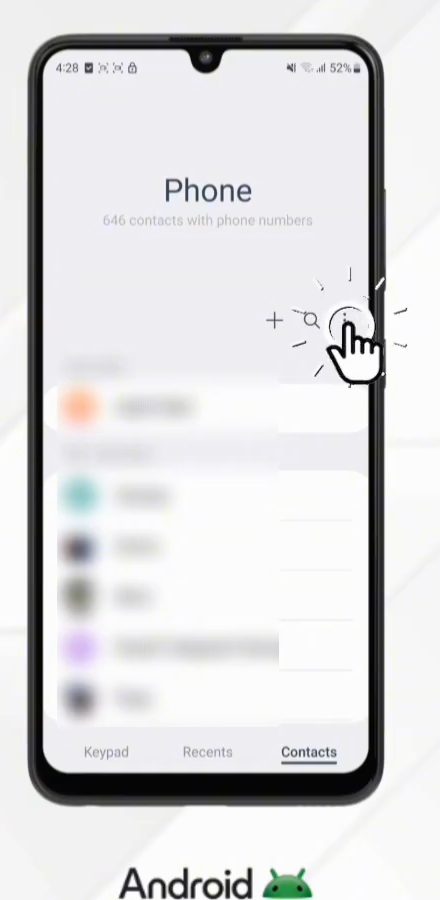
Open the Phone app and go to the Contacts tab. Tap the three dots at the top right and choose Manage contacts. These menus are from a Samsung phone. On other Android phones, open the Google Contacts app instead, which has similar options.
2Tap Move contacts
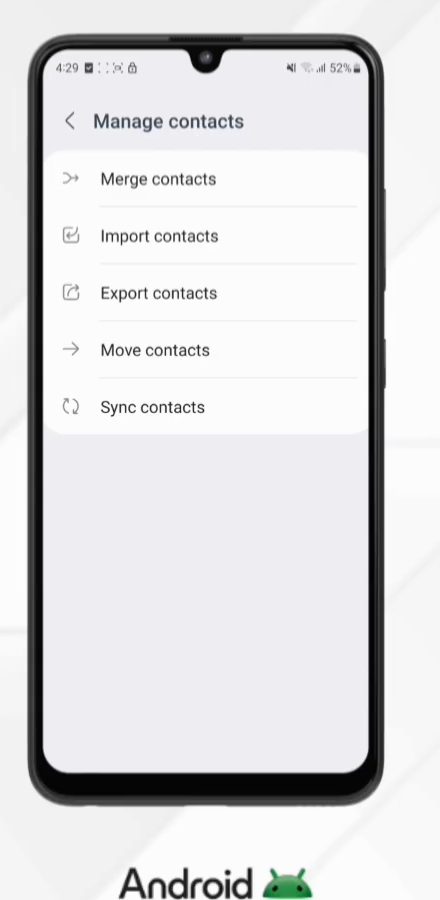
In Manage contacts, tap Move contacts. You'll also see Merge contacts, Import contacts, Export contacts and Sync contacts here.
3Choose where to move contacts from and select them
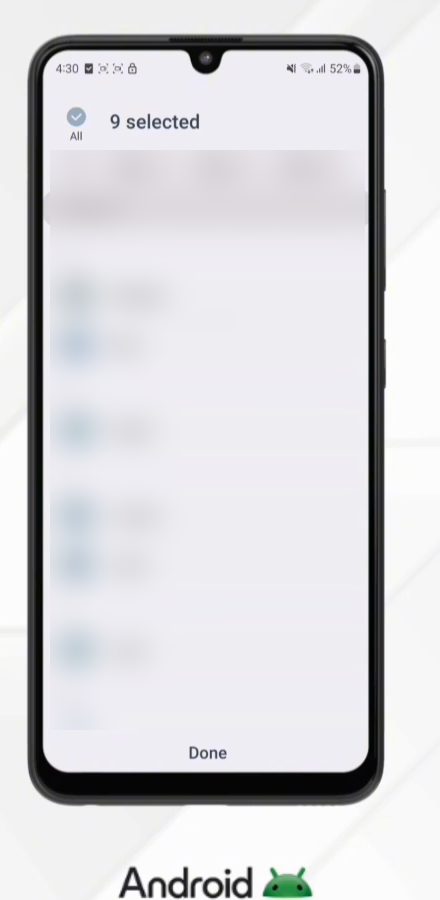
Under From, pick where your contacts are stored now: on the Phone, on the SIM, or in a different Google account. Then select the contacts to move. To move them all, tap All at the top, then tap Done.
4Choose the Google account to move them to
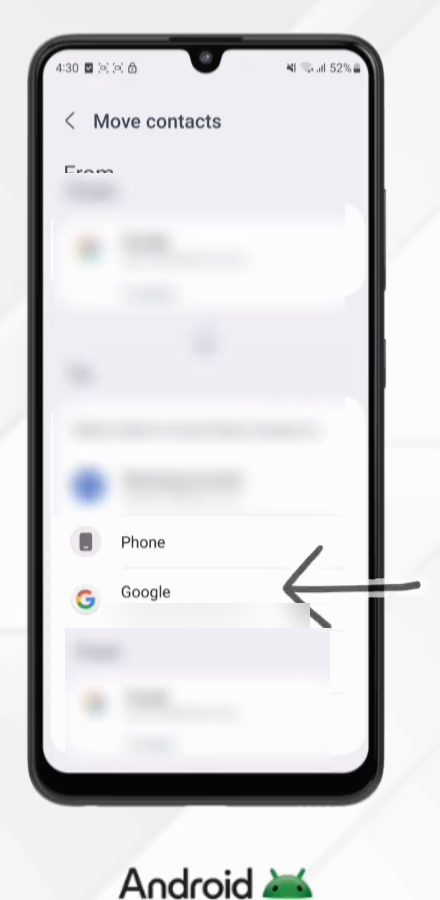
Under To, pick the Google account you'll sign in to on your iPhone, then tap Move.
5Confirm the move
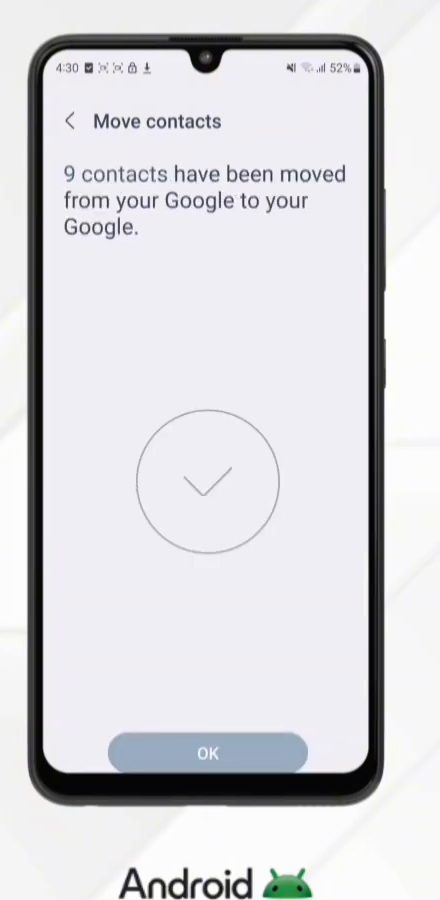
A message confirms how many contacts were moved (9 in our example). Tap OK. That's all you need to do on the Android phone.
Part 2: Add your Google account to the iPhone
6Open Mail Accounts in Settings
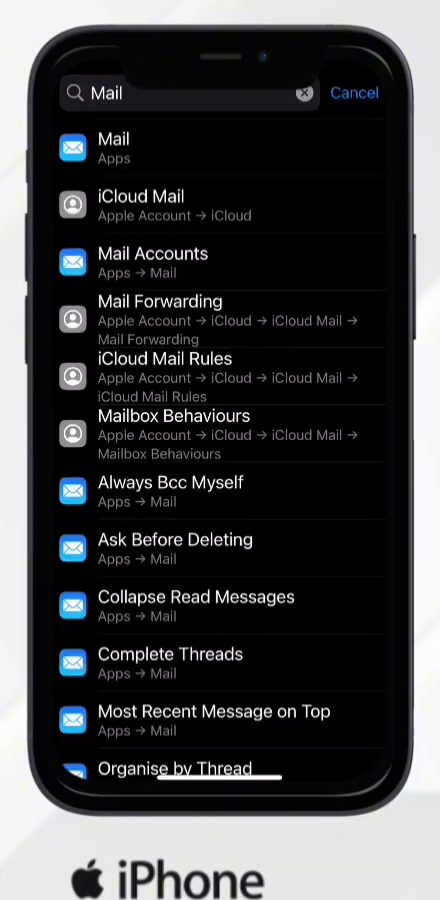
On your iPhone, open Settings, search for Mail and tap Mail Accounts.
7Tap Add Account
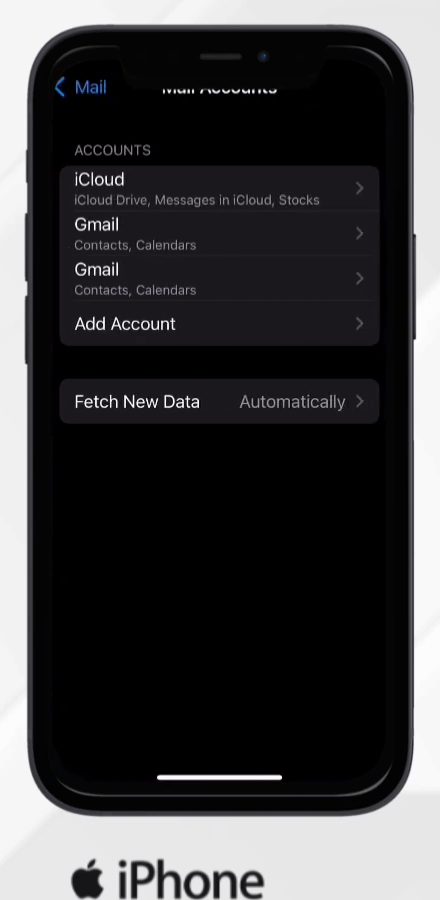
Under Accounts, tap Add Account. If the Google account is already listed here, tap it instead and skip to Step 9.
8Choose Google and sign in
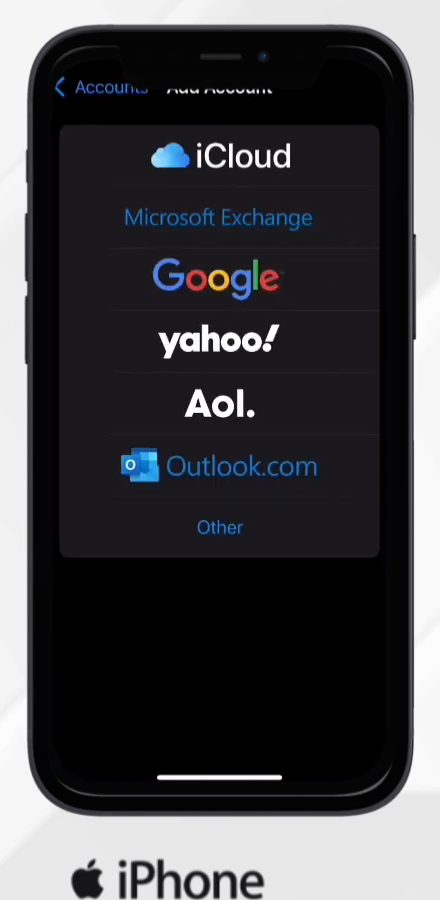
Tap Google and sign in with the same Gmail account you moved your contacts to in Step 4.
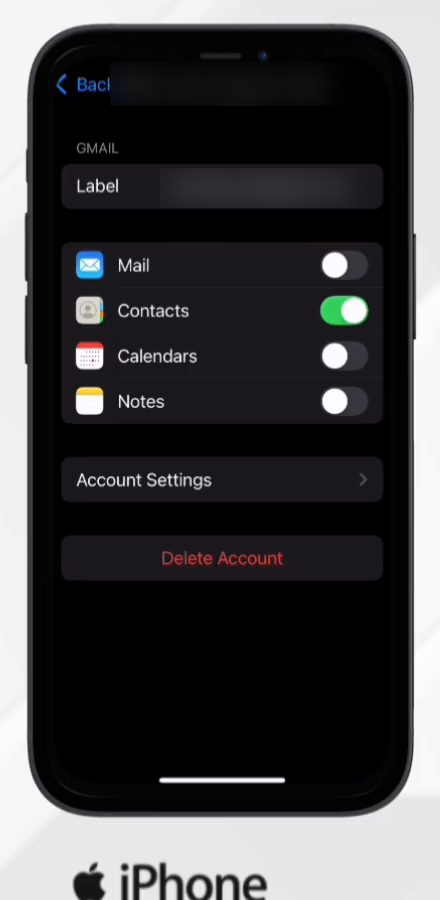
9Turn on Contacts
After signing in, you'll see switches for Mail, Contacts, Calendars and Notes. Make sure Contacts is turned on (the others are optional) and save. Within a few minutes your Android contacts show up in the iPhone's Contacts and Phone apps.
Good to know
- This is a sync, not a one-time copy. New contacts you add on either phone are saved to the Google account and show up on both. Deleting a contact on one phone removes it from the other too.
- Setting up a brand new iPhone? Apple's Move from Android to iPhone or iPad guide covers the Move to iOS app, which copies contacts along with photos, messages and more during iPhone setup. The Google account method in this guide works anytime, even on an iPhone you've already set up.
- Want a different default? New contacts you create on the iPhone may be saved to iCloud instead of Google. You can change the default account for contacts in the iPhone's Contacts settings.
- Moving contacts between Google accounts? See How to Transfer Contacts from One Gmail Account to Another.
Troubleshooting
- Contacts aren't showing on the iPhone. Wait a few minutes and check the Contacts switch in Step 9. Also check that you signed in with the same account you picked in Step 4.
- Some contacts are missing. They were probably saved on the phone, SIM or another account that you didn't pick under From. Repeat Steps 2 to 4 for that location.
- No Move contacts option. It's a Samsung feature. On other Android phones use the Google Contacts app, where contacts saved to your Google account sync automatically.
FAQ
How do I transfer contacts from Android to iPhone without a computer?
Move your contacts into your Google account on the Android phone, then add the same Gmail account on your iPhone under Settings > Mail > Mail Accounts > Add Account and switch on Contacts. No computer or cable is needed.
Do I need to transfer contacts again when I add new ones?
No. As long as the Google account stays on both phones with Contacts turned on, new contacts sync automatically.
Will my contacts stay on the Android phone?
Yes. Moving them to your Google account doesn't delete them from the phone. They're just stored in your Google account instead of the phone's local storage.
Can I transfer contacts from Android to iPhone with Gmail if they're on my SIM card?
Usually, yes. If your phone lists the SIM card under From in Step 3, pick it, select the contacts and move them to your Google account (this option isn't shown in the video). Then they sync to the iPhone like the rest.
Related guides