 Tech is Easy
How to Use Digital Wellbeing on Android (Screen Time & Timers)
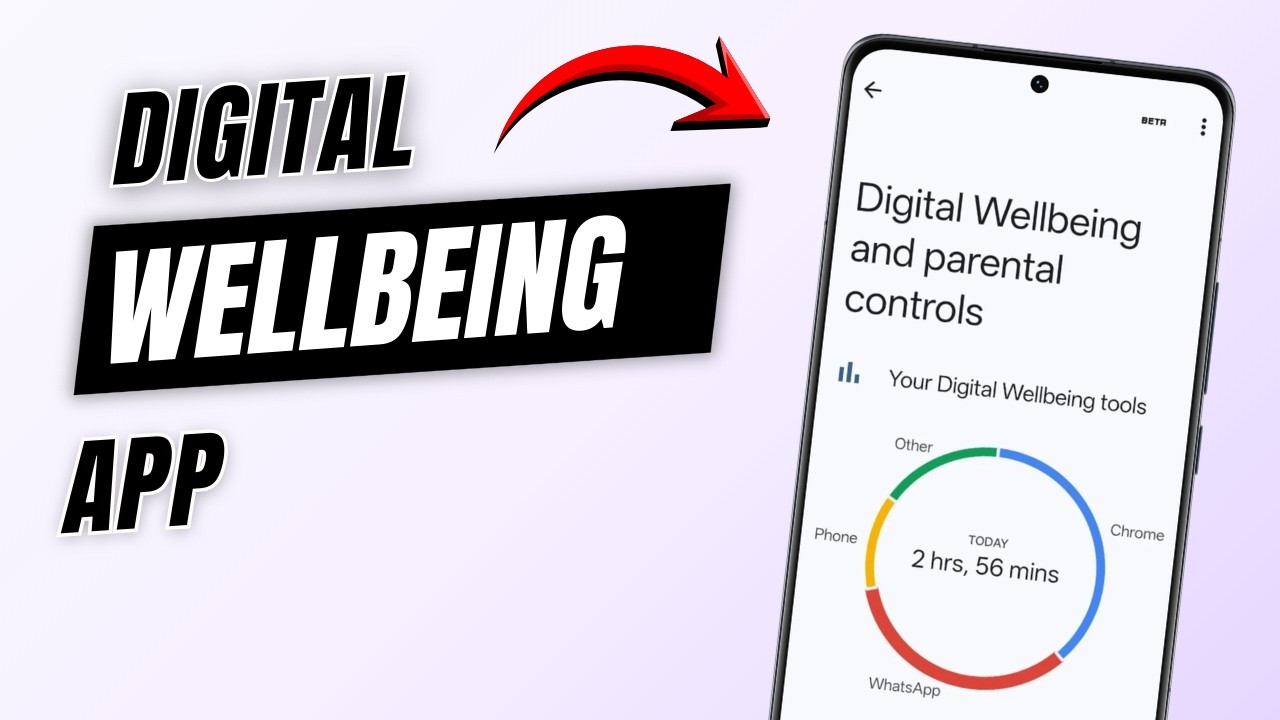
To use Digital Wellbeing on Android, open Settings, search for digital wellbeing and tap Digital Wellbeing and parental controls. The main screen shows today's screen time, how often you unlocked your phone and how many notifications you got, and below that are tools to cut down: App timers, Bedtime mode, Focus and Screen time reminders. It is built into most Android phones and is free, so it is the easiest way to check screen time on an Android phone and set limits for yourself.
We used an Android phone where the feature is called Digital Wellbeing and parental controls. On some phones it is just Digital Wellbeing, and the exact layout can differ by brand.
1Open Digital Wellbeing from Settings
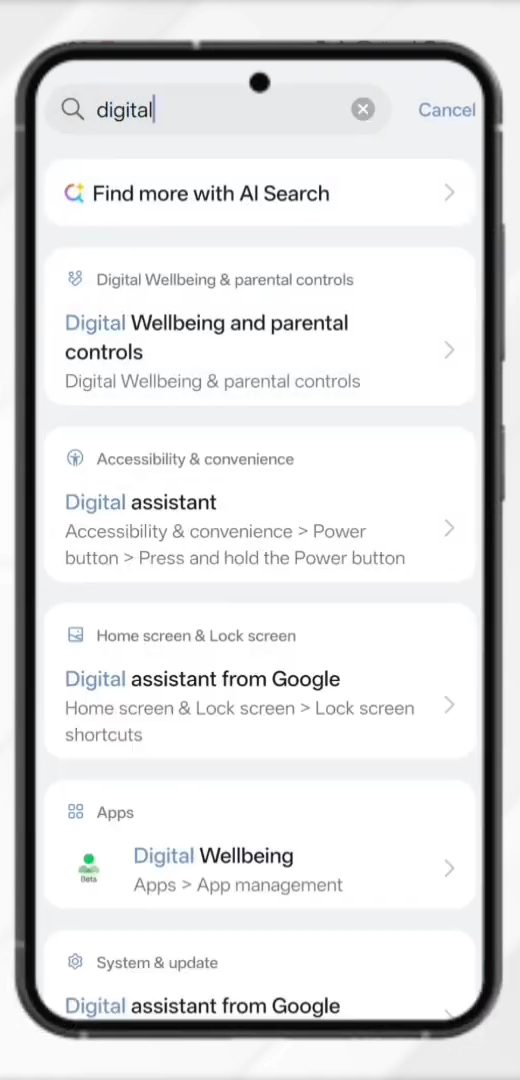
Open the Settings app and type digital in the search bar at the top. Tap Digital Wellbeing and parental controls in the results. You can also scroll through Settings and find it in the main list.
2Check today's screen time
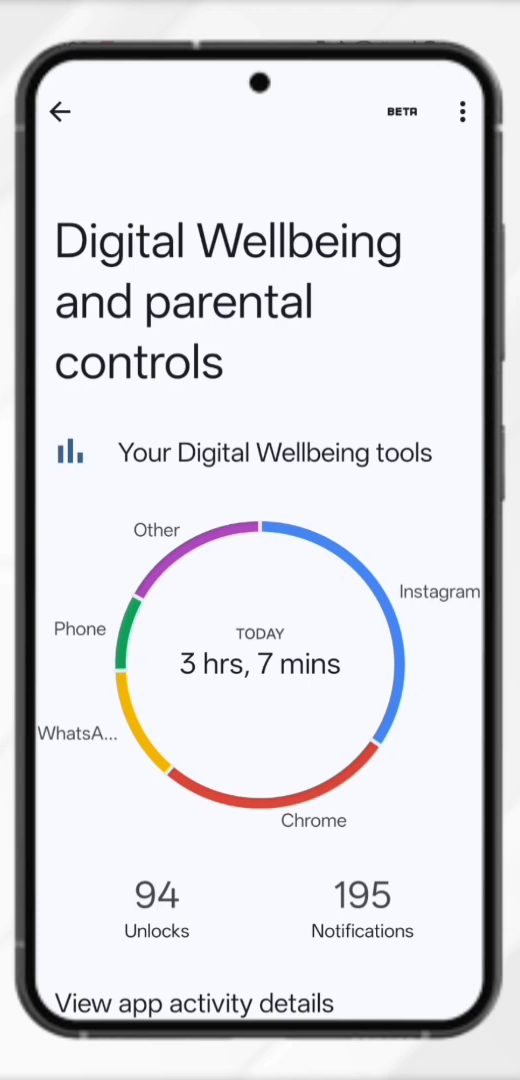
The ring chart at the top shows your total screen time for today (3 hours 7 minutes in our case) split by app, such as Instagram, Chrome, WhatsApp and Phone. Underneath it you see today's Unlocks and Notifications.
3See your screen time for past days
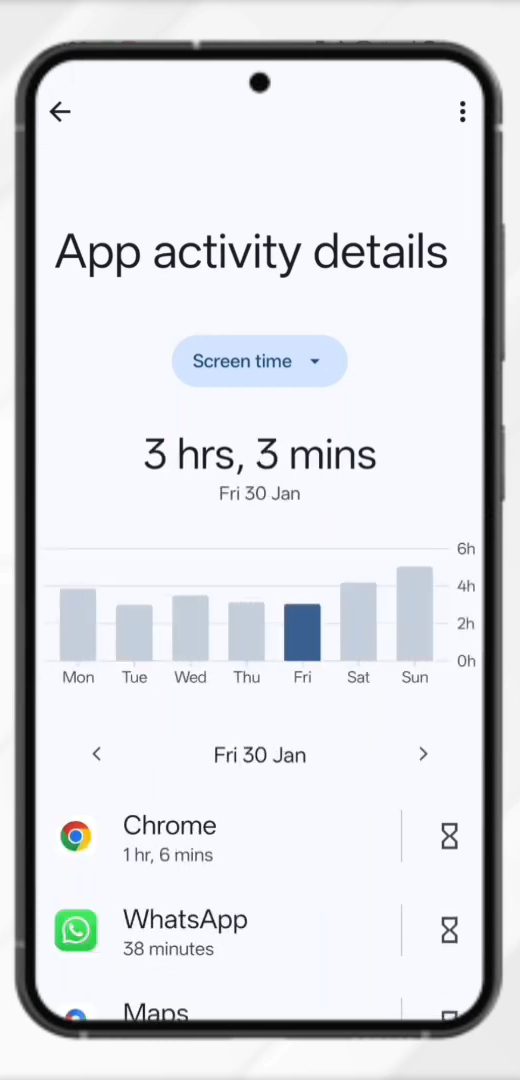
Tap the middle of the chart to open App activity details. A bar chart shows each day of the week, with a list of apps and how long you used each one. Tap the left arrow or swipe left to go back to earlier days. You can look back about a month. Tap any day to see that day's app list.
4Check unlocks and notifications
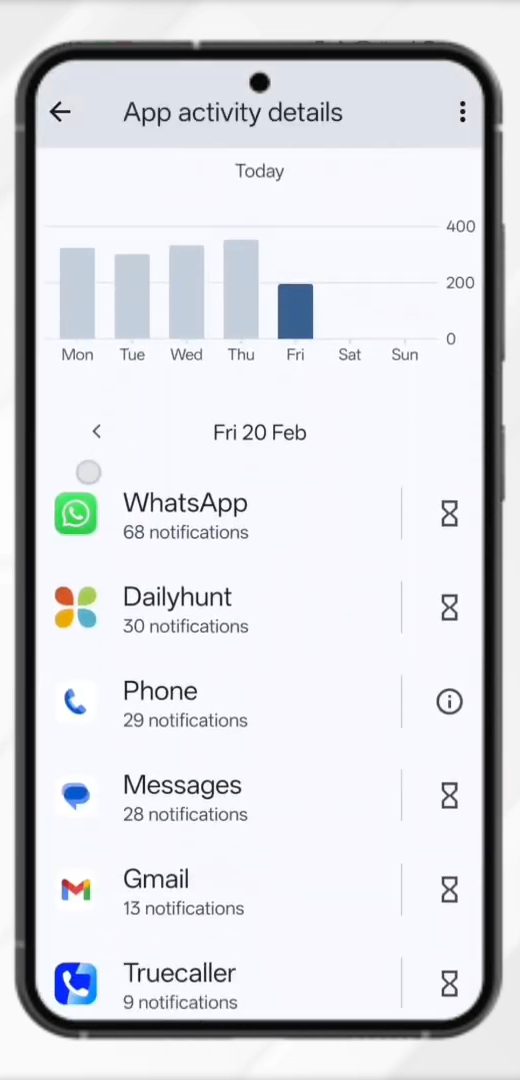
Go back and tap the Unlocks number to see how many times you unlocked the phone each day, with the apps you opened most. Tap Notifications instead and scroll down to see which app sent you the most notifications. This is a quick way to spot the apps that keep pulling you back to your phone.
5Set an app timer
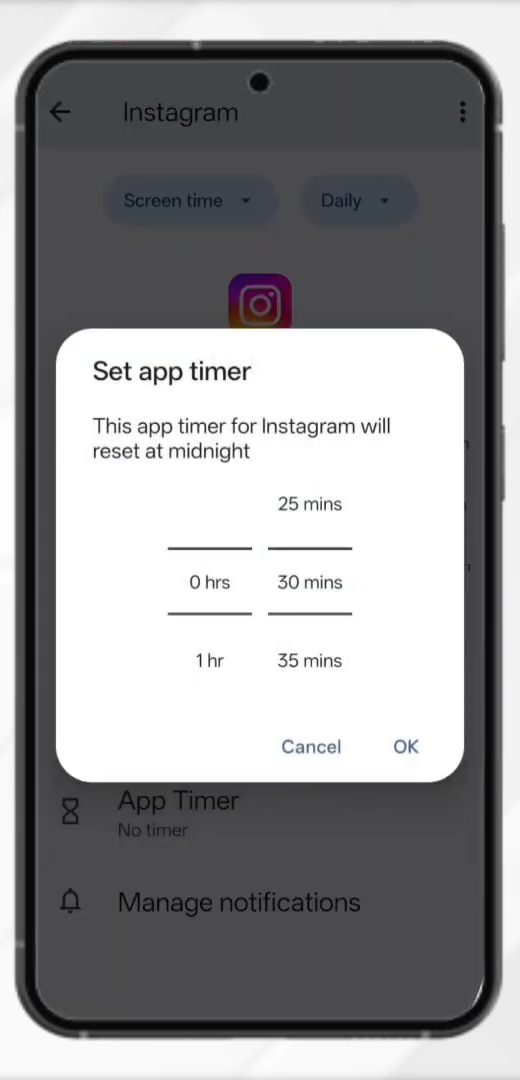
From the main screen, open the app activity list and tap an app, for example Instagram. Scroll down to App timer, which says No timer by default, and tap it. Pick a daily limit, such as 30 mins, and tap OK. The dialog reminds you that the timer resets at midnight.
6See what happens when time runs out
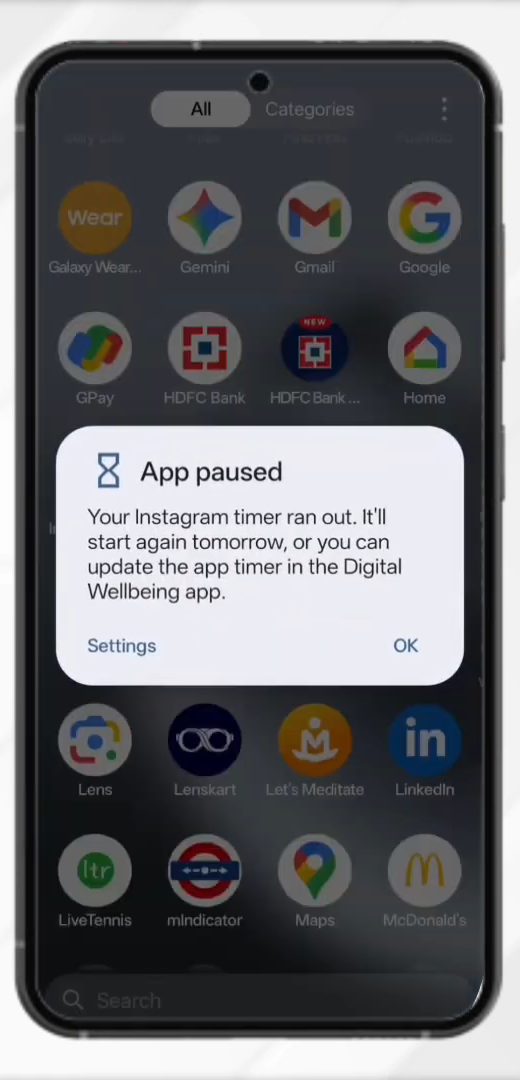
Once you pass the limit, the app's icon turns grey on your home screen and app drawer. In our case we had already used Instagram for over an hour, so it was paused straight away. Tapping it shows App paused: the timer ran out, it starts again tomorrow, or you can change the timer in Digital Wellbeing.
7Manage all your app timers
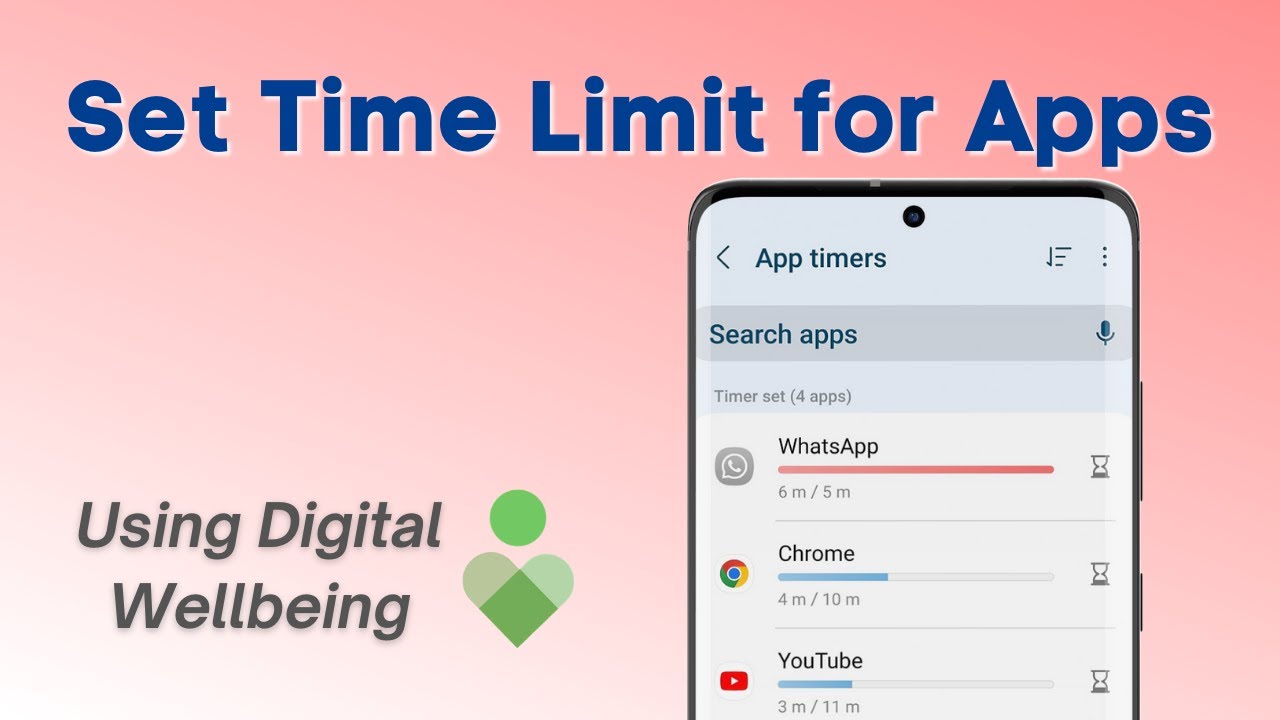
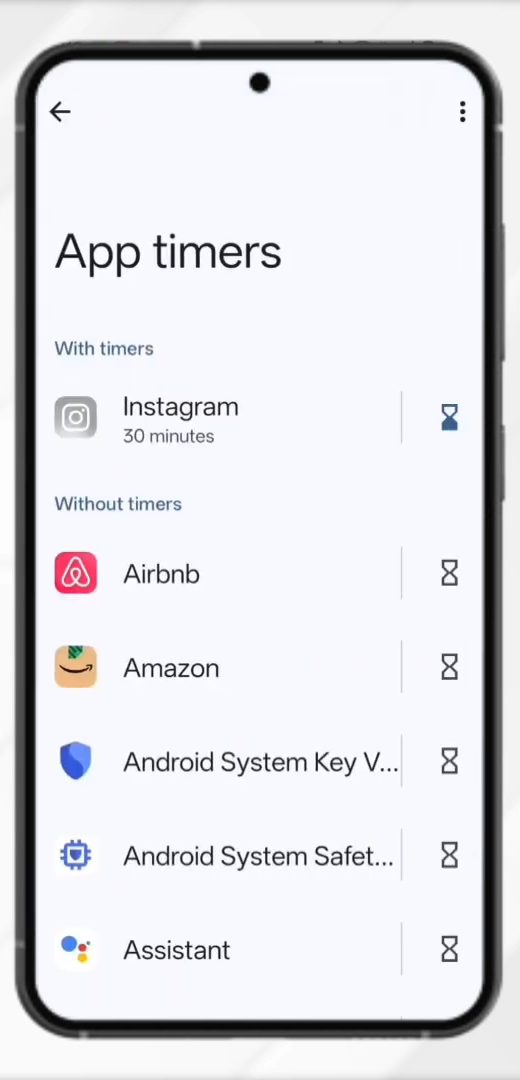
On the main Digital Wellbeing page, tap App timers to see every app on the phone, split into With timers and Without timers. Tap the hourglass next to any app to set a new timer. To change or remove one, tap the hourglass next to an app that already has a timer, then pick a new time or tap Delete timer.
8Set up Bedtime mode
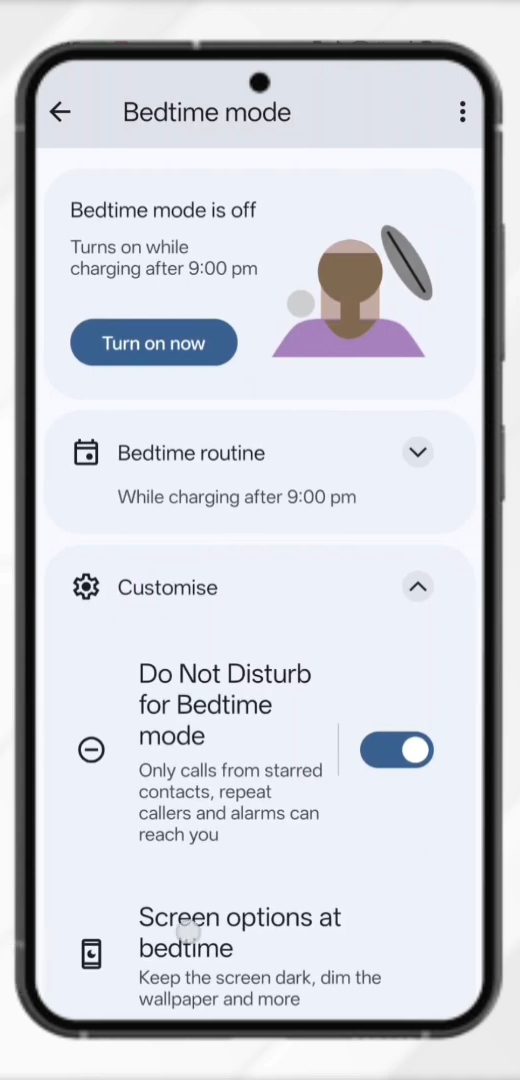
Under Ways to disconnect, tap Bedtime mode. Choose whether to turn on Do Not Disturb for Bedtime mode, then set a schedule: either fixed start and end times or while charging after a set hour. Tap Customise and then Screen options at bedtime to pick what changes during bedtime, such as a dark screen or a dimmed wallpaper. Turn each option on or off as you like.
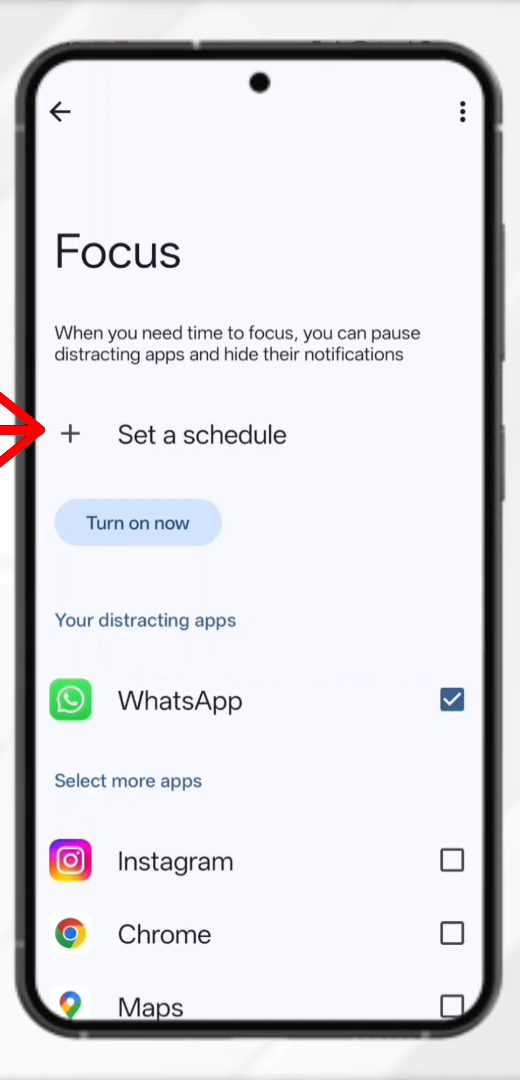
9Use Focus mode to pause distracting apps
Tap Focus. Under Select distracting apps, tick the apps you want to block, for example WhatsApp. Tap Set a schedule to choose start and end times, or tap Turn on now to start right away. While Focus is on, those apps are greyed out, their notifications are hidden, and opening one shows a message that the app is paused.
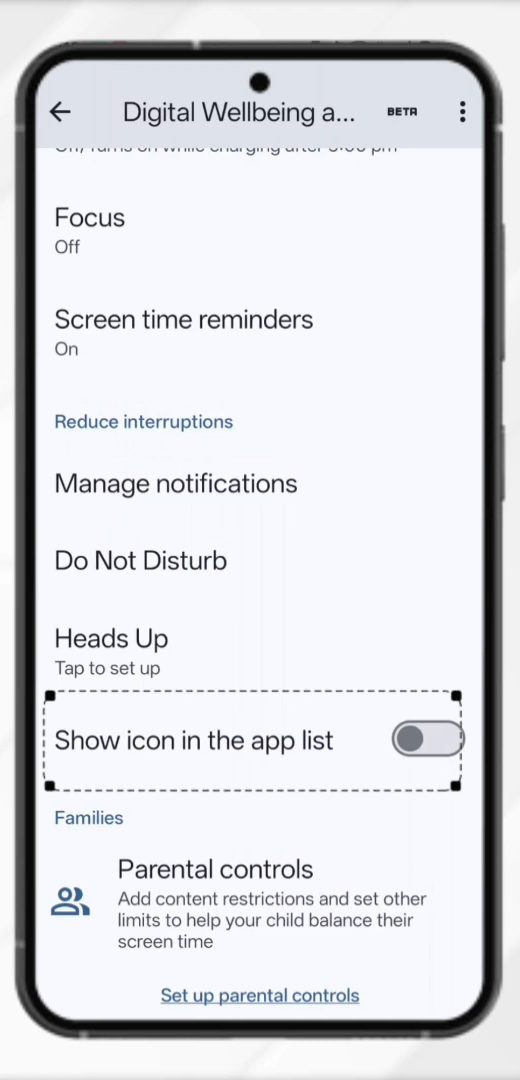
10Turn on reminders and the app icon
Tap Screen time reminders and then Turn on. You will get occasional reminders showing how much time you are spending in an app. Finally, switch on Show icon in the app list. This adds Digital Wellbeing to your app drawer so you do not have to go through Settings every time.
Tips and troubleshooting
- Can't find Digital Wellbeing? Search for "wellbeing" in Settings. Google's help page Manage how you spend time on your Android phone with Digital Wellbeing notes that it is only on some phones and that steps can vary by device.
- App timer not working for an app? Google says some work and school accounts might not work with app timers.
- Need to use a timed-out app before midnight? Timers reset at midnight. To use the app sooner, open App timers and delete or raise that app's timer.
- Stop yourself from removing timers easily: Google's help page describes an App limits PIN under Digital Wellbeing on supported phones. Once set, changing app limits needs a separate 4-digit PIN.
- Add a home screen widget: on Android 9 and later, touch and hold the home screen, tap Widgets and drag the screen time widget onto your screen to see your top three apps each day.
- Track websites too: in the chart, tap Chrome, then Show sites, to see how long you spent on each website.
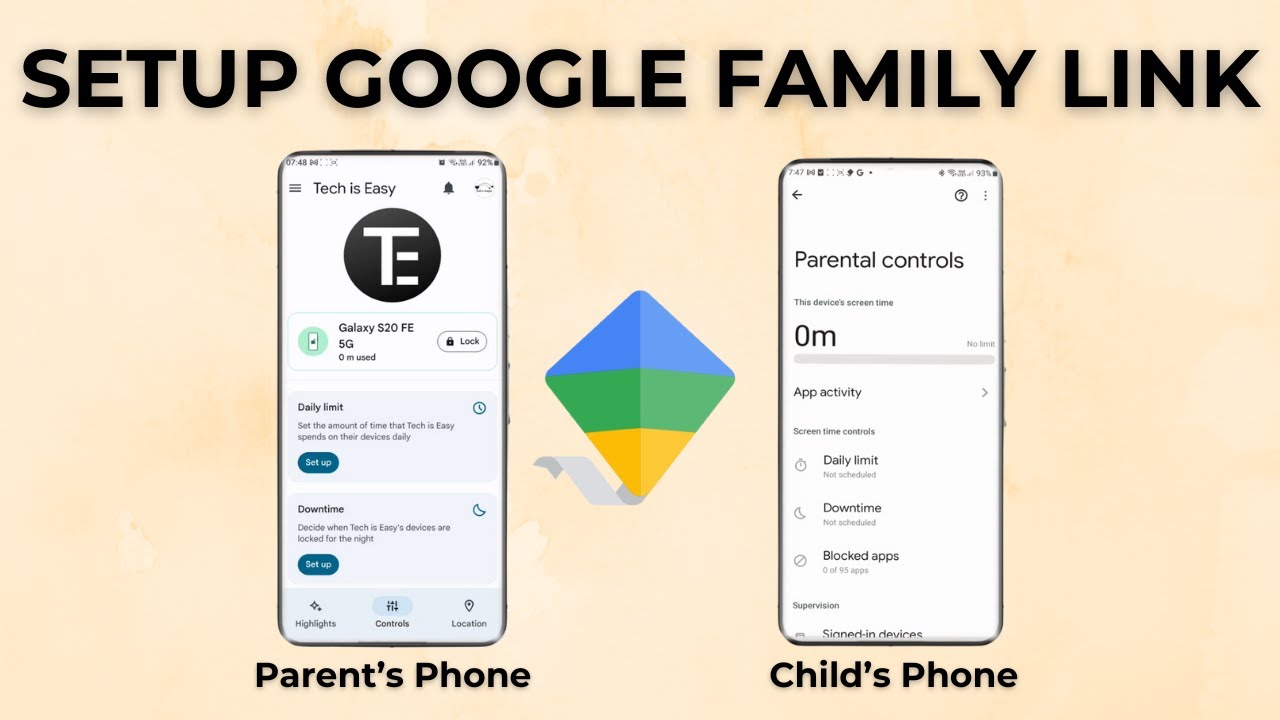
- Want limits for a child's phone? The Parental controls section at the bottom of Digital Wellbeing uses Google Family Link. See Google Family Link Parental Controls: How to Set Up.
- Bedtime mode can turn on Do Not Disturb for you. To set up Do Not Disturb with your own rules for the rest of the day, see How to Use Do Not Disturb on Android.
FAQ
How do I open the Digital Wellbeing app on Android?
Open Settings and tap Digital Wellbeing (on some phones Digital Wellbeing and parental controls). To open it like a normal app, turn on Show icon in the app list at the bottom of the Digital Wellbeing page.
How do I check screen time on my Android phone?
Open Digital Wellbeing from Settings. The chart at the top shows today's screen time. Tap the chart to see each day of the past weeks and how long you used each app.
Can I undo an app timer?
Yes. Open App timers, tap the hourglass next to the app and choose Delete timer. The app works normally again straight away.
Does Digital Wellbeing work on every Android phone?
No. Google says it is available on some phones, and menus differ between brands. Samsung phones, for example, have their own version of these screen time tools under a similar name.
Related guides