Tech is Easy
How to Use Focus Sessions on Windows 11 (Clock App Guide)
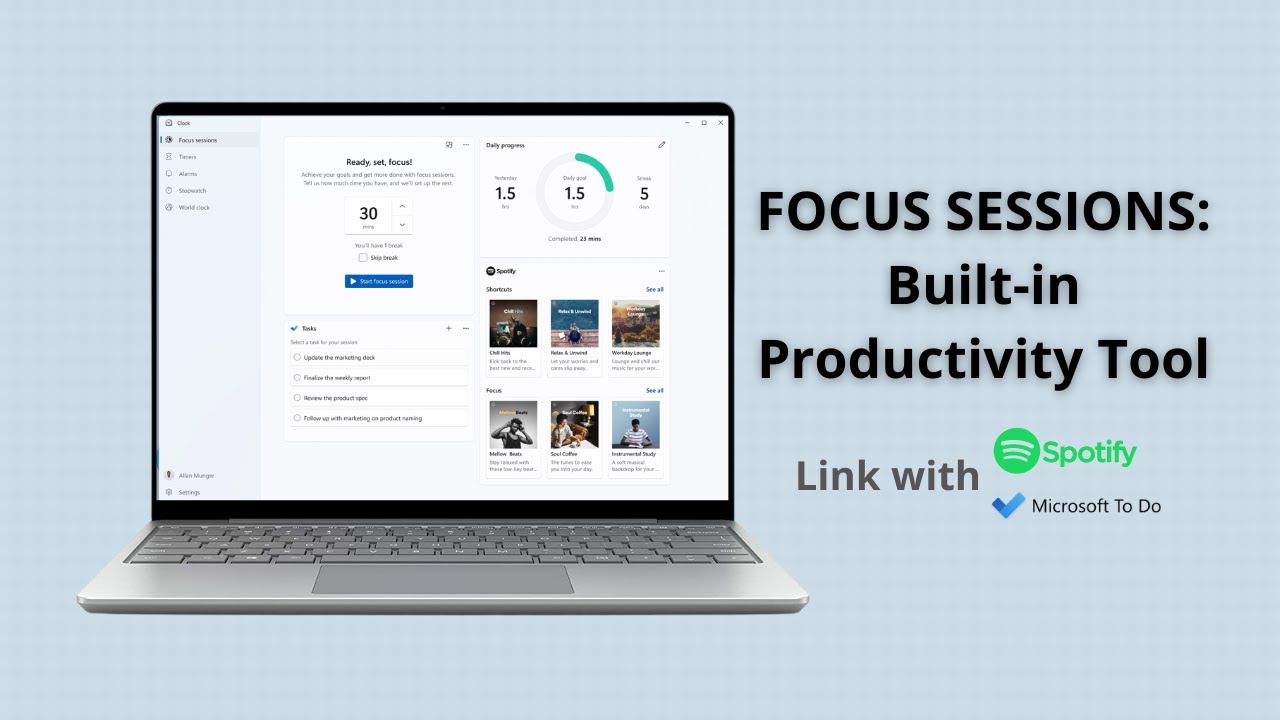
To use Focus Sessions on Windows 11, open the Clock app from the Start menu, click Focus sessions at the top of the left menu, pick how many minutes you want to work and click Start focus session. This guide is for anyone who loses time on their laptop and wants a free, built-in timer that adds breaks automatically, shows their Microsoft To Do tasks and plays Spotify while they work.
Our video was recorded in 2022, so a few menus in the Clock app may look slightly different on your PC now.
What you need
- A Windows 11 PC with the Clock app (it comes with Windows; if you removed it, reinstall Windows Clock from the Microsoft Store)
- Optional: a Microsoft account for To Do tasks
- Optional: a Spotify account and the Spotify app for music
1Open the Clock app
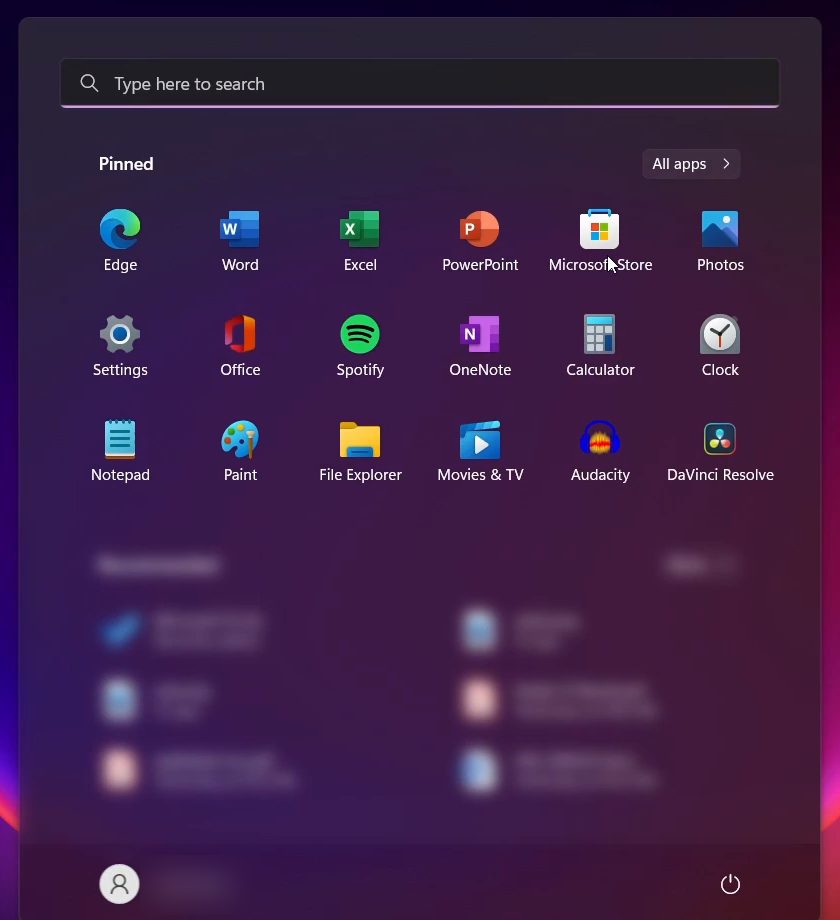
Click Start, then click Clock if it is pinned, or type clock in the search box and open it.
2Go to Focus sessions
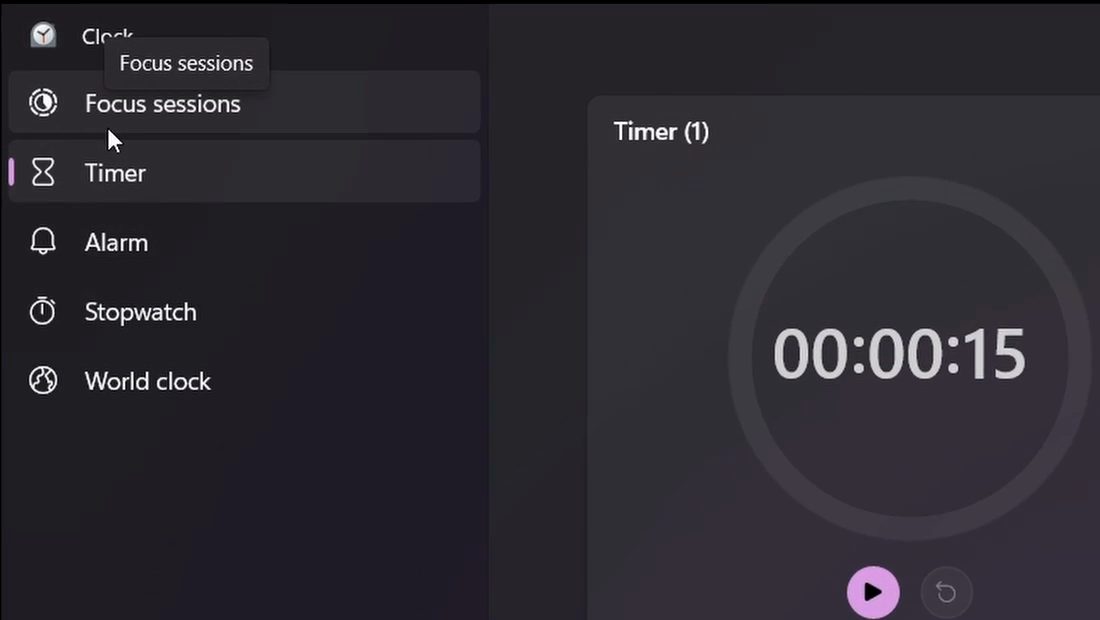
In the left menu of the Clock app, click Focus sessions. It sits above Timer, Alarm, Stopwatch and World clock. This page holds every control for the feature.
3Set how long you want to focus
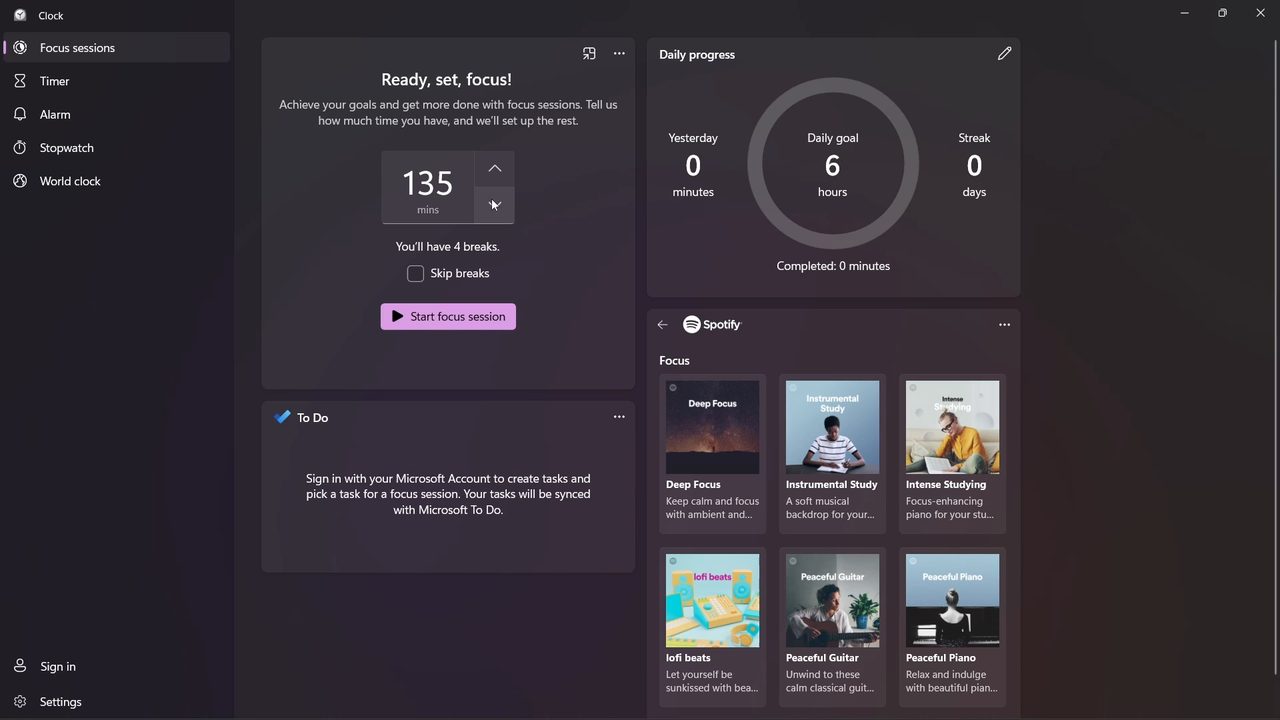
The first box, Ready, set, focus!, sets the length of the session. Use the up and down arrows next to the minutes. Windows works out the breaks for you and shows the count below: 150 minutes gave us 5 breaks, 135 minutes gave 4 and 90 minutes gave 2. If you want to work straight through, tick Skip breaks.
4Sign in to link Microsoft To Do
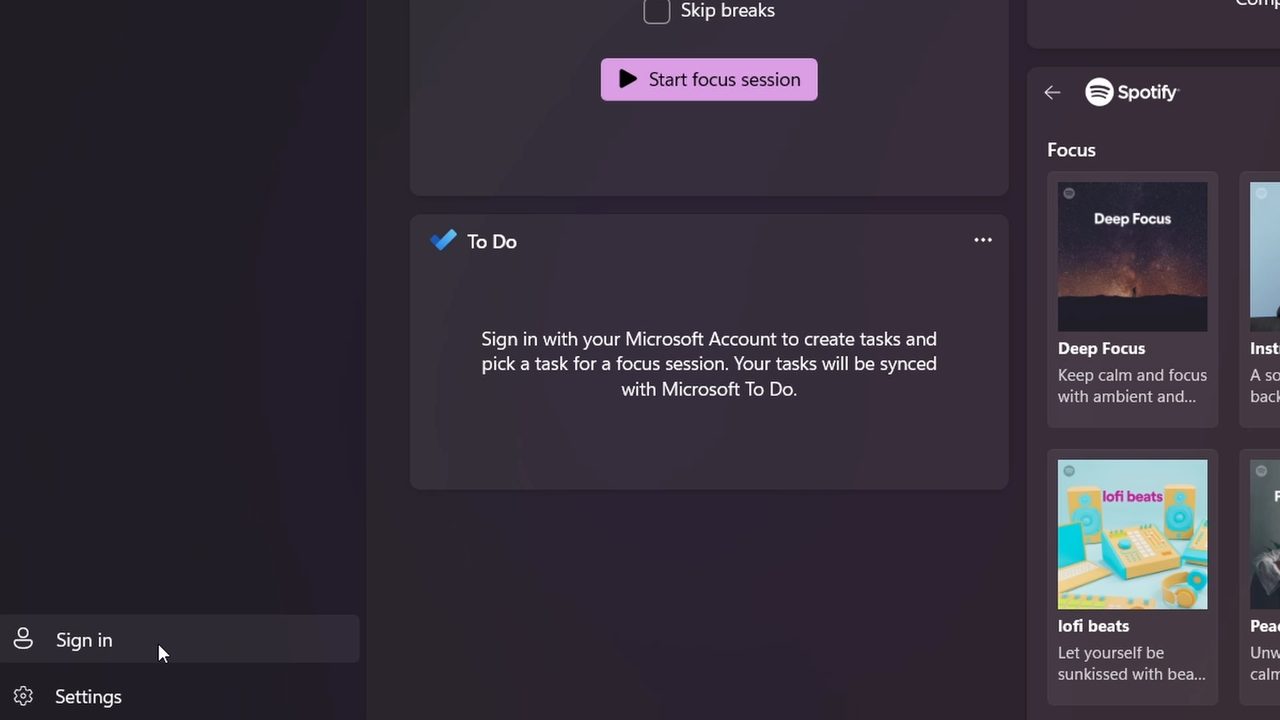
The To Do box asks you to sign in with your Microsoft account. Click Sign in at the bottom left of the Clock app and sign in with the account you use for Microsoft To Do. Your tasks then appear in a Tasks box on this page.
5Add or pick a task
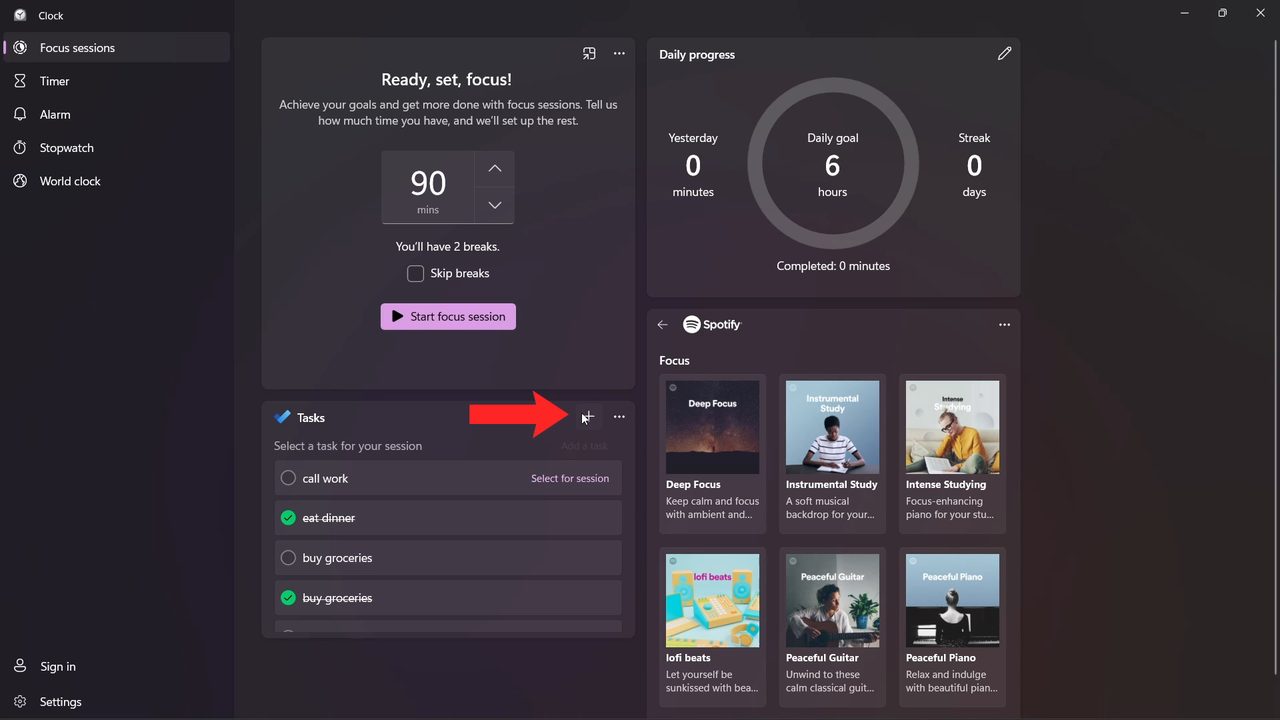
To add a new task, click the + icon at the top of the Tasks box and type it in. Before you start, you can click Select for session next to a task so you know what you are working on. Tasks you add here sync back to Microsoft To Do.
6Choose music from Spotify
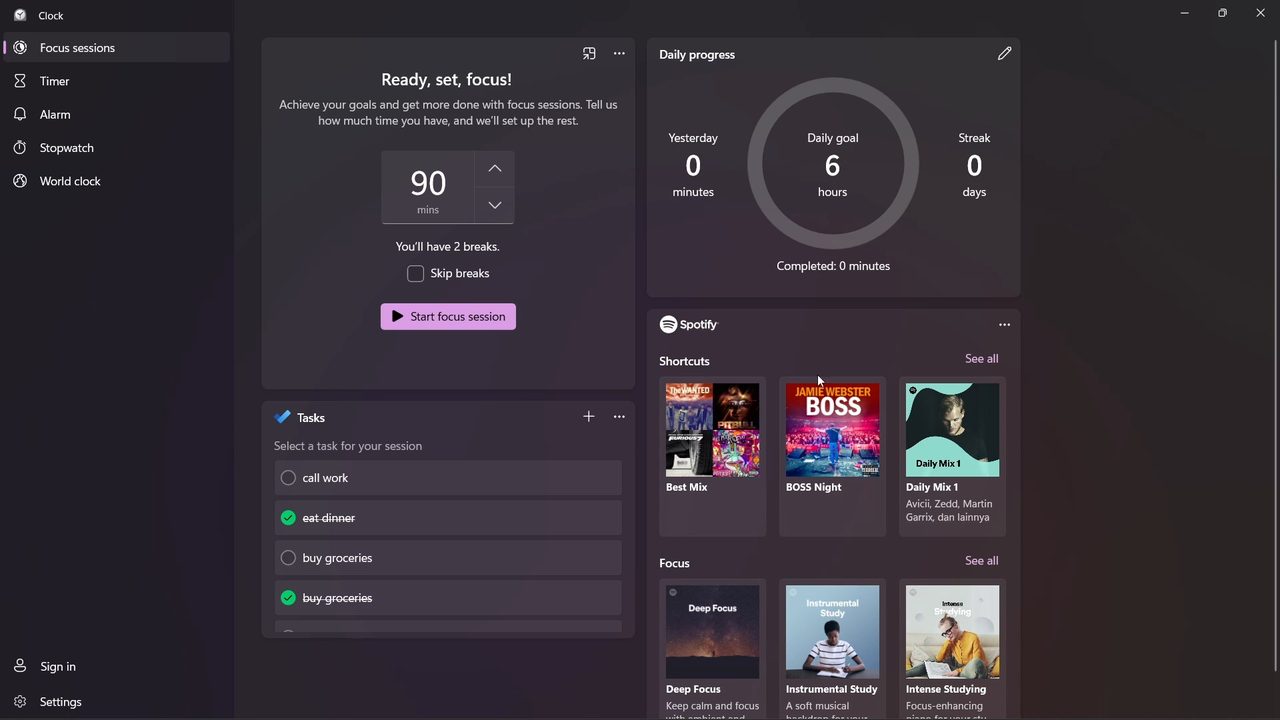
The Spotify box shows focus music suggestions such as Deep Focus and lofi beats. Click the back arrow in the box to see your own playlists and recently played music instead. The music plays while your focus session runs.
7Set your daily goal
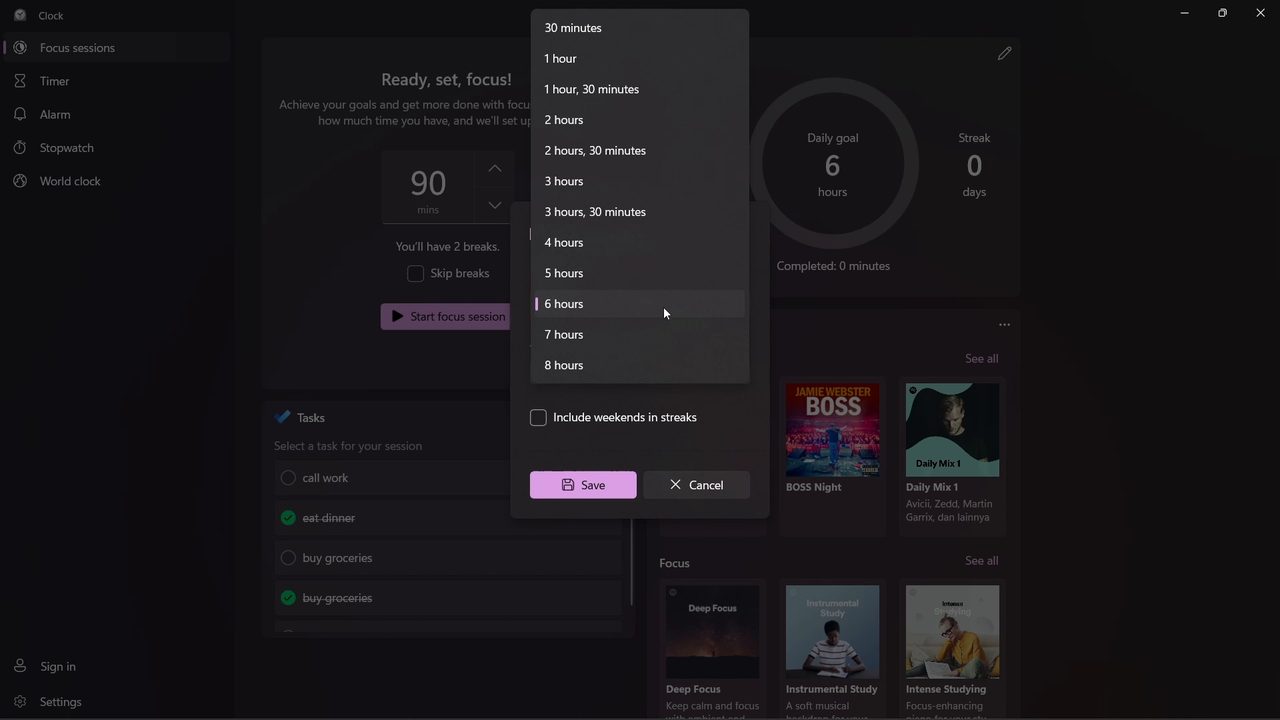
The Daily progress box is a summary: your daily goal, how long you focused yesterday and your streak in days. Click the pencil (edit) icon at its top right to change it. Pick a goal from the list (we chose 3 hours), choose the time when daily progress and completed tasks should reset, tick Include weekends in streaks if you want, then click Save.
8Start the focus session
When the length, task and music are set, click Start focus session. The timer counts down your focus time and switches to a break when one is due. You can end a session early if you need to.
9Change Focus periods in Settings
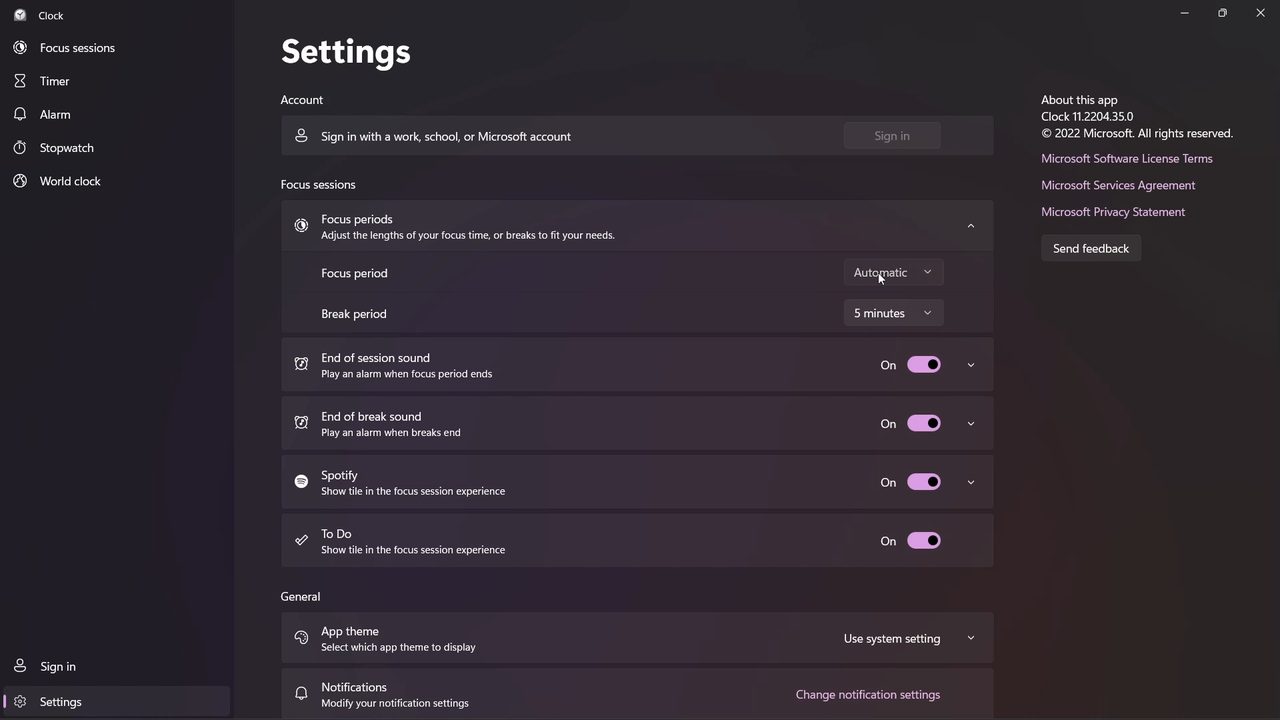
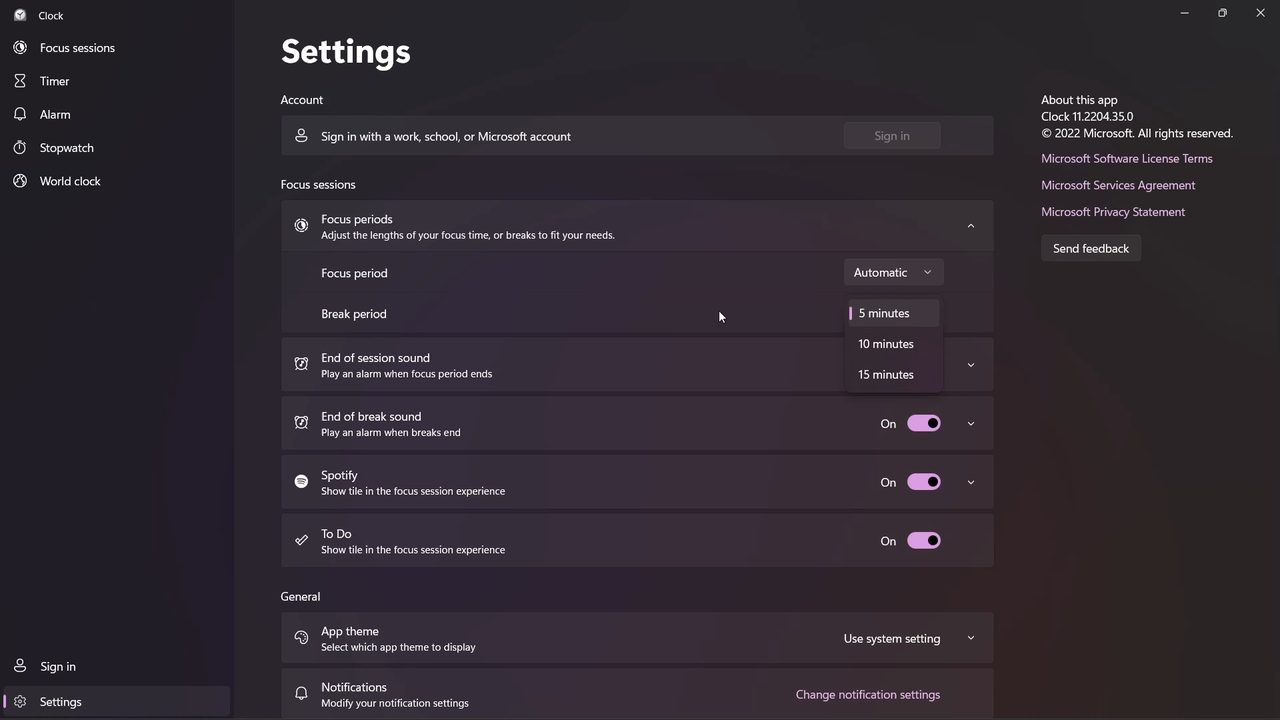
Click Settings at the bottom left of the Clock app and expand Focus periods. Under Focus period, keep Automatic or pick a fixed length (15, 30 or 45 minutes, or 1 hour). This decides how long you work between breaks.
10Set the break length, sounds and tiles
Under Break period, choose 5, 10 or 15 minutes. Below that, switch End of session sound and End of break sound on or off depending on whether you want an alarm at the end of each focus period and break. The last two switches, Spotify and To Do, hide those boxes from the Focus sessions page if you don't use them.
How focus sessions work with notifications
Microsoft's help page Focus: Stay on Task Without Distractions in Windows explains what happens when a session starts: Do not disturb turns on, badges and flashing on taskbar apps are paused, and you get a notification when the session ends. Notifications you received in the meantime wait in the notification center. The same page lists two quicker ways to start a session without opening the Clock app: - Click the clock or the bell icon on the taskbar (or press Windows key + N), choose a time and select Focus. - Open Settings > System > Focus and select Start focus session. The options there let you choose the session duration, whether the timer shows in the Clock app, and whether Do not disturb turns on.
Troubleshooting
- No Focus sessions in the Clock app. Update the Clock app from the Microsoft Store and update Windows. Microsoft notes that focus sessions depend on the Clock app, so if it was uninstalled you need to install Windows Clock again.
- To Do box keeps asking you to sign in. To Do needs a Microsoft account. A local Windows account alone won't show tasks.
- Spotify box shows nothing. Link your Spotify account from the box and make sure the Spotify app is installed on the PC.
- Too many breaks or none at all. Check Skip breaks on the main page and the Focus period setting. A fixed focus period changes how the session is split.
- Notifications still came through. If Do not disturb was already on or you changed its rules, check Settings > System > Notifications.
If the Spotify tile is not useful to you, turning it off in Step 10 keeps the page simpler. For a full task manager with reminders and habits, see How to Use TickTick, which works well alongside a focus timer.
FAQ
How do I use Focus Sessions on Windows 11?
Open the Clock app, click Focus sessions, set the minutes with the arrows and click Start focus session. Breaks are added automatically unless you tick Skip breaks.
Can I use Focus Sessions on Windows 10?
Our video only shows Windows 11. On Windows 10, Microsoft's help page describes Focus assist under Settings > System, which silences notifications but is not the same timer page shown here.
Do I need Spotify or Microsoft To Do to use Focus Sessions?
No. The timer, breaks and daily goal work on their own. Spotify and To Do are optional boxes, and you can hide them with the Spotify and To Do switches in the Clock app settings.
How do I change the break length in Focus Sessions?
Open Settings in the Clock app, expand Focus periods and choose 5, 10 or 15 minutes under Break period.
Related guides