 Tech is Easy
How to Use Google Lens in Chrome to Search Images on Any Page
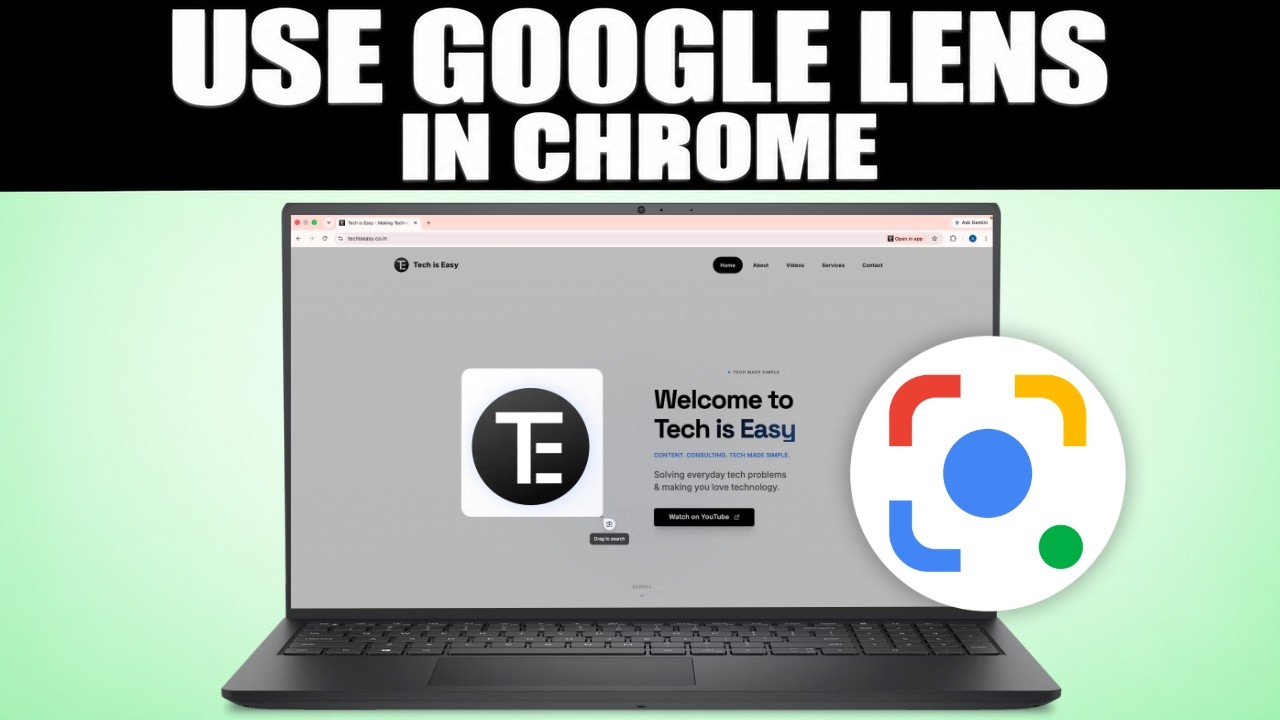
To use Google Lens in Chrome, open any website, click the three dots at the top right and choose Search this tab with Google Lens, then drag a box around the part of the page you want to search. The results open in a side panel, where you can switch between AI Mode, All, Exact matches and Visual matches, or type a follow-up question. It is the quickest way to search with an image in Chrome on a computer without saving or uploading anything.
Use it to identify a product, find where a picture came from, look up a logo, or ask a question about something on the page.
What you need
- Google Chrome on a Windows PC or Mac, kept up to date
- Google set as Chrome's default search engine. Google's help page lists this as a requirement for Lens.
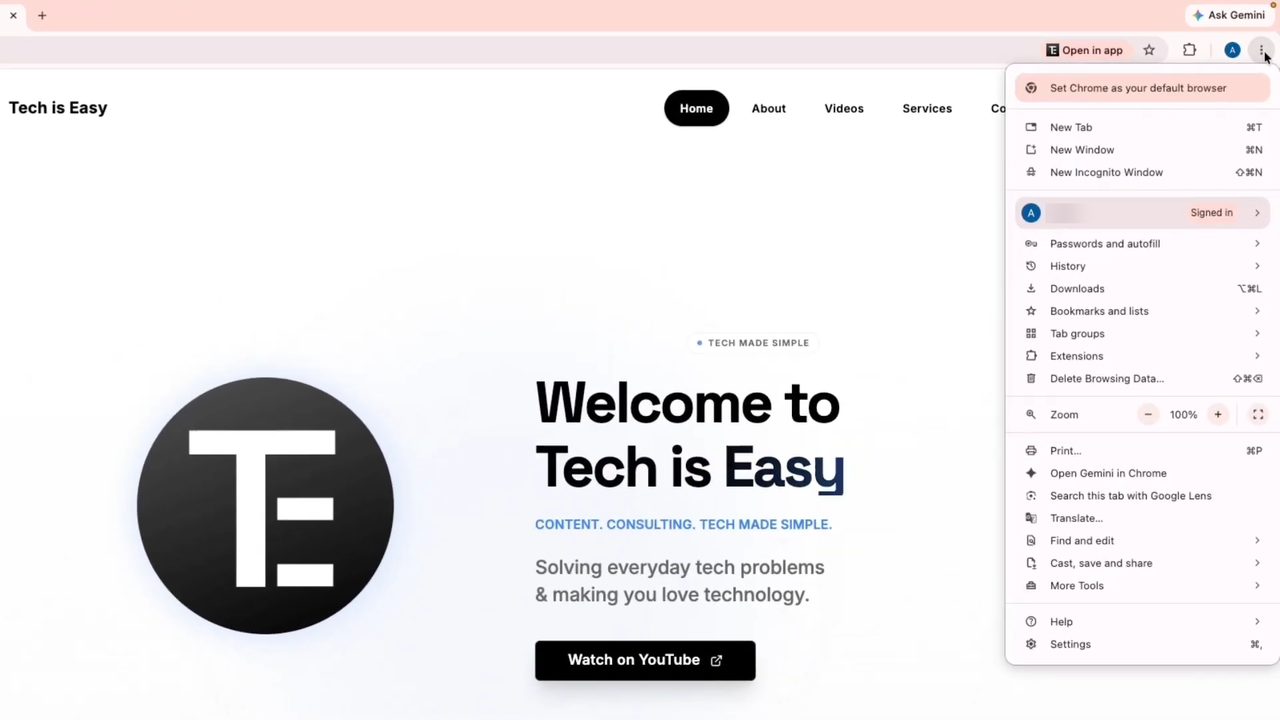
1Open Search this tab with Google Lens
Go to any website. Click the three dots (More) at the top right of Chrome and select Search this tab with Google Lens. You can also right-click anywhere on the page and choose the same option.
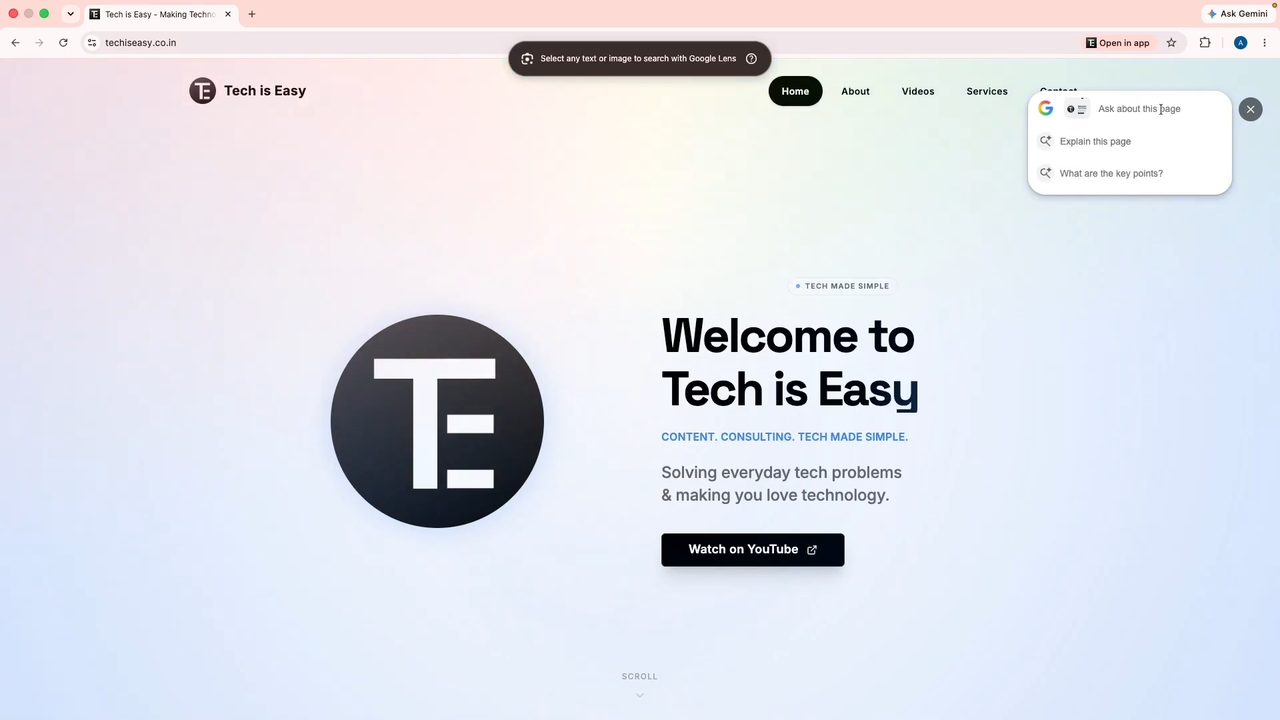
2Wait for Lens to take over the page
The page changes color and a bar at the top says Select any text or image to search with Google Lens. A small box at the top right also offers quick prompts such as Explain this page and What are the key points? if you want to ask about the whole page instead.
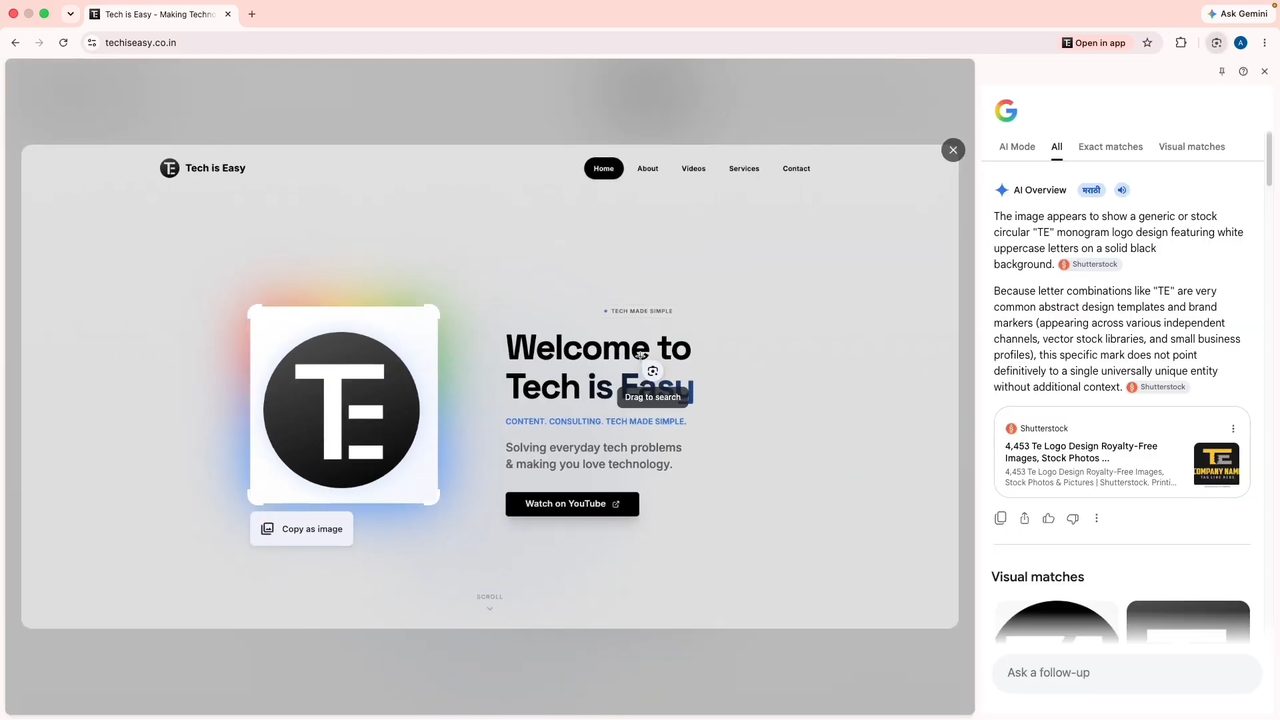
3Select the part you want to search
Click and drag a box around what you want to search. We selected just the logo on our website. Lens starts searching as soon as you let go, and the results appear in a panel on the right.
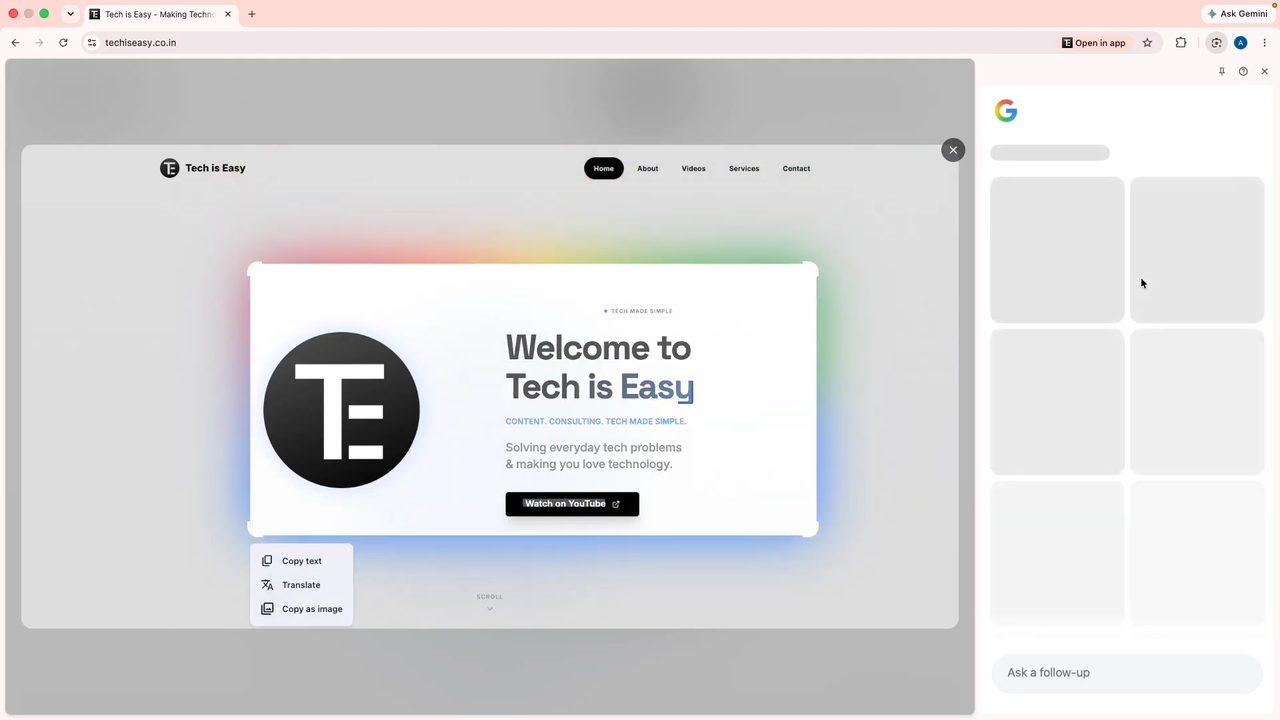
4Resize the selection to search something else
To search a bigger or different area, drag the corners of the selection box. We stretched it to cover the whole top section of the page, and Lens searched again straight away. Below the selection you also get shortcuts such as Copy text, Translate and Copy as image when the area contains text.
5Read the All tab and ask follow-up questions
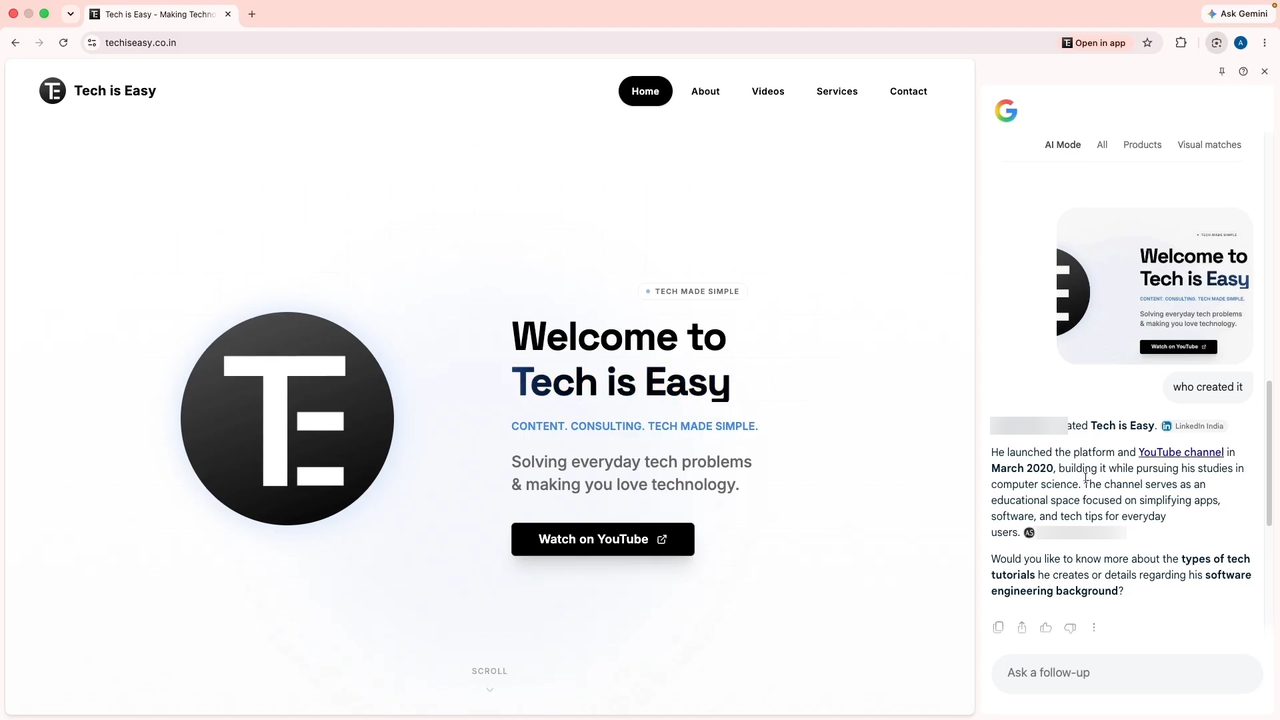
The All tab gathers everything Lens found about the selection, often starting with an AI Overview followed by web results and visual matches. To ask something specific, type into the Ask a follow-up box at the bottom of the panel. We asked "who created it", and Lens used the selected image together with the question.
That follow-up moves you into the AI Mode tab, which works like an AI chat about the part of the screen you selected. You can keep asking more questions there.
6Check Exact matches
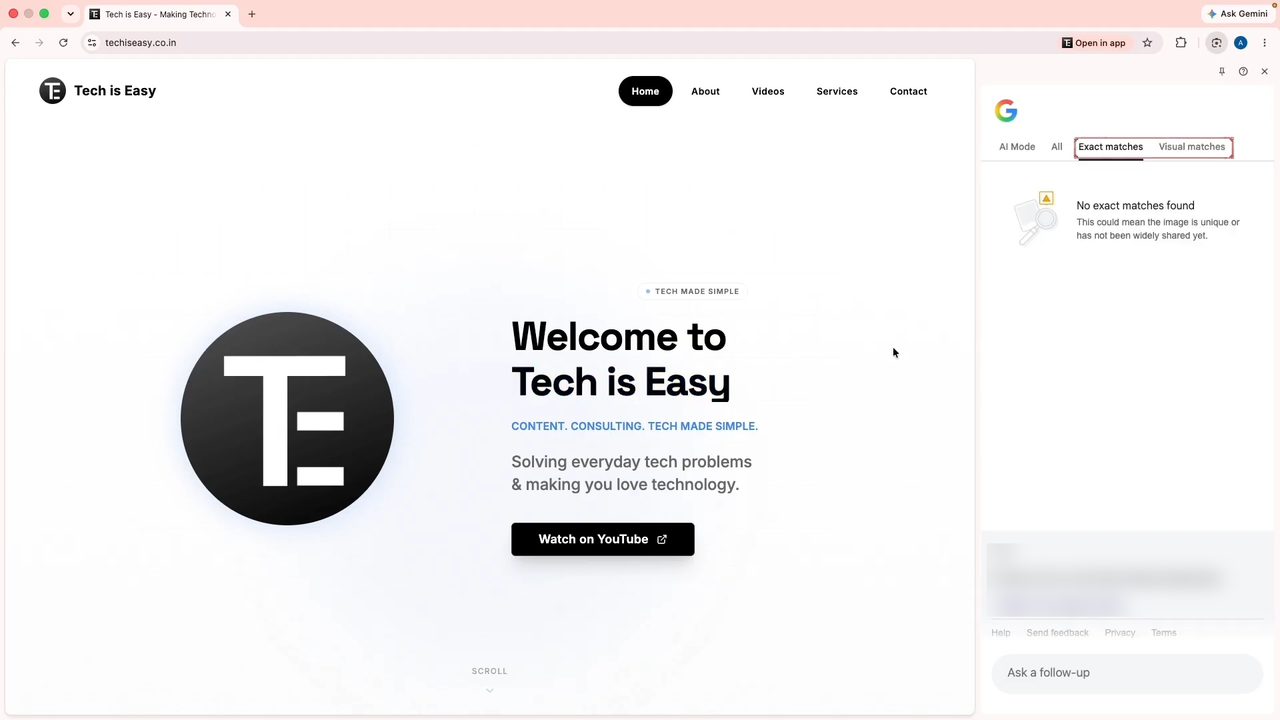
Click Exact matches to see places where the exact same image appears on the web. This is useful for finding the original source of a photo or spotting where your own image has been reused. In our case Lens found none, and it explains that this can mean the image is unique or has not been widely shared yet.
7Browse Visual matches
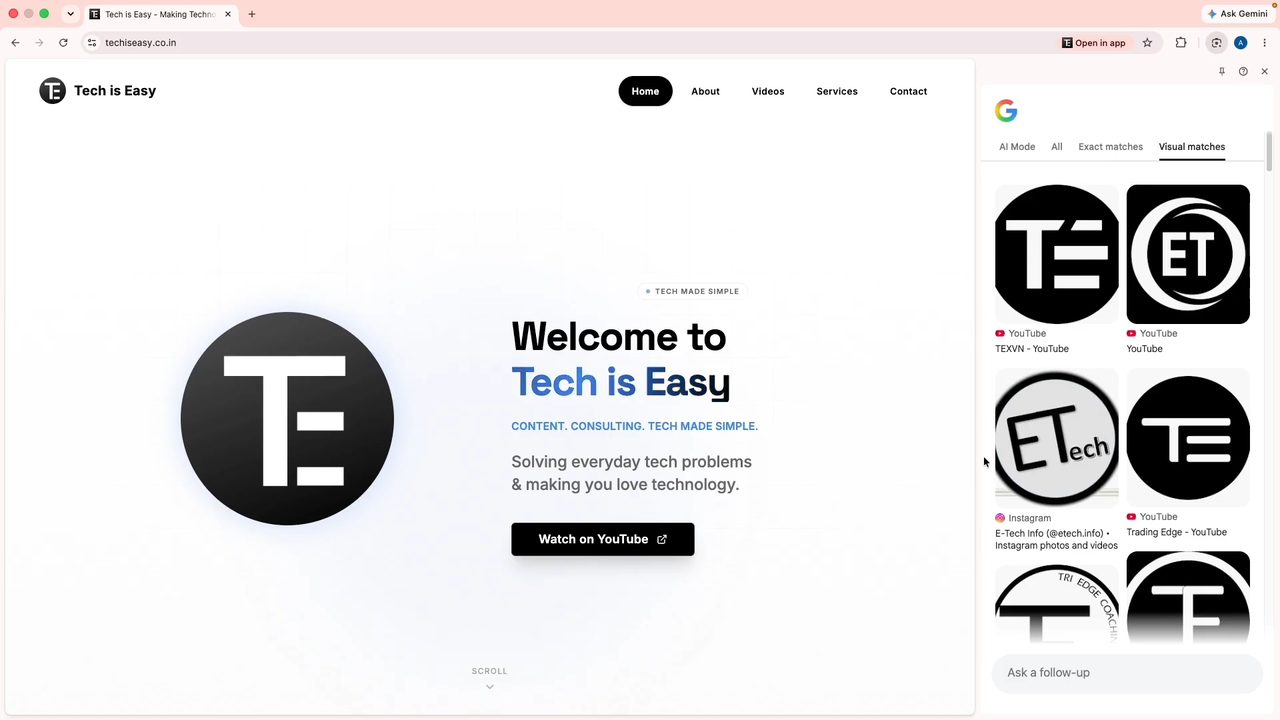
Click Visual matches for images that look similar, even if they are not the same. Our logo search returned other circular black-and-white letter logos from YouTube and Instagram. Click any result to open it.
8Pin Google Lens to the toolbar
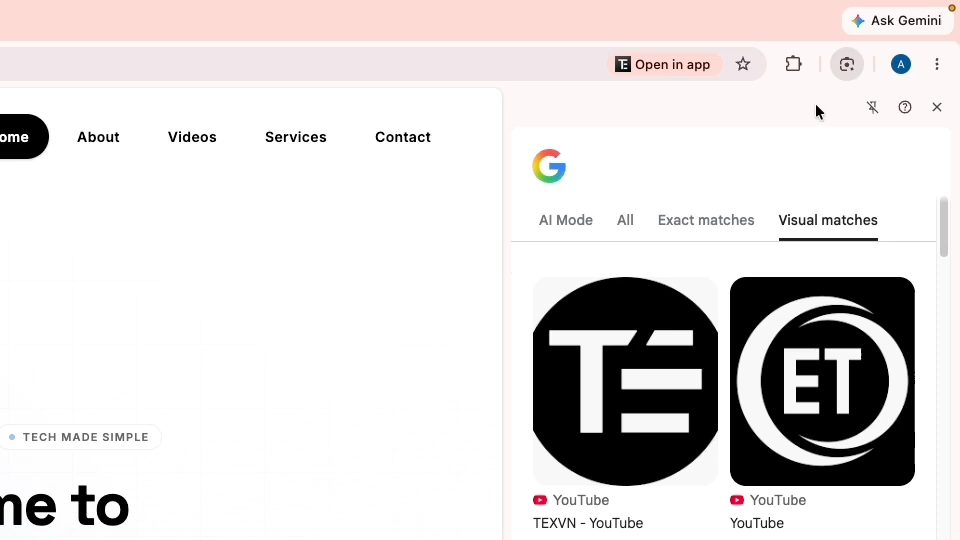
Click the pin icon at the top of the Lens side panel. A Lens button now stays in Chrome's toolbar, next to your profile picture. On any website, click that button, select part of the screen and search the same way, without opening the menu each time.
Other ways to open Google Lens in Chrome
According to Google's help page Search with Google Lens in Chrome, there are a few more entry points: - Right-click an image and choose Search with Google Lens to search just that picture. - Right-click the page and choose Search this tab with Google Lens. - Click the address bar and select Ask Google about this page to ask a question about the whole page. This option can appear by default on some pages.
Tips and troubleshooting
- Option missing from the menu? Check that Google is your default search engine in Settings > Search engine, then update Chrome from Help > About Google Chrome, since older versions may not have this menu option.
- Close Lens quickly: press Esc, click anywhere in the live page, or use the close button in the side panel.
- Open a result without losing your search: Google's page notes that selecting a result opens it in a new tab, so the side panel stays put.
- Search text, not just images: highlight words on the page while Lens is open to search, copy or translate them.
- Privacy: Google says that when you use Lens on a web page, a screenshot of the page and page data are sent to Google for processing, and your selection goes to Google Search. You can review or delete that activity in My Google Activity. Avoid running Lens on pages showing private information like bank details.
Related guide: if Chrome is not your main browser yet, see How to Make Chrome Your Default Browser on Windows 11.
FAQ
How do I use Google Lens in Chrome on my computer?
Click the three dots at the top right, choose Search this tab with Google Lens, then drag a box around anything on the page. Results show up in the side panel on the right.
Can I search a single image with Google Lens in Chrome?
Yes. Right-click the image and choose Search with Google Lens. Lens searches just that picture and shows matches in the side panel.
What is the difference between Exact matches and Visual matches?
Exact matches lists pages with the same image. Visual matches shows images that only look similar, which helps when you want to identify a style, product or object rather than a specific copy.
Is Google Lens in Chrome free?
Yes. It is built into Chrome and only needs Google as your default search engine. No extension or account upgrade is needed.
Related guides