 Tech is Easy
How to Use ProtonVPN on PC (Free VPN Setup for Windows)
To use ProtonVPN on PC, download the Windows app from protonvpn.com, install it, sign in or create a free Proton account, and click Connect. The app picks the fastest free server for you, and you can switch with Change server and turn on the Kill switch from the right-hand bar. It is a good choice if you want a free VPN on Windows without ads or a data cap.
What you need
- A Windows 10 or 11 PC
- A free Proton account (you can create one inside the app)
- A few minutes to download and install the app
Install ProtonVPN on Windows
1Go to the ProtonVPN website
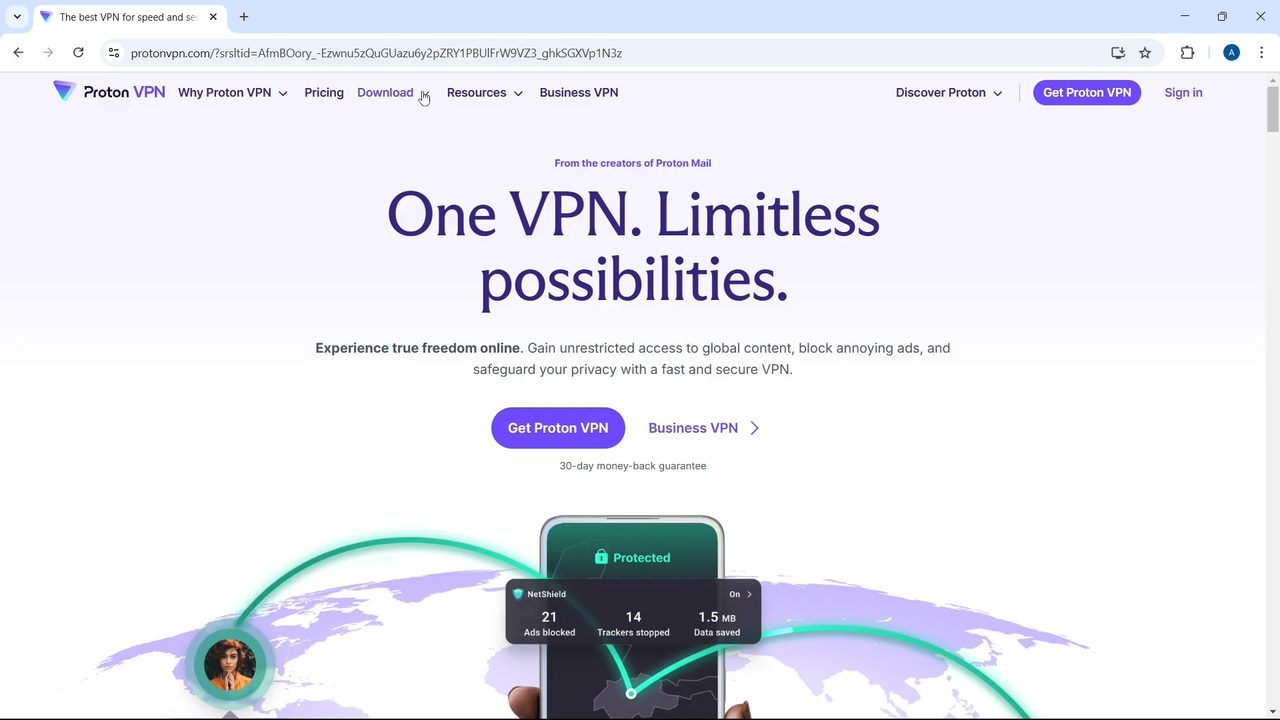
Search for Proton VPN in your browser and open protonvpn.com. At the top of the page, open the Download menu and choose Windows. Download apps only from the official site to avoid fake copies.
2Download the Windows app
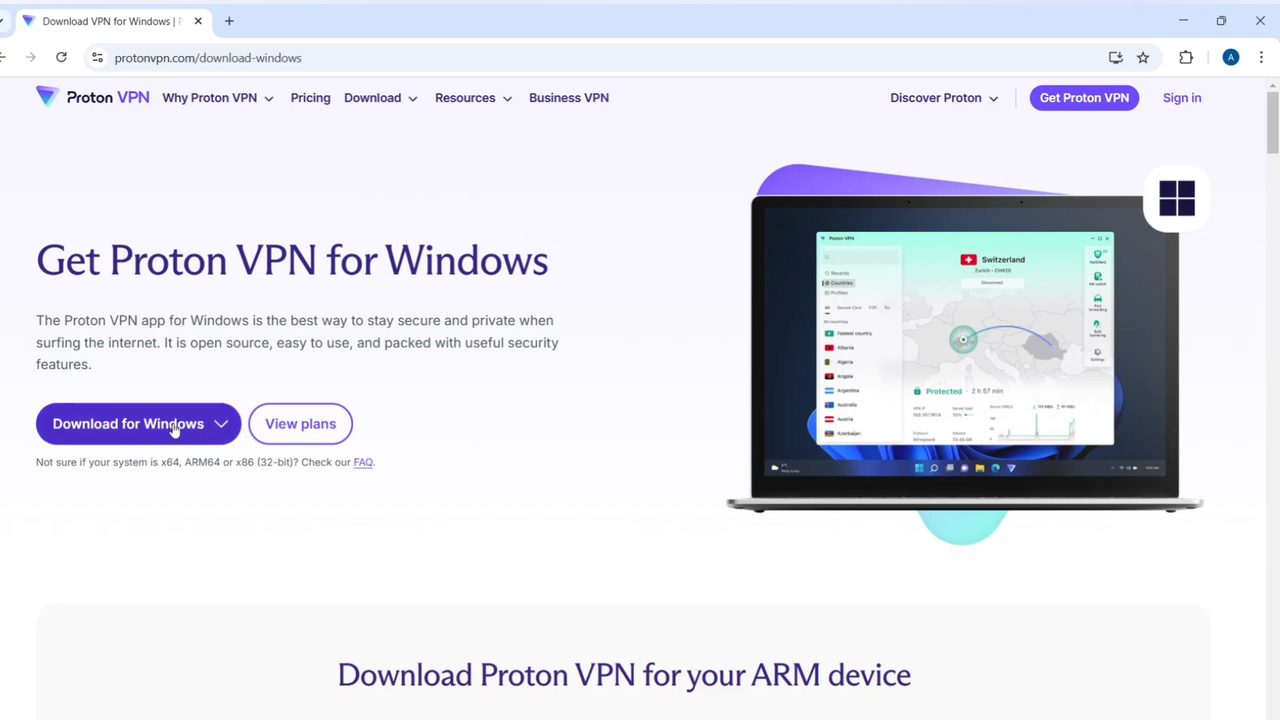
On the Get Proton VPN for Windows page, click Download for Windows. The small arrow next to it lets you choose between the normal x64 version and the ARM64 version (for Windows laptops with ARM chips). Save the file, then open it and follow the installer.
3Sign in or create an account
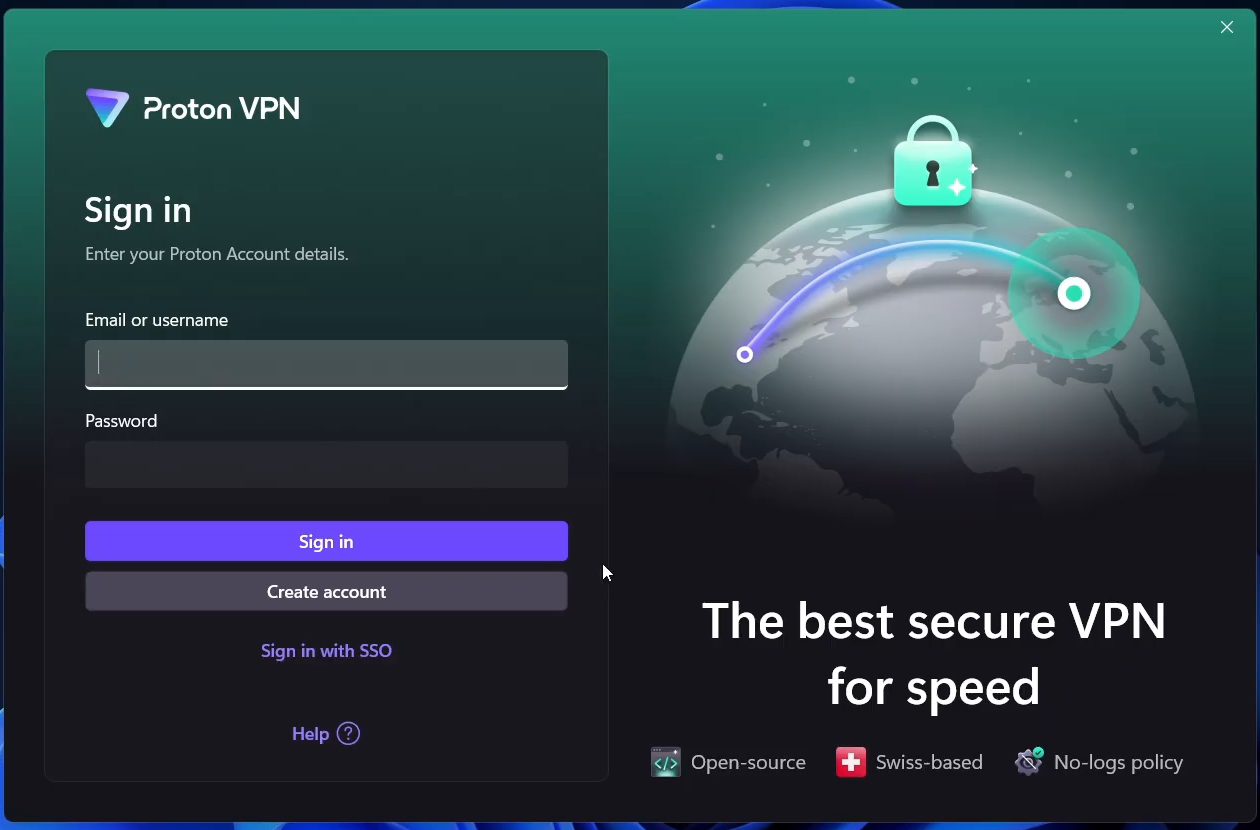
When the installation finishes, ProtonVPN opens a Sign in window. Enter your Proton email or username and password and click Sign in. If you don't have an account yet, click Create account and make a free one.
Connect, test and change server
4Click Connect
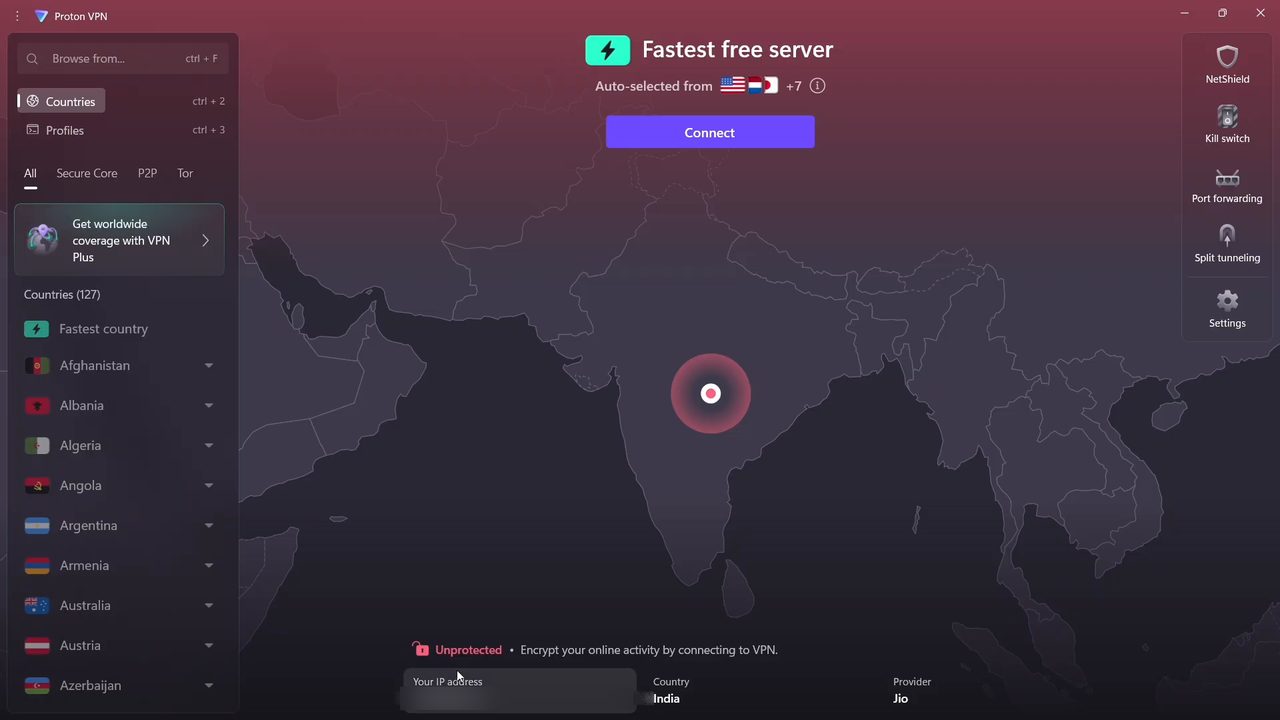
After you sign in, the app shows your real IP address, country and internet provider, and the status says Unprotected. That is because you are not connected to a VPN server yet. Click Connect under Fastest free server.
5Check that you are protected
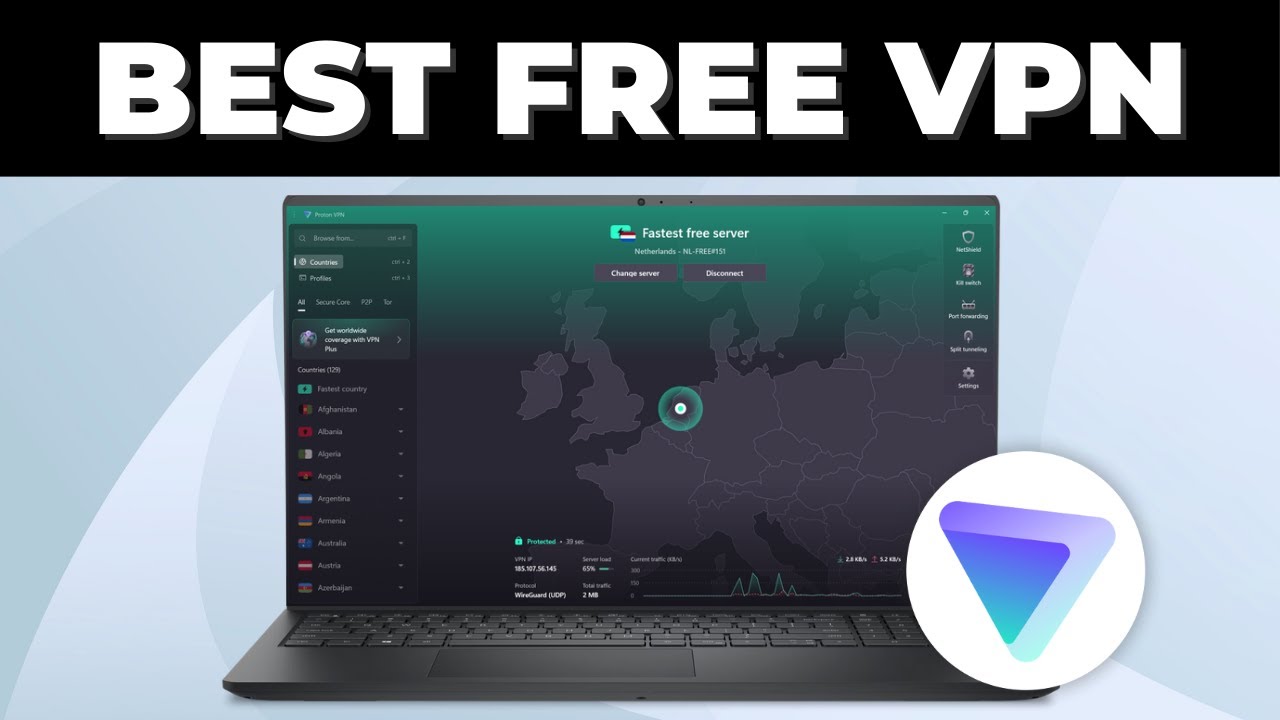
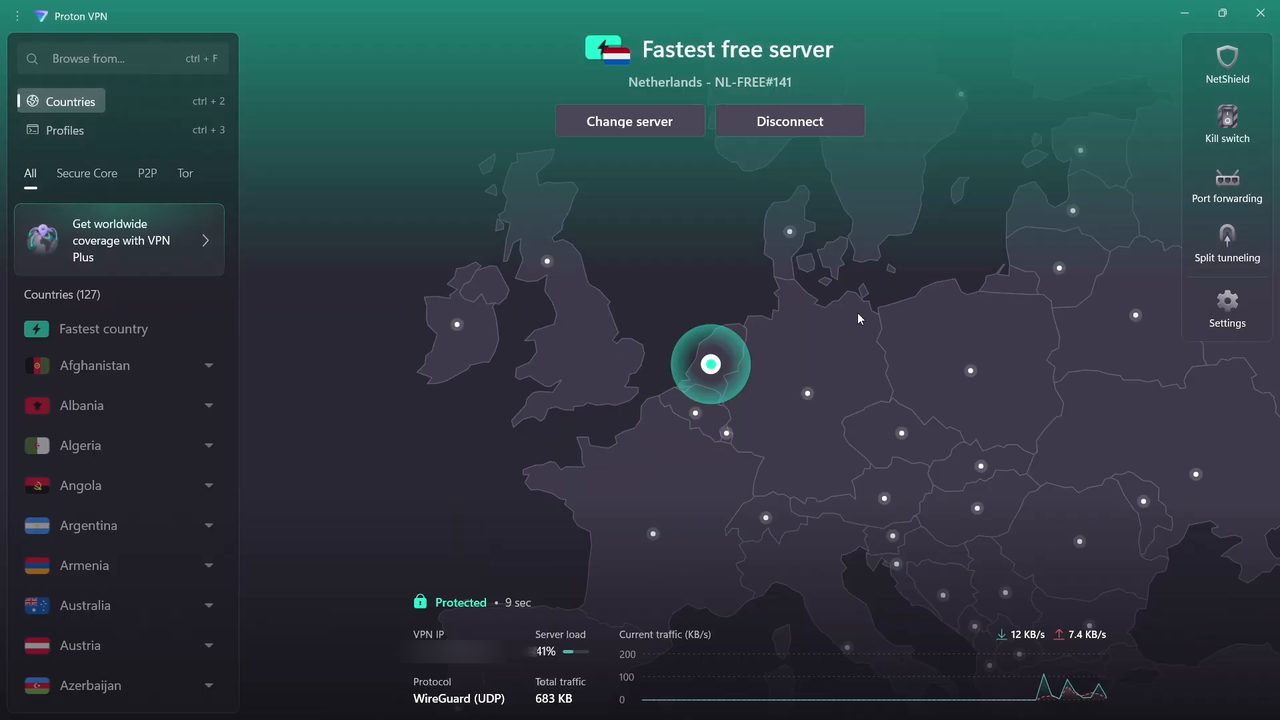
The screen turns green and the status changes to Protected. In our case the app connected us to a free server in the Netherlands. The bottom of the window shows your new VPN IP, server load and the protocol in use (WireGuard).
6Test it in your browser
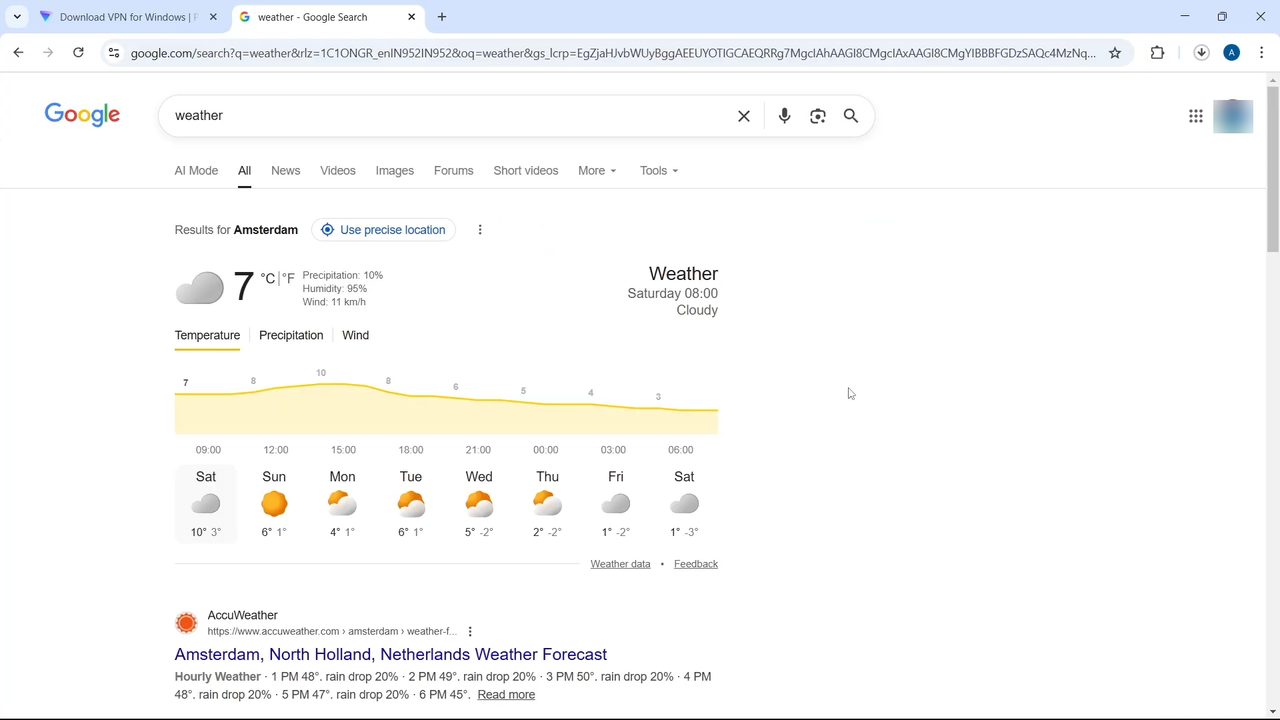
Open your browser and search for something location-based, like weather. Google now shows results for the VPN country (Amsterdam for us) instead of where you really are. That is a quick way to confirm the VPN is working.
7Change server
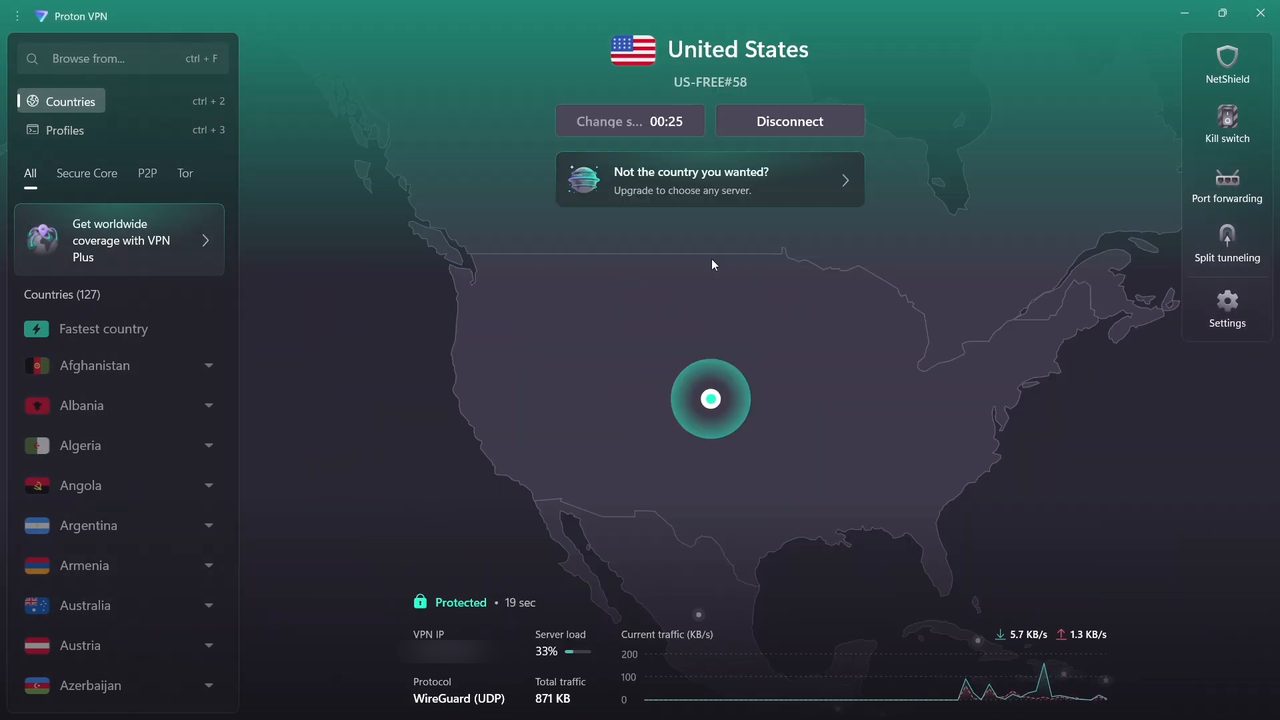
Back in the app, click Change server to jump to a different free server. We were moved to the United States. On the free plan you can't pick the exact country yourself; the button picks one for you, and there is a short timer before you can change again (45 seconds when we recorded). At that time the free plan rotated between seven server locations; Proton changes this now and then.
Turn on the kill switch
8Enable the kill switch
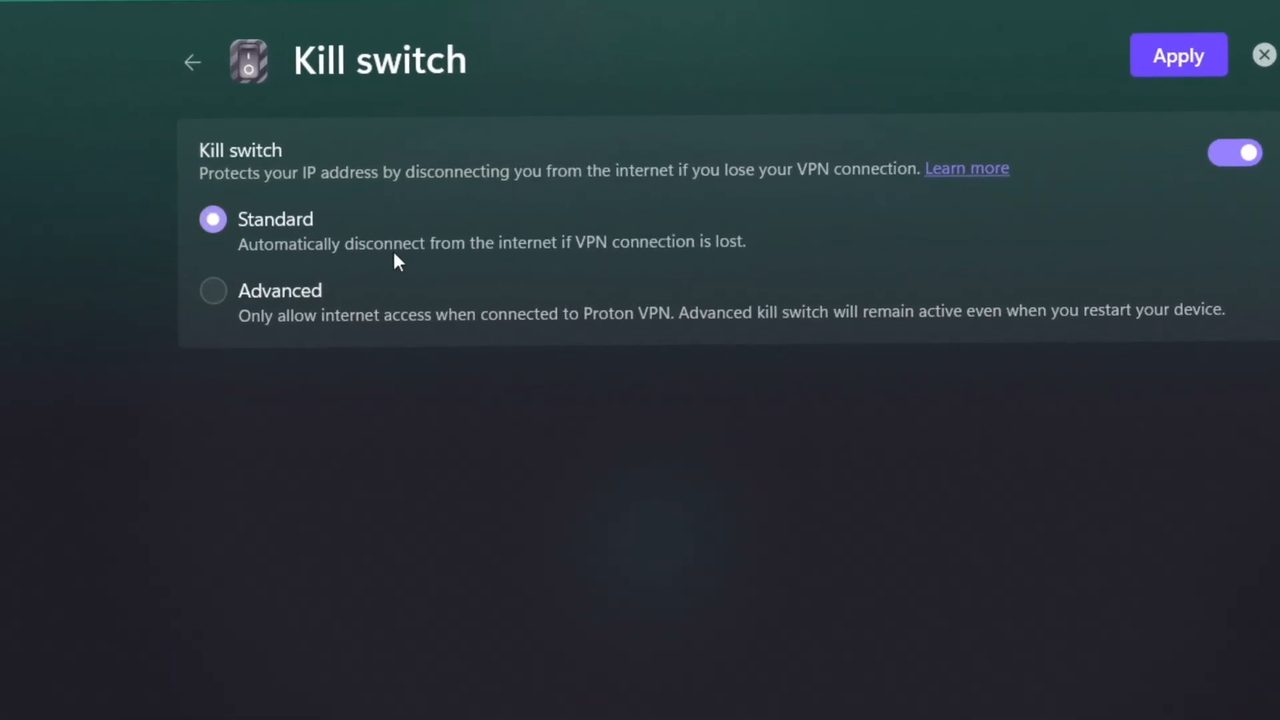
Click Kill switch in the bar on the right side of the app and turn the toggle on. You get two choices:
- Standard: automatically disconnects you from the internet if the VPN connection is lost.
- Advanced: only allows internet access when you are connected to Proton VPN. It stays on even after you restart your PC.
We picked Standard and clicked Apply. This feature is included in the free plan.
Proton's own guide, How to use kill switch, adds that the Standard kill switch only kicks in when the connection drops by accident, so it does not block your internet if you click Disconnect yourself. Advanced is stricter: no internet at all unless the VPN is connected.
What the free plan includes
According to Proton's free VPN page, the free plan has no ads, no data limit and a no-logs policy, and it covers one device. The paid VPN Plus plan unlocks choosing any country and server, which is what the Not the country you wanted? Upgrade to choose any server banner in the app is pointing to. For everyday privacy on public Wi-Fi, the free plan is enough.
Tips / troubleshooting
- The VPN works for every app, not just the browser. Once connected, all traffic from your PC goes through ProtonVPN, including games, email apps and downloads.
- No internet after turning on Advanced kill switch. That is expected when the VPN is off. Connect again, or switch the kill switch back to Standard or off.
- Change server is greyed out. On the free plan there is a short wait between changes. Wait for the countdown on the button to finish.
- Turn the VPN off. Click Disconnect at the top of the app. Your status goes back to Unprotected and your real IP is used again.
- Slow connection. Free servers are shared with many users. The Server load figure at the bottom shows how busy yours is; changing server can help.
Using a phone too? See how to use Proton VPN on Android.
FAQ
Is ProtonVPN really free on PC?
Yes. The Windows app works on a free Proton account with no payment needed. Proton says the free plan has no ads and no data limit; you just can't choose the exact country or server.
How do I change the server in ProtonVPN free?
Click Change server at the top of the app while connected. The free plan picks another free server for you, and you have to wait a short countdown before changing again.
How do I enable the ProtonVPN kill switch?
Click Kill switch in the right-hand bar (it is also under Settings), turn the toggle on, choose Standard or Advanced and click Apply.
Does ProtonVPN work on Mac and phones?
Yes. The Download menu on protonvpn.com lists apps for macOS, Linux, Android, iPhone and iPad, Chromebook and more. This guide only covers the Windows app.
Related guides