Tech is Easy
How to Use Smart Lock on Android (Smart Lock Explained)
To use Smart Lock on Android, open Settings, search for Smart Lock, and turn on one or more of its options: On-body detection, Trusted places or Trusted devices. Once set up, your phone stays unlocked while it is in your pocket, while you are at home, or while it is connected to your watch or car, so you do not have to enter your PIN, pattern or fingerprint every time. It is handy for anyone who unlocks their phone dozens of times a day.
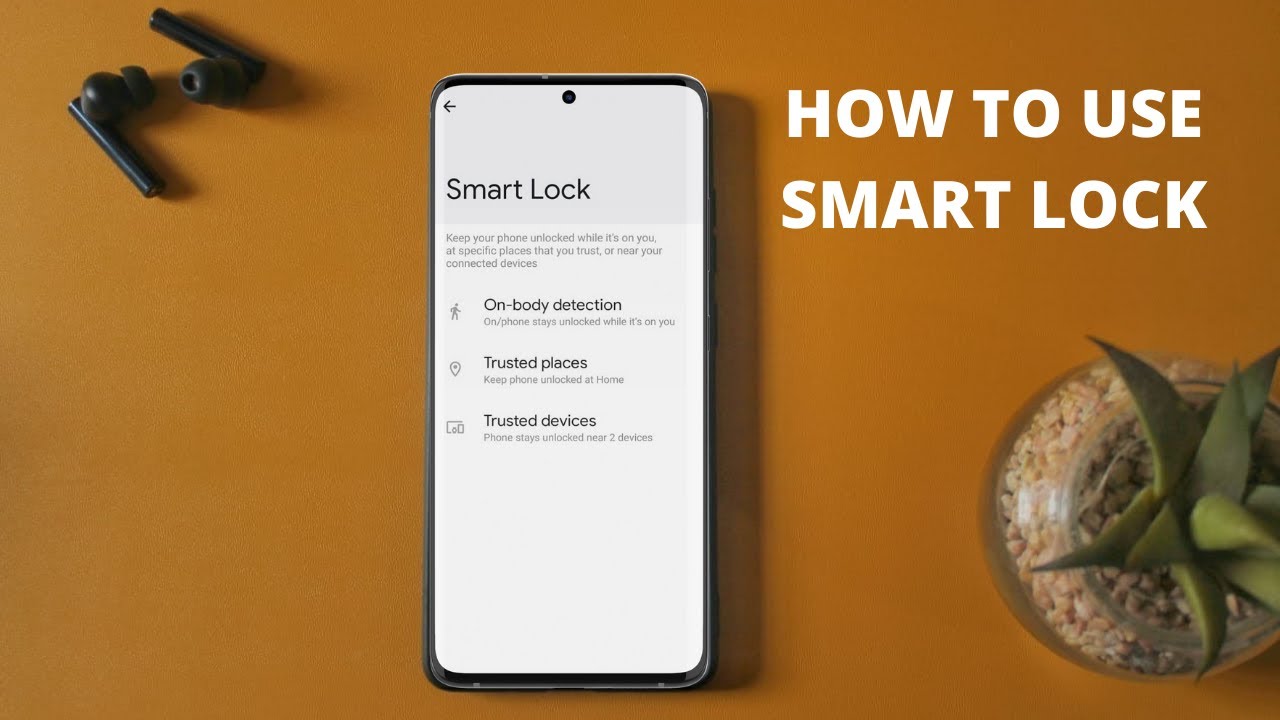
On newer Android versions, Google calls this feature Extend Unlock. Google's help page Choose when your Android phone can stay unlocked lists it under Settings > Security & privacy > More security & privacy > Extend Unlock. The options inside are the same. This video was recorded in 2022, so menus on your phone may look slightly different.
What is Smart Lock?
Smart Lock switches off your lock screen when your phone can tell it is in a safe situation. You unlock it once as usual, and it stays unlocked as long as one of your conditions is true. There are three ways for the phone to know:
- On-body detection: the phone stays unlocked while you are carrying it, and locks when you put it down.
- Trusted places: the phone stays unlocked at a location you choose, such as home.
- Trusted devices: the phone stays unlocked while it is connected to a Bluetooth device you choose, such as a smartwatch, earbuds or your car.
You need a screen lock (PIN, pattern or password) set up for Smart Lock to work.
1Search for Smart Lock in Settings
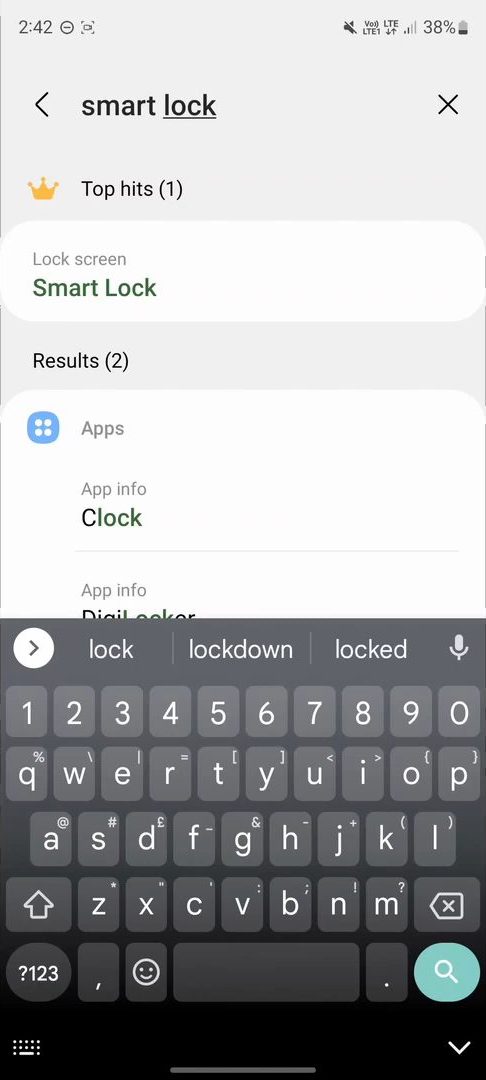
Open the Settings app and tap the search icon. Type smart lock and tap the Smart Lock result (on Samsung it sits under Lock screen). Enter your PIN, pattern or password when asked.
2Choose a Smart Lock method
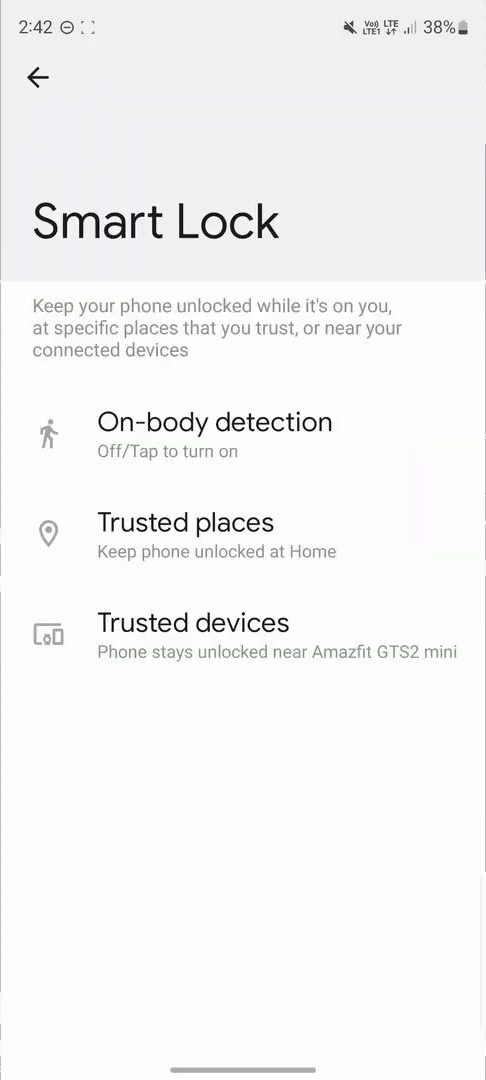
The Smart Lock page shows the three options: On-body detection, Trusted places and Trusted devices. You can use one, two or all three.
Method 1: On-body detection
3Turn on Use On-body detection
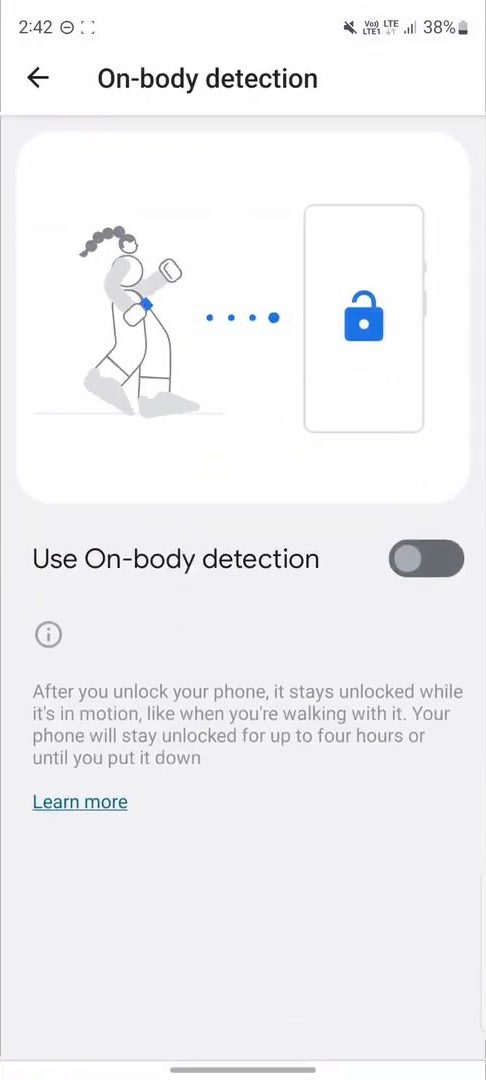
Tap On-body detection, then turn on Use On-body detection. A Keep in mind message warns that the phone cannot tell you apart from someone else, so if someone takes it while it is unlocked, they can use it. Tap Continue. After you unlock your phone, it stays unlocked while it is moving with you, for up to four hours or until you put it down.
Method 2: Trusted places
4Tap Add trusted place
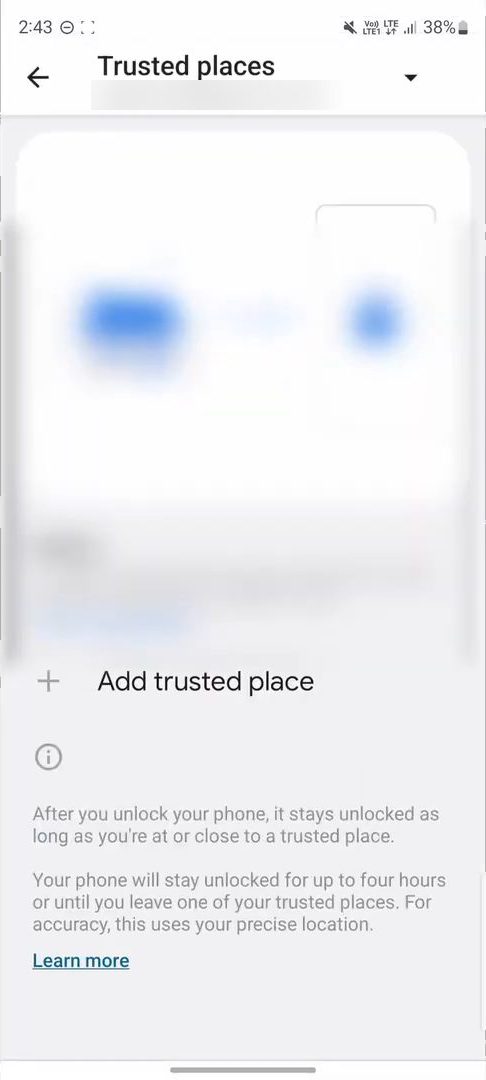
Go back and tap Trusted places, then Add trusted place. In the video, home is already set up as a trusted place, so the phone stays unlocked whenever it is there.
5Pick the location on the map
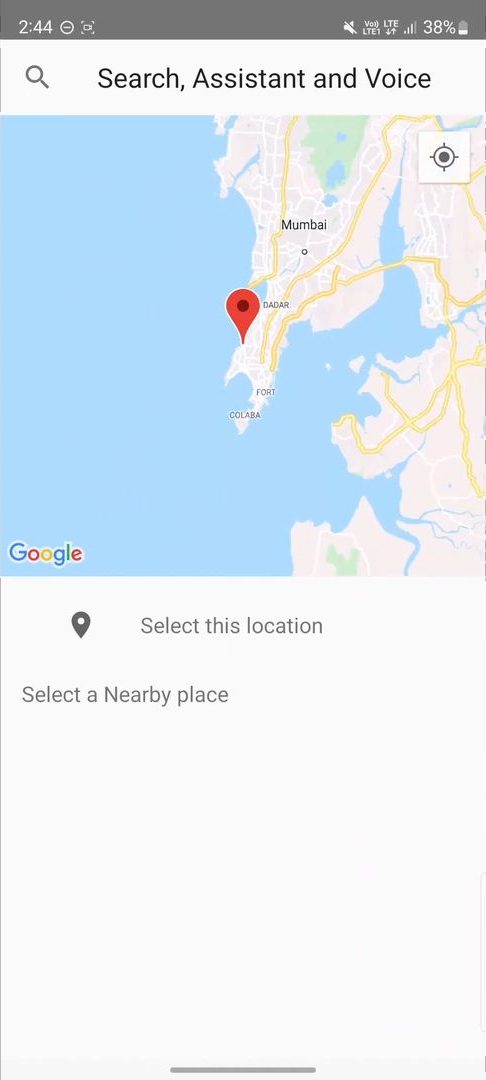
A map opens. Zoom in to where you live (or any place you trust), move the pin, and tap Select this location. Then save it. Your phone now stays unlocked while you are at or near that spot.
Method 3: Trusted devices
6Tap Add trusted device
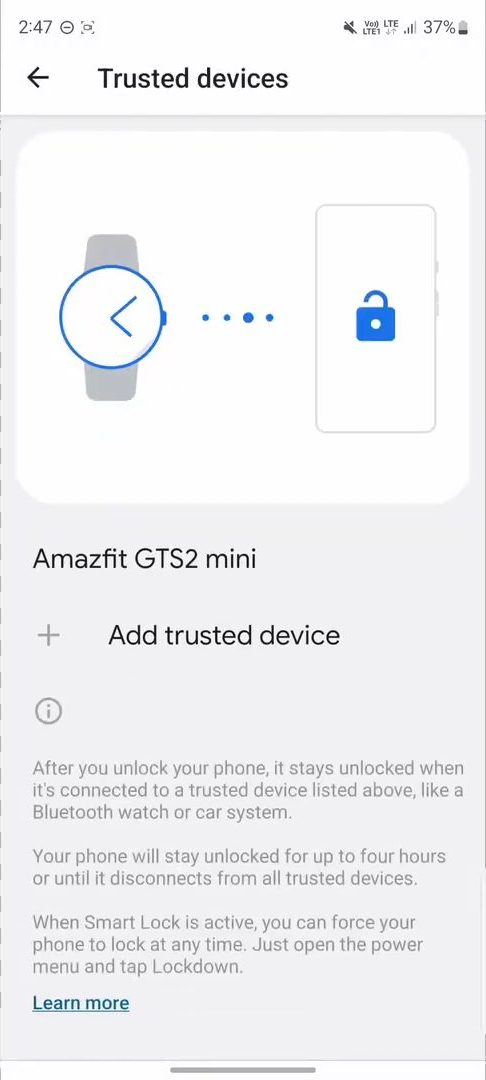
Go back and tap Trusted devices, then Add trusted device. In the video, an Amazfit smartwatch is already trusted, so the phone stays unlocked whenever the watch is connected.
7Choose a Bluetooth device
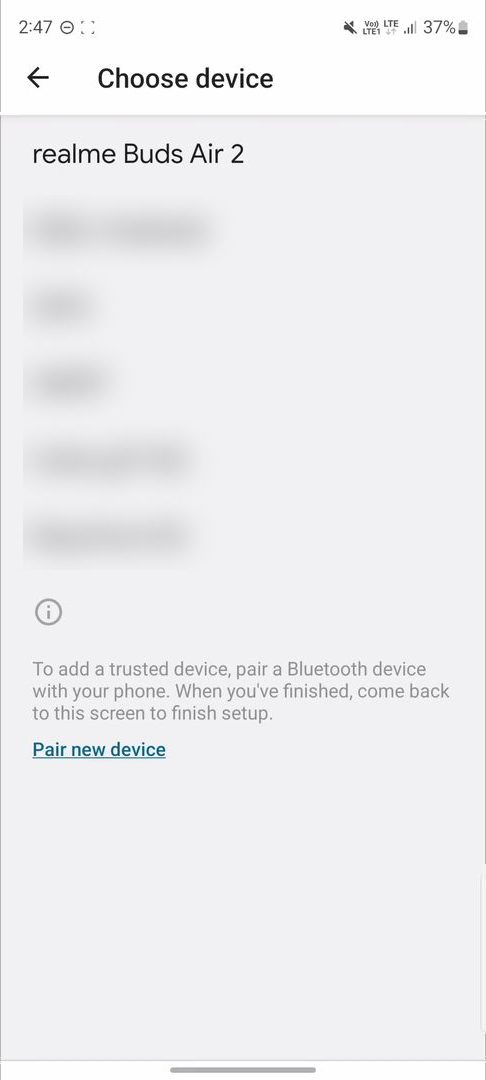
You will see the Bluetooth devices paired with your phone. Tap the one you want to trust. In our case we chose realme Buds Air 2. If your device is not in the list, tap Pair new device first, then come back.
8Confirm with Add
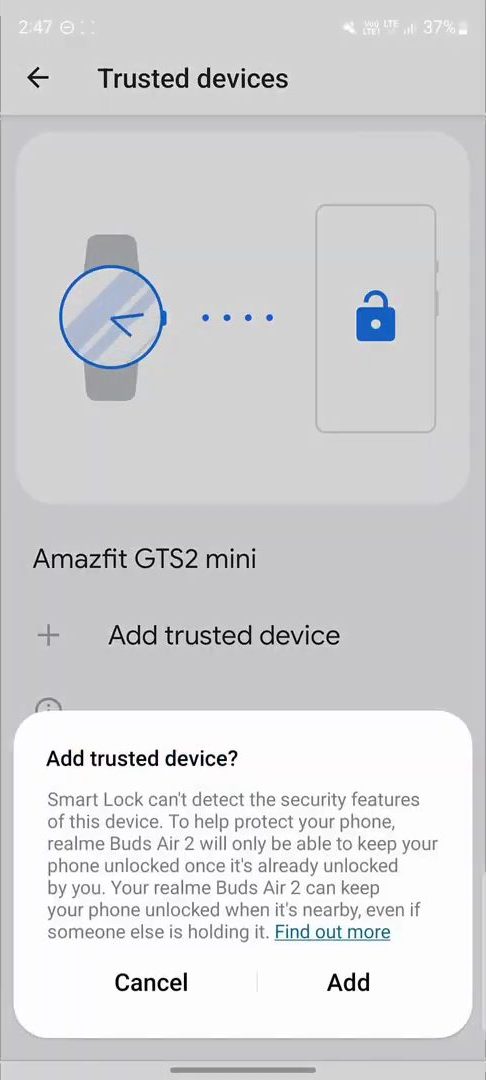
A box asks Add trusted device? and explains that the device can keep your phone unlocked when it is nearby, even if someone else is holding it. Tap Add. Now, every time your phone and that device are connected, you will not have to unlock your phone.
Tips / troubleshooting
- Smart Lock is missing in Settings: search for Extend Unlock instead, or look under Security & privacy or Lock screen. Google notes that steps vary by device. You also need a PIN, pattern or password set, since Smart Lock does nothing on a phone with no screen lock.
- Lock it manually any time: the Trusted devices screen says you can force the phone to lock by opening the power menu and tapping Lockdown. Google's page says to press the Power and Volume up buttons together to get there.
- Up to four hours: each method keeps the phone unlocked for at most four hours at a time. After that, you unlock it normally once and Smart Lock takes over again.
- On-body detection on transport: Google says that after you put your phone down it can take up to a minute to lock, 5 to 10 minutes after you get into a vehicle, and it may not lock on its own on a plane or boat. Lock it manually in those cases.
- Trusted place too big: Google says a trusted location can extend up to about 100 m around the spot you chose, beyond the walls of your home. Do not use it for a place where other people can pick up your phone.
- Choose trusted devices carefully. Earbuds are easy to lose with the phone. A watch you always wear, or your car's system, is a safer choice.
If you also want to protect individual apps, see how to lock apps on a Samsung phone.
FAQ
What is Smart Lock on Android?
Smart Lock (called Extend Unlock on newer phones) keeps your phone unlocked in situations you trust: while you are carrying it, at a trusted place like home, or while it is connected to a trusted Bluetooth device.
How do I turn off Smart Lock?
Go back to Settings > Smart Lock (or Extend Unlock), turn off Use On-body detection, turn off trusted places, and remove your trusted devices. Google's help page lists these same steps.
Is Smart Lock safe?
It trades some security for convenience. Anyone who picks up your phone while Smart Lock is keeping it unlocked can use it, which the phone itself warns about. Use it with care, and lock the phone manually with Lockdown when needed.
Does Smart Lock work on Samsung phones?
Yes. The video uses a Samsung phone, where Smart Lock is found by searching Settings or under Lock screen.
Related guides