 Tech is Easy
Gmail Tips and Tricks: 7 Settings Everyone Should Know
These Gmail tips and tricks are all built into Gmail on the web: most live under Settings (gear icon) > See all settings > General, and the rest are in the compose window or the search bar. You'll learn to undo a sent email for up to 30 seconds, add a signature, schedule emails, set an out-of-office reply, find large emails, use keyboard shortcuts and send confidential emails.
They suit anyone who uses Gmail daily. The video is from 2021, so some menus may look slightly different now.
Method 1: Undo a sent email (for longer)
By default Gmail shows Undo for only 5 seconds after you click Send. After that the only option is View message. You can make that window longer.
1Set the send cancellation period to 30 seconds
Click the Settings gear at the top right, then See all settings. On the General tab, find Undo Send and change Send cancellation period from 5 to 30 seconds (the choices are 5, 10, 20 and 30). Scroll to the bottom and click Save Changes. Now Undo stays at the bottom left for 30 seconds after you send.
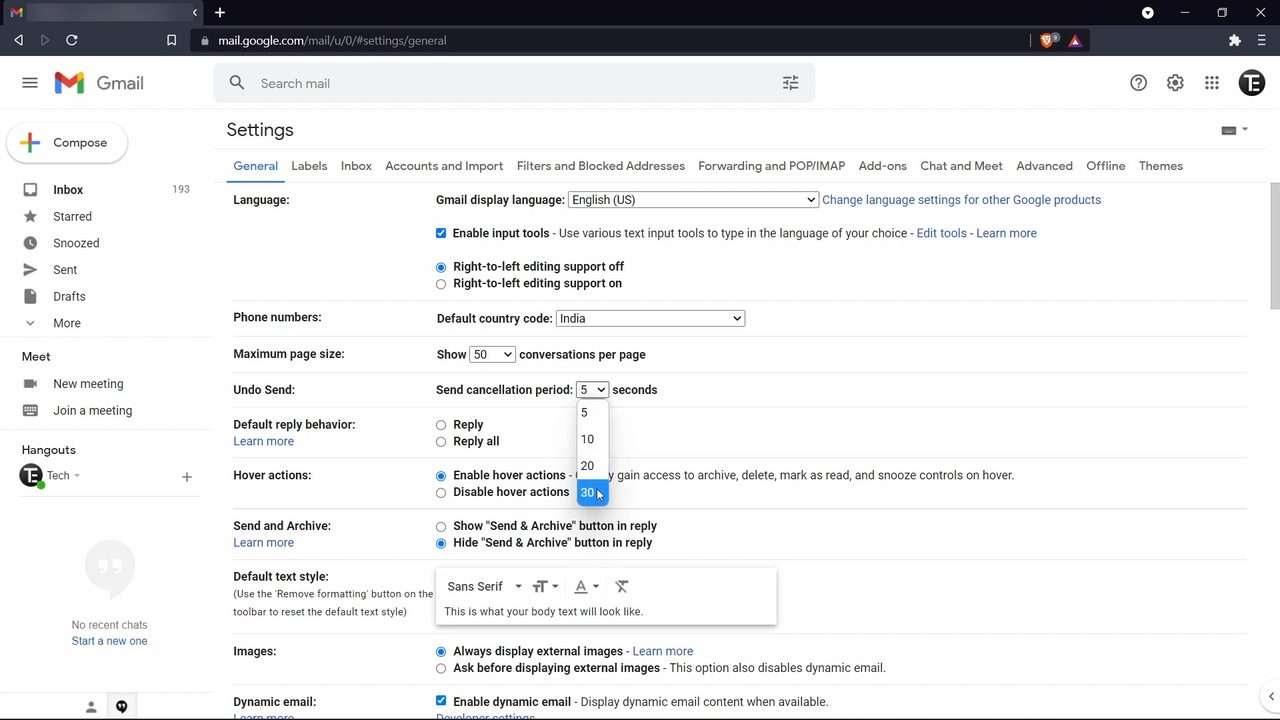
Google's help page Send or unsend Gmail messages confirms the same four options and where to find them.
Method 2: Add an email signature
2Create a new signature
In See all settings > General, scroll to Signature and click Create new. Give it a name (ours was "Trial"), then type the signature in the box, for example "Best Regards" and your name. The toolbar lets you change the font, make text bold, italic or underlined, add a link, or click Insert image to add a logo from Google Drive or a web address.
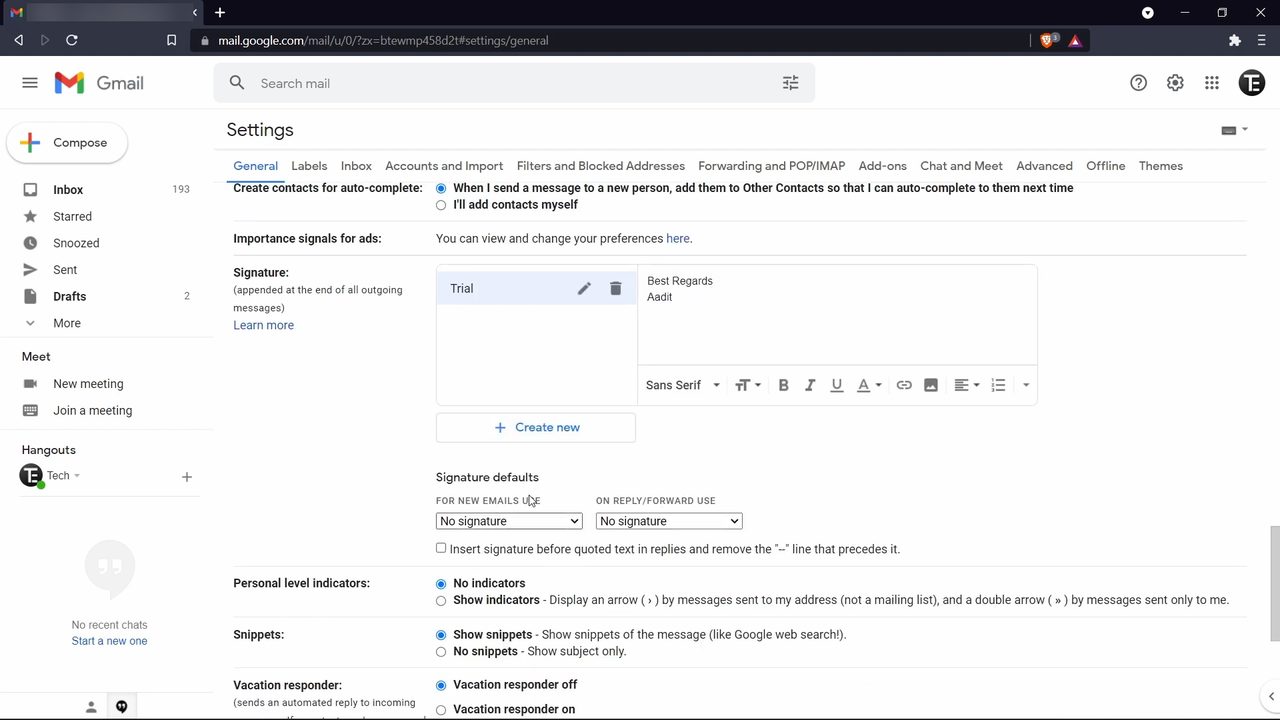
3Choose when the signature is used
Under Signature defaults, pick your signature in For new emails use, and again in On reply/forward use if you want it on replies too. There's also a box to insert the signature before quoted text and remove the "--" line above it. Click Save Changes at the bottom. When you click Compose, the signature now appears automatically.
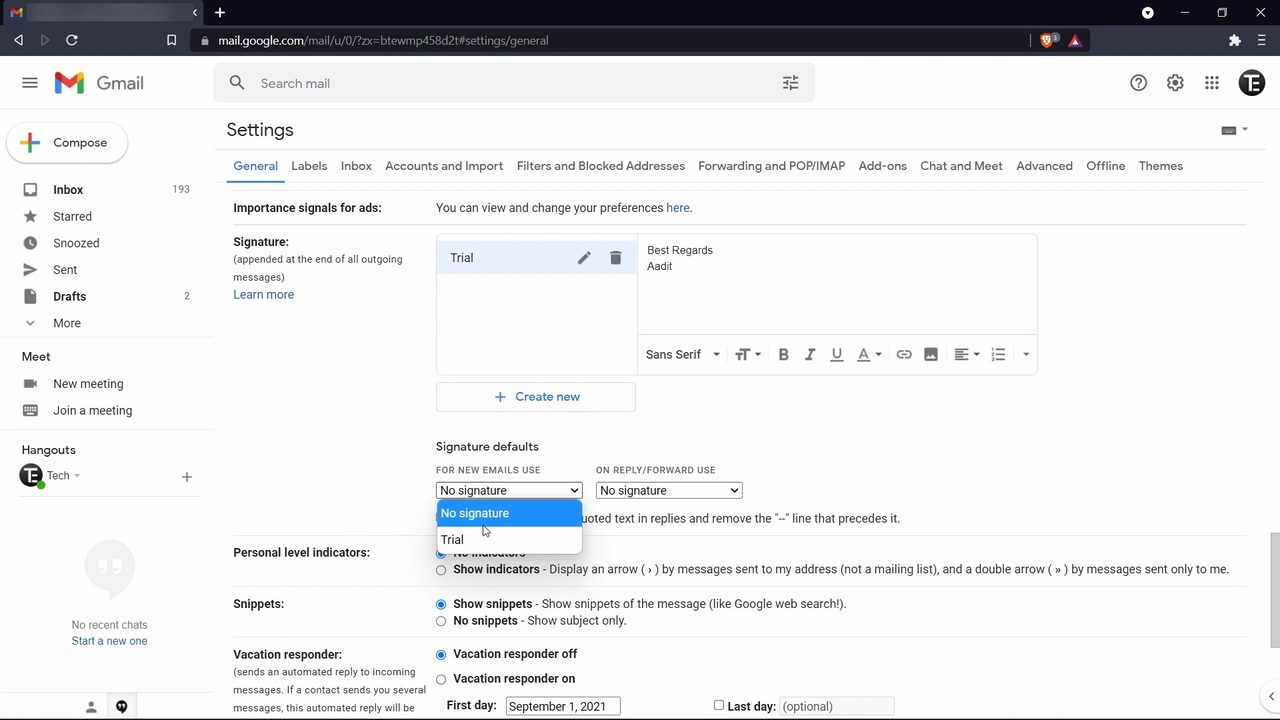
Method 3: Schedule an email to send later
4Open Schedule send
Click Compose and write your email as usual. Instead of clicking Send, click the small arrow next to it and choose Schedule send.
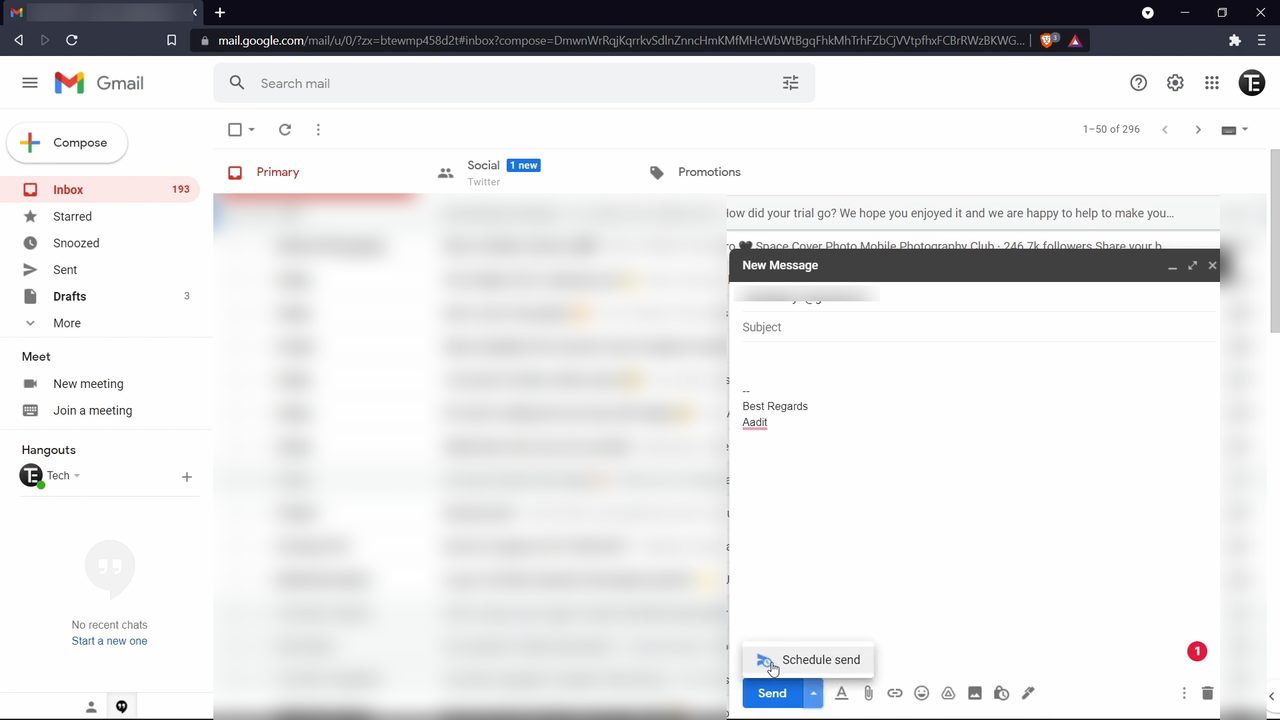
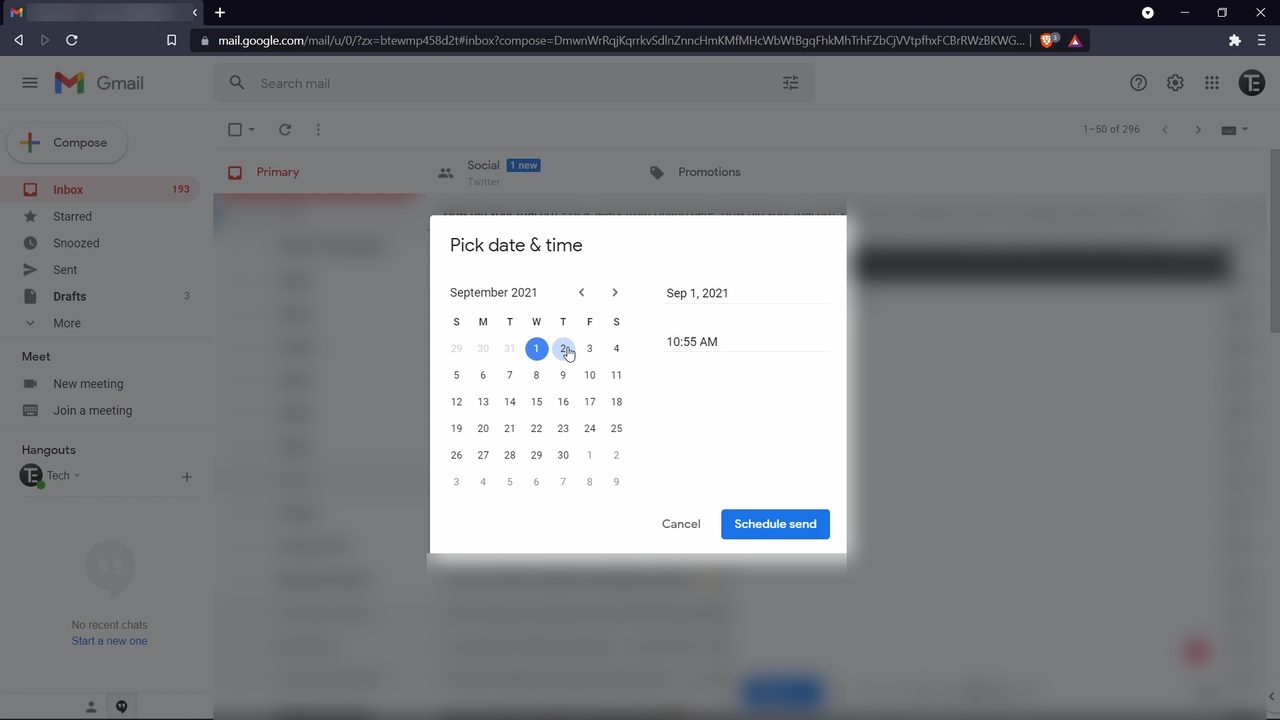
5Pick the date and time
Gmail offers quick options like tomorrow morning or this afternoon. For an exact time, click Pick date & time, choose the day in the calendar, type the time and click Schedule send. Our email was set for Friday, September 3 at 10 AM. Scheduled emails wait in the new Scheduled folder on the left, where you can open one and cancel it before it goes out.
Method 4: Turn on the vacation responder
6Set up an automatic reply
If you'll be away from email for a while, Gmail can answer for you. In See all settings > General, scroll to the bottom and select Vacation responder on. Set the First day, tick Last day and pick an end date if you know it, then add a Subject (we used "Travelling") and a Message saying when you'll be back. Tick Only send a response to people in my Contacts if you don't want strangers to get it. Click Save Changes.
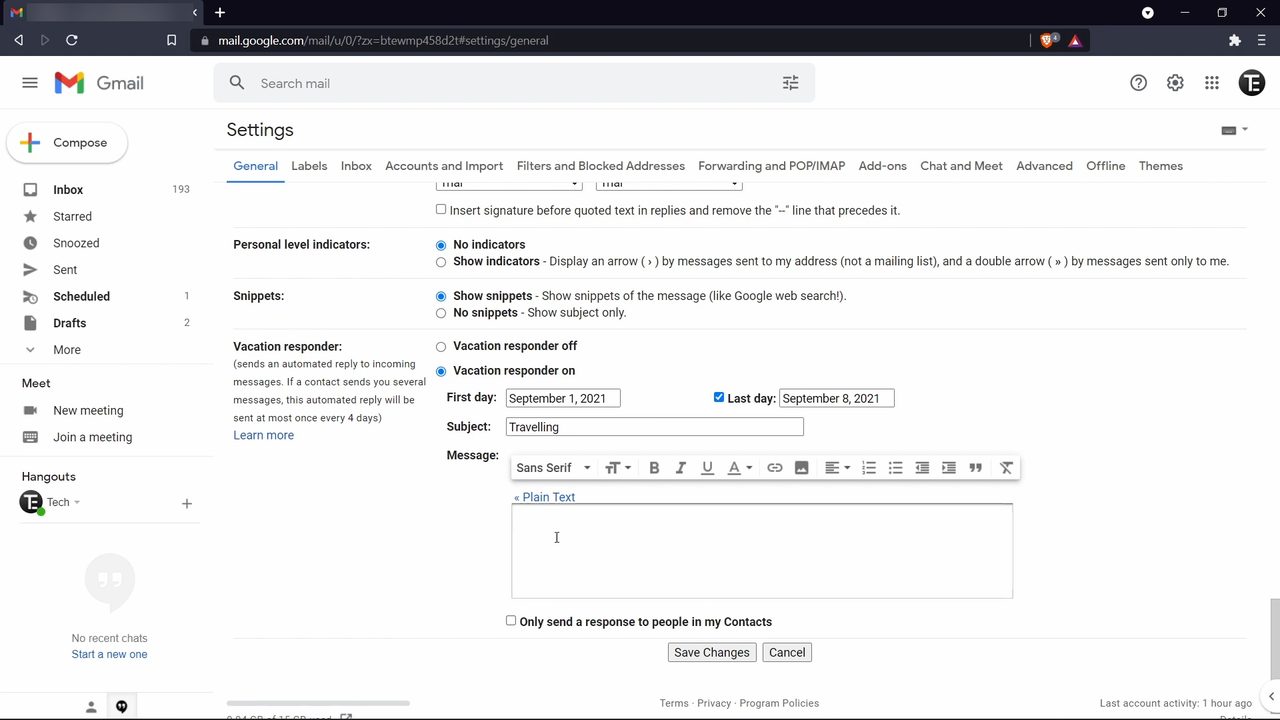
The settings note says that if someone emails you several times, they get the automated reply at most once every 4 days.
Method 5: Find and delete large emails
Your free Google account has 15 GB of storage shared by Gmail, Drive and Photos. Big attachments fill it fastest.
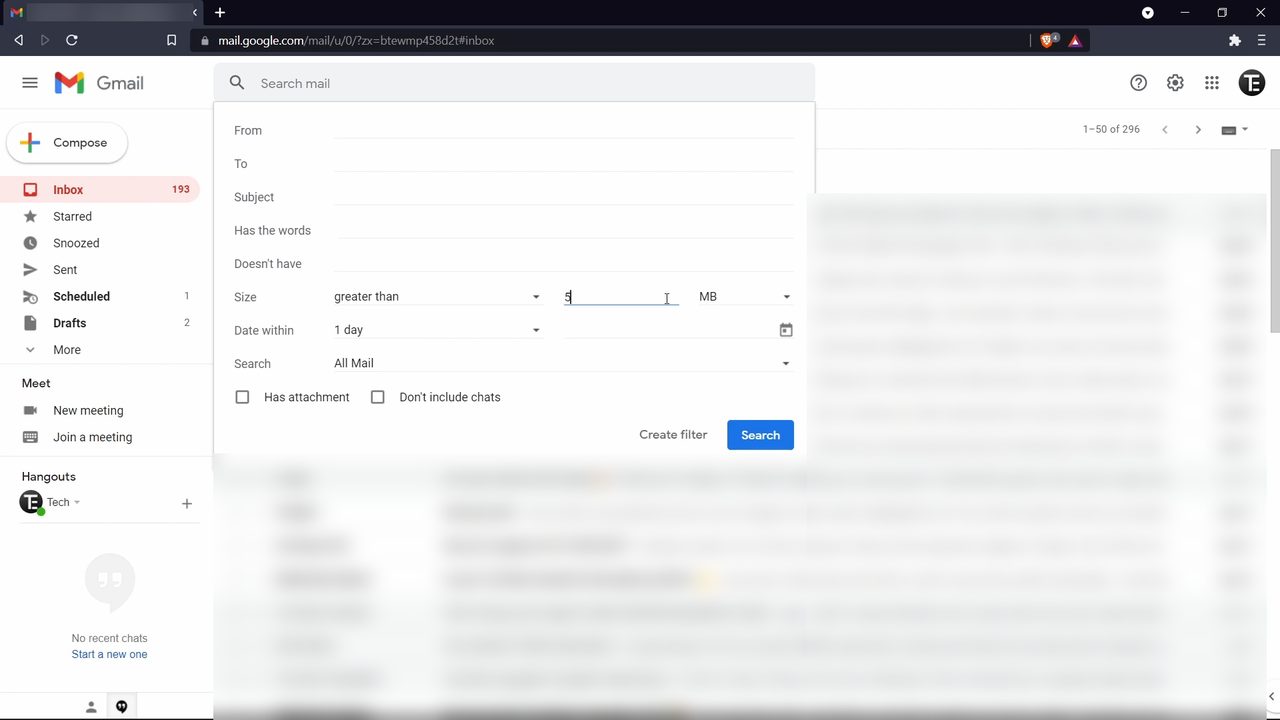
7Search for emails over a certain size
Click the search options icon at the right end of the Gmail search bar. Next to Size, choose greater than, type a number (we used 5) and keep MB. Tick Has attachment and click Search. Gmail lists every email with attachments bigger than 5 MB. (The same search can be typed as has:attachment larger:5M.) Tick the select-all box above the results and click Delete to clear space, or pick only the ones you don't need.
For a deeper cleanup, see How to Clear Gmail Storage and Free Up Space.
Method 6: Turn on keyboard shortcuts
8Enable keyboard shortcuts
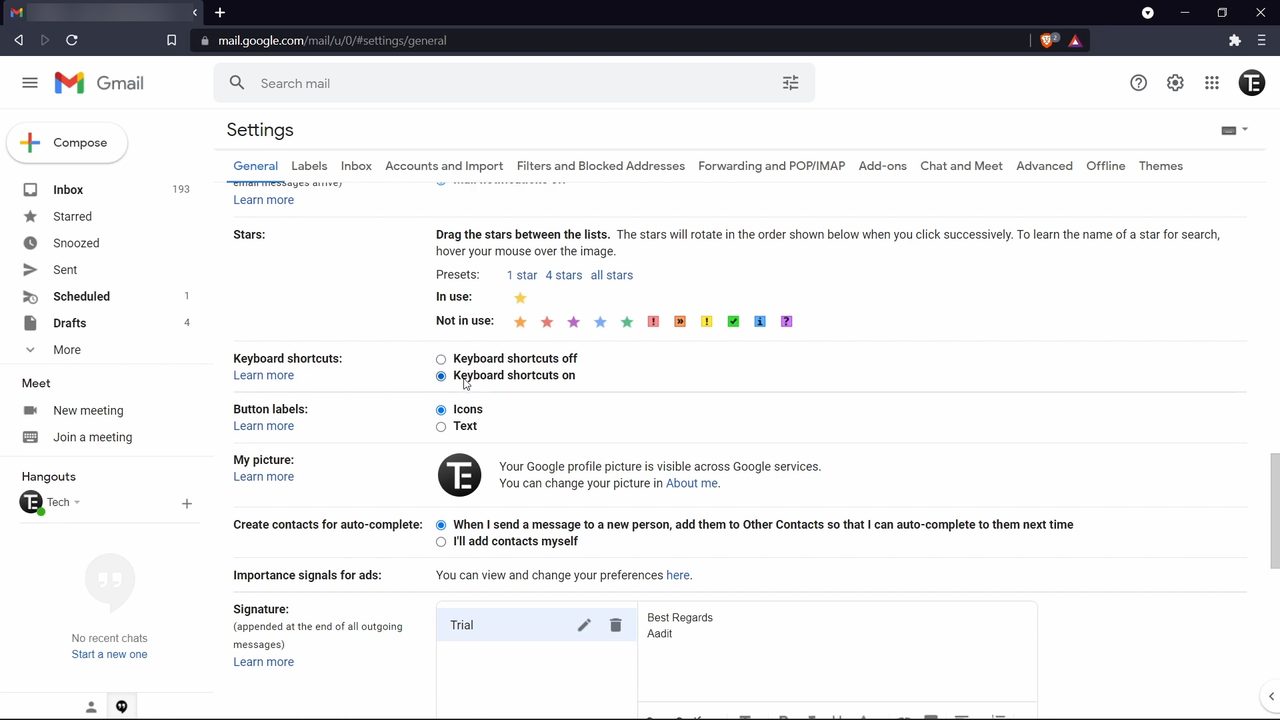
In See all settings > General, find Keyboard shortcuts and select Keyboard shortcuts on, then click Save Changes. They're off in most accounts. Now press Shift + ? anywhere in Gmail to see the full list, grouped into compose, formatting, navigation and actions. Some sets are disabled by default; click Enable in that list to switch them on too.
Method 7: Send a confidential email
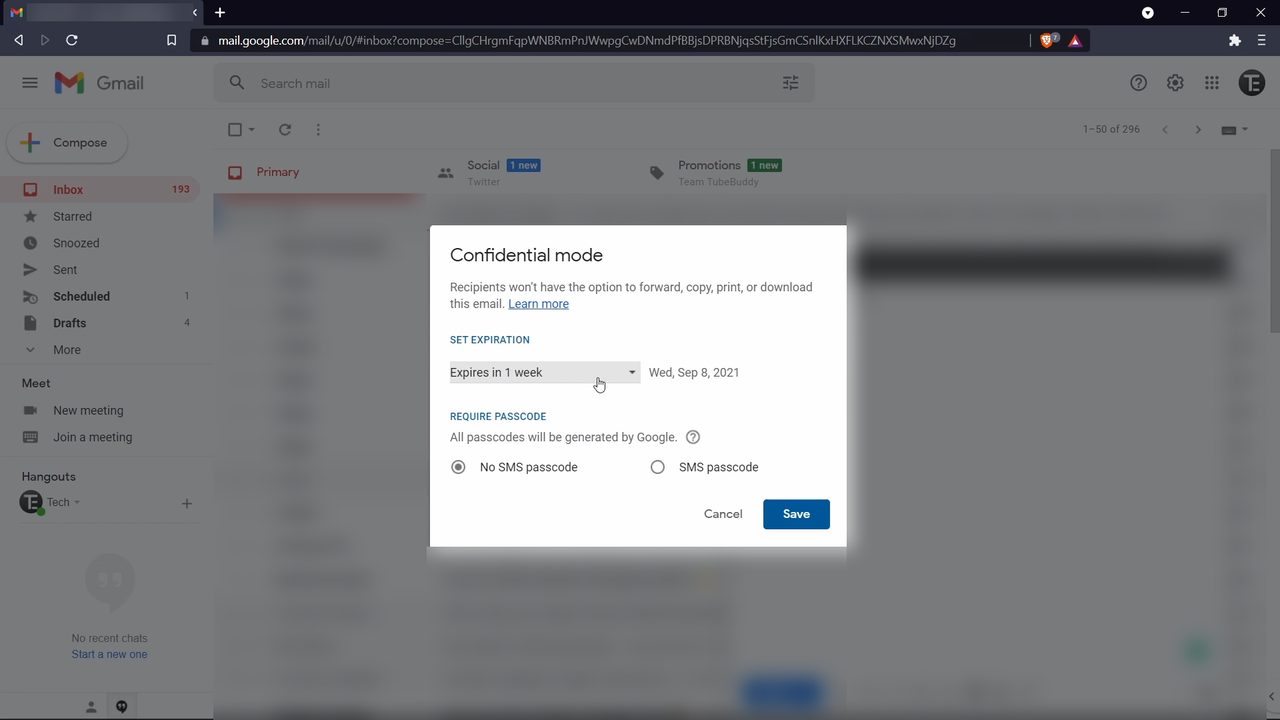
Confidential mode stops the recipient from forwarding, copying, printing or downloading your email, and lets it expire.
9Turn on confidential mode in the compose window
Click Compose, write your email, then click the lock and clock icon in the bottom toolbar (Turn confidential mode on / off). Choose an expiry under Set expiration, such as Expires in 1 week. Under Require passcode, pick No SMS passcode, or SMS passcode to make the recipient enter a code Google texts to the phone number you add for them. Click Save, then Send.
10See what the recipient gets
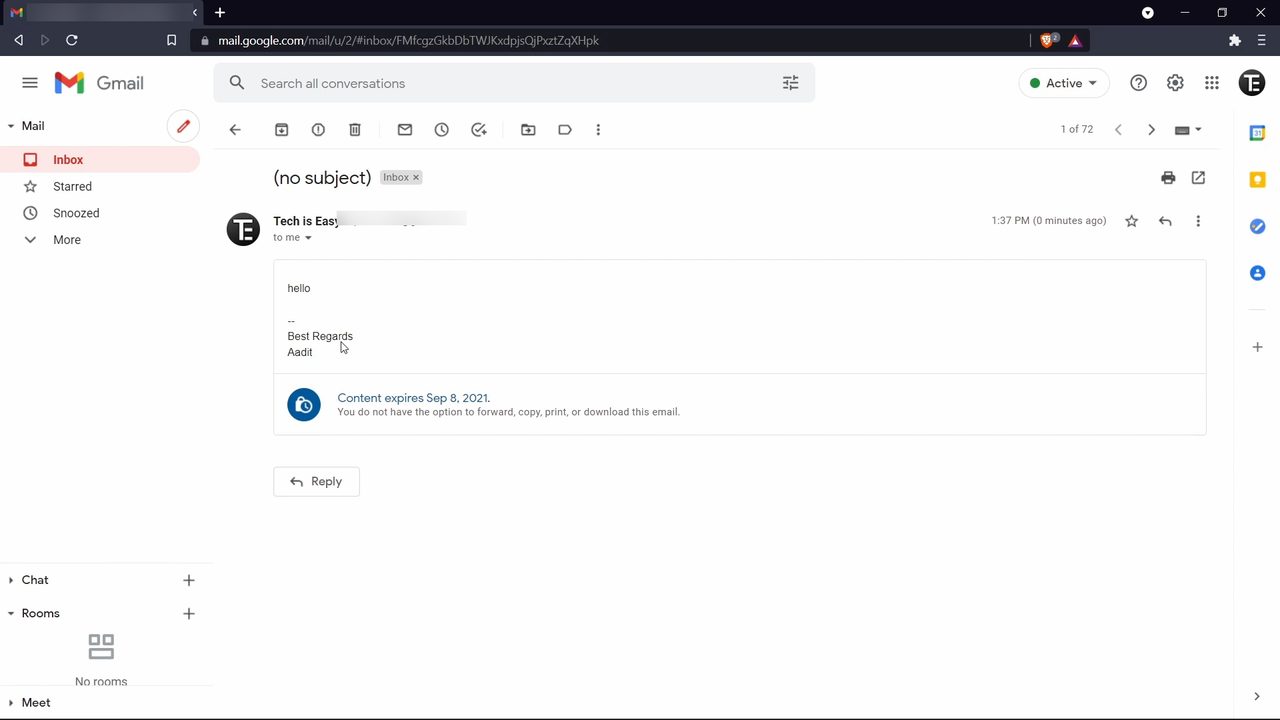
On the recipient's side, the email shows a note that the content expires on the set date and that they can't forward, copy, print or download it. When we tried to select the text, Gmail didn't allow it, and the three dots menu had no forward or download option.
Keep in mind what Google says on its confidential mode help page: recipients can still take screenshots or photos of the email, so don't treat it as full protection for very sensitive information. You can also remove access early from your Sent folder.
Troubleshooting
- Settings didn't stick. Almost every change here needs Save Changes at the bottom of the General tab. If you leave the page without it, nothing changes.
- Undo button disappeared too fast. Check the Undo Send setting saved at 30 seconds. If it still shows only 5 seconds, reload Gmail after saving.
- Vacation reply went to everyone. Tick Only send a response to people in my Contacts to limit it.
FAQ
How do I schedule an email in Gmail?
Write your email, click the arrow next to Send, choose Schedule send, then pick a suggested time or Pick date & time. The email waits in the Scheduled folder until then.
Can I unsend an email in Gmail after 30 seconds?
No. The longest cancellation period is 30 seconds. After that the email has been delivered and can't be pulled back.
How do I set an out of office reply in Gmail?
Go to Settings > See all settings > General, turn on Vacation responder, set the dates, subject and message, and click Save Changes.
Can someone screenshot a confidential Gmail email?
Yes. Confidential mode blocks forwarding, copying, printing and downloading, but Google notes that screenshots and photos are still possible.
Related guides