 Tech is Easy
7 WhatsApp Web Tricks You Should Know (PC Tips)
These seven WhatsApp Web tricks make chatting on a PC faster: hover over a chat to read the last message without opening it, type : plus a word to search emojis, switch to dark mode in Settings > Personalization, drag files straight into a chat, select text to format it, and use shortcuts like Ctrl + N for a new chat. They are handy for anyone who uses WhatsApp on a computer every day.

We used the WhatsApp for Windows app, linked to a phone, but the same ideas apply to WhatsApp Web in a browser. Where the browser version differs, we point it out.
What you need
- WhatsApp linked to your computer, either the WhatsApp for Windows app or web.whatsapp.com in a browser
- A Windows keyboard for the shortcut tricks
Trick 1: Read the last message without opening the chat
1Hover over the chat
In your chat list, move the mouse over the message preview under a contact's name and keep it there for a second. A small box pops up with the full latest message, even if it is too long to fit in the list. Because you never open the chat, it is a quick way to peek at a message.

Trick 2: Find emojis faster
2Type a colon and the emoji name
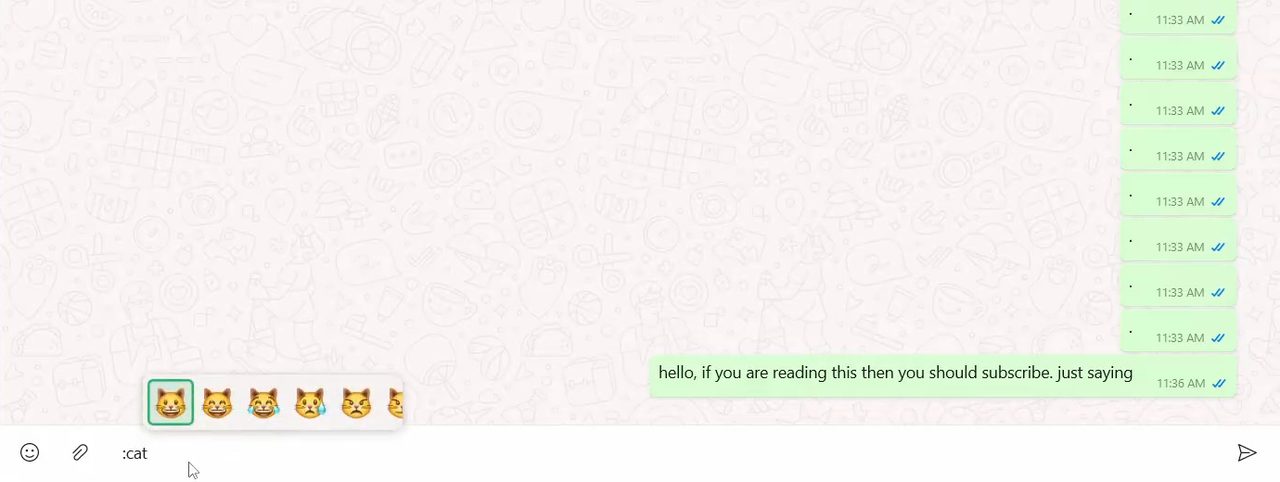
Instead of clicking the emoji button and scrolling, type a colon (:) in the message box followed by a word. For example, :cat shows a row of cat emojis above the box. Click one, or press Enter to pick the highlighted one.
3Or press Windows + period
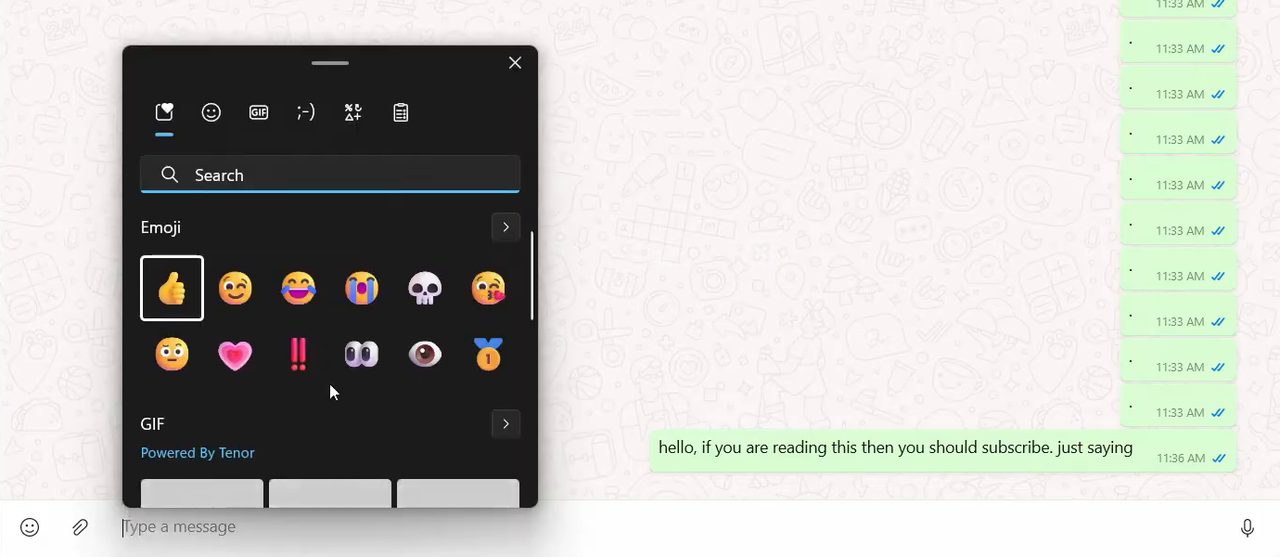
Windows has its own emoji panel. Press the Windows key + . (period) while the cursor is in the message box. The panel opens with emojis, GIFs, kaomoji and symbols, plus a search bar. This works in any app on Windows 10 and 11, not just WhatsApp.
Tricks 3 and 4: Dark mode and chat wallpaper
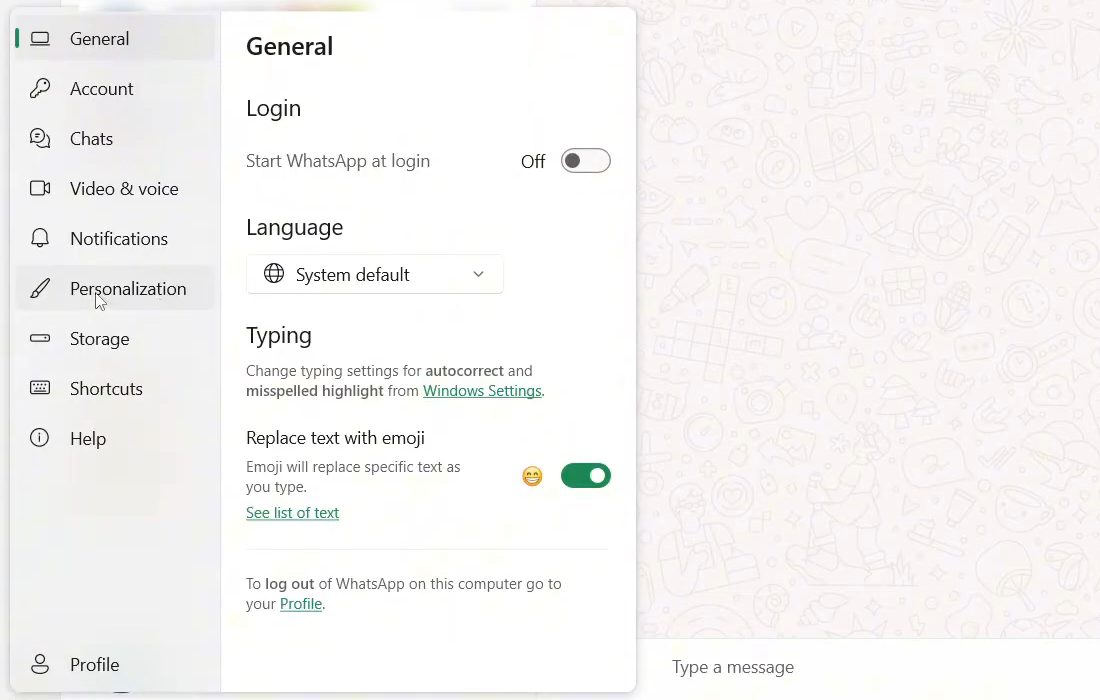
4Open Settings > Personalization
Click the Settings gear at the bottom left of the app, then choose Personalization. Both the theme and the wallpaper options live here.
5Switch the theme to Dark
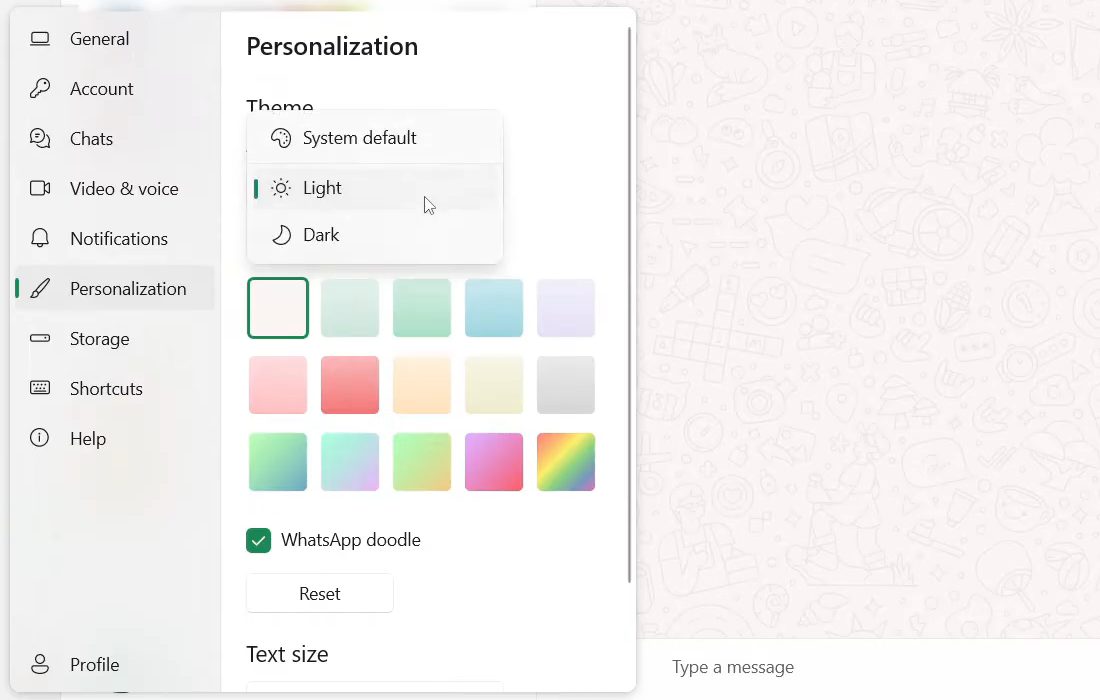
Under Theme, open the App color theme dropdown and choose Dark (or Light, or System default to follow Windows). WhatsApp asks to restart to apply the new theme; click OK and it reopens in dark mode.
6Pick a chat wallpaper
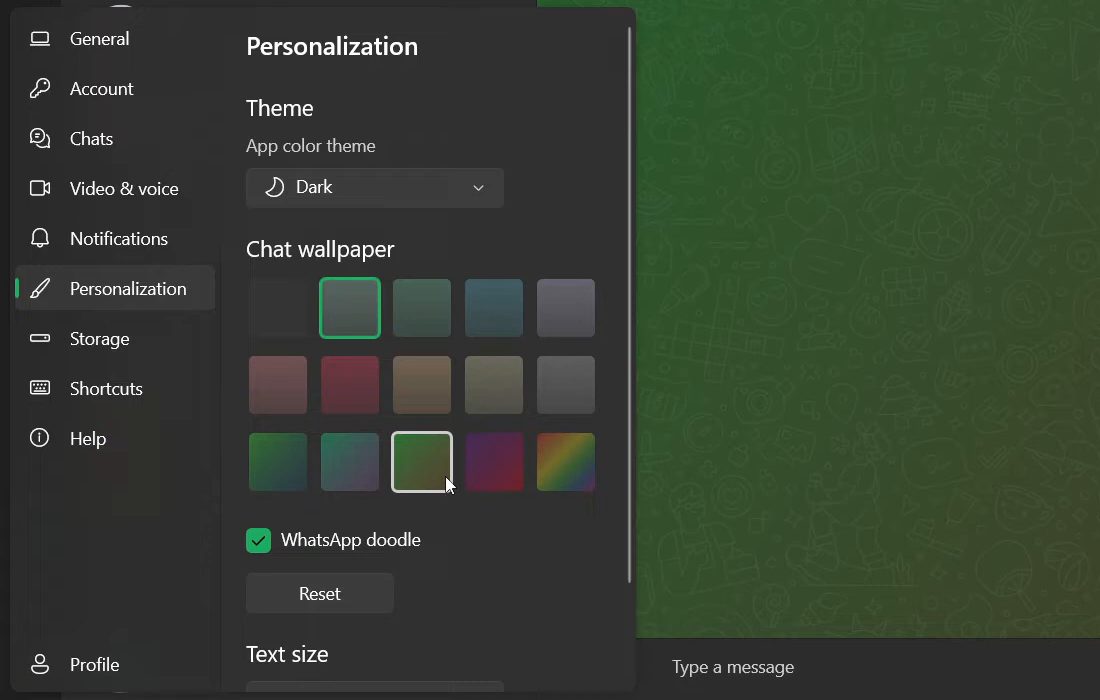
Below the theme, under Chat wallpaper, click any colour tile to change the background of your chats. To get a plain background without the little drawings, untick WhatsApp doodle. Click Reset to go back to the default.
Trick 5: Drag and drop files into a chat
7Drag files from File Explorer
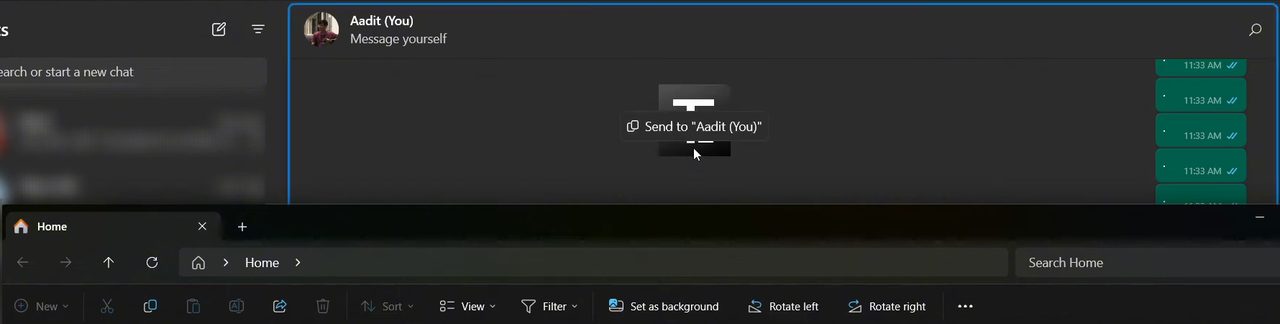
You don't need the attach (paperclip) button. Open File Explorer next to WhatsApp, pick a photo or file and drag it into the open chat. You'll see Send to followed by the chat name. Let go, add a caption if you want, and send. You can select many files at once, say 30 photos, and drag them all in together.
Trick 6: Format messages
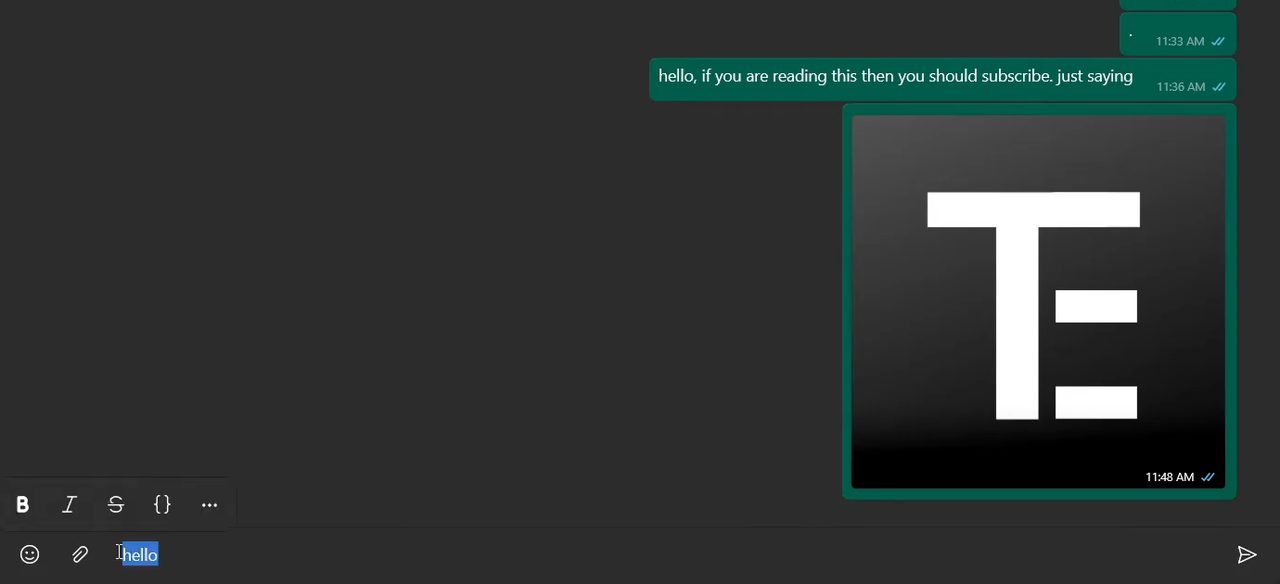
8Select text and pick a style
Type your message, then select the text with your mouse. A small toolbar appears above the box with Bold, Italic, Strikethrough, Code and more options. Click one and send. In our test the word "hello" arrived in italics. You can also type the symbols yourself: *bold*, _italic_ and \~strikethrough\~ work on every version of WhatsApp.
Trick 7: Keyboard shortcuts
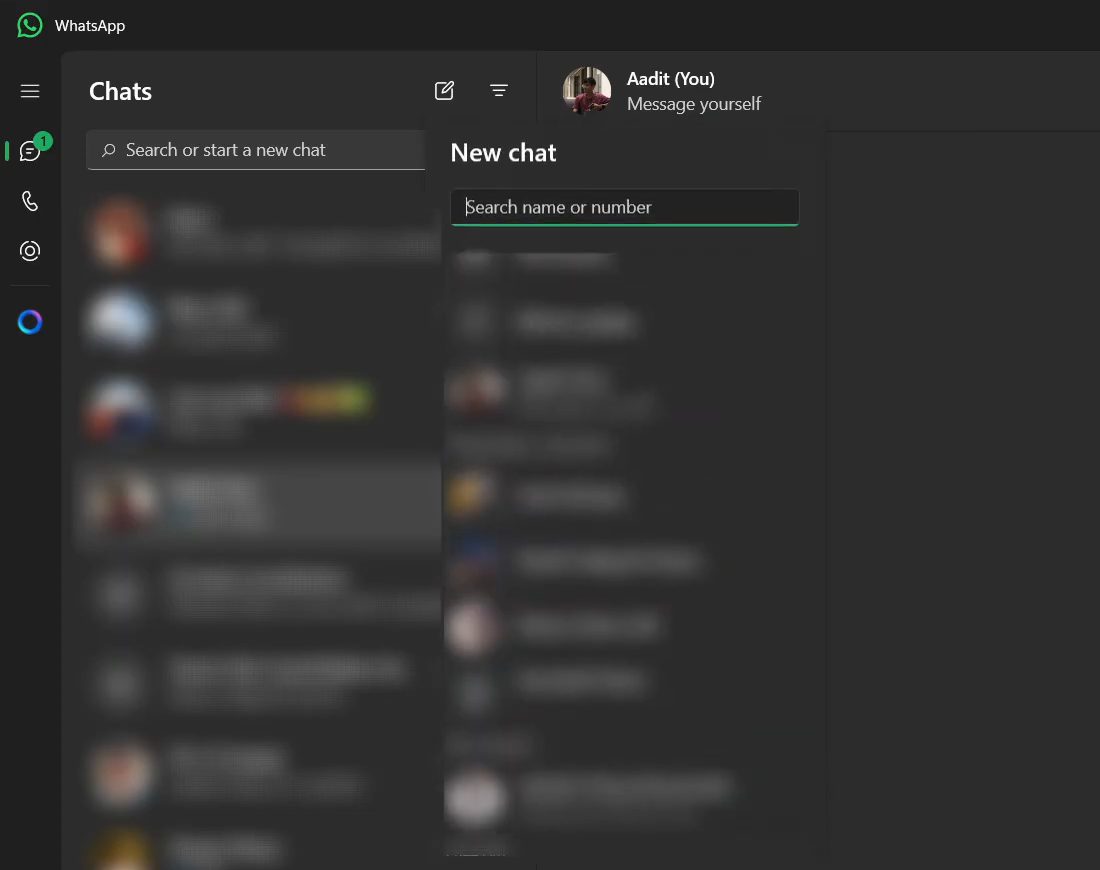
9Start a new chat with Ctrl + N
Press Ctrl + N to open New chat with the cursor already in the search box. Type a name or number and press Enter.
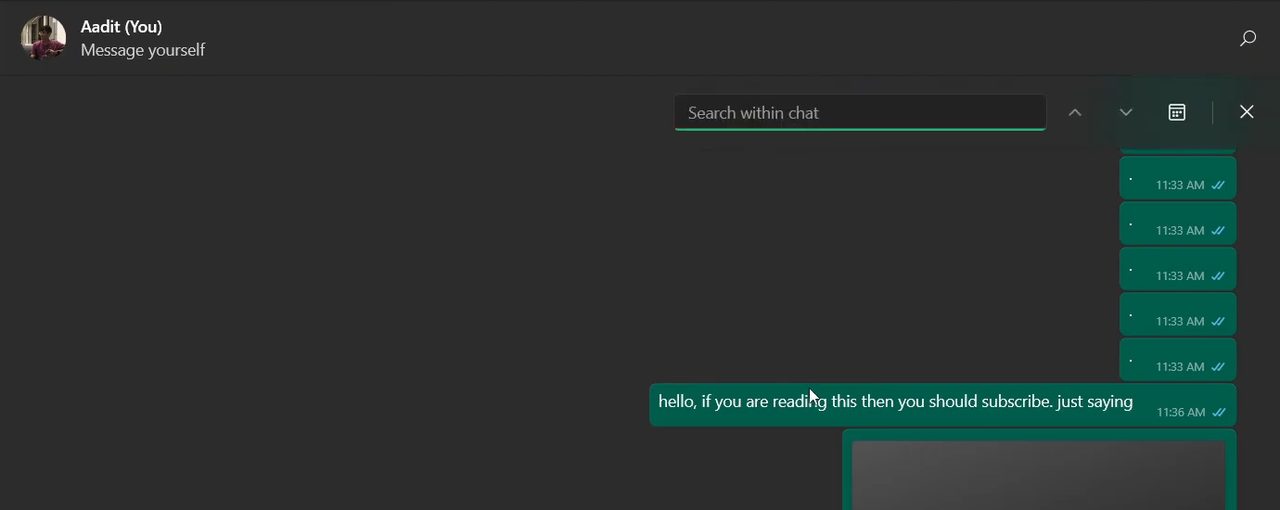
10Search a chat and switch chats
Inside an open chat, press Ctrl + Shift + F to open Search within chat and find an old message. To move between chats without the mouse, press Ctrl + Shift + [ or Ctrl + Shift + ] to jump to the previous or next chat in your list.
There are many more shortcuts. In the Windows app, open Settings > Shortcuts to see the full list.
Tips / troubleshooting
- Shortcuts don't work in the browser. Shortcuts like Ctrl + N are also used by Chrome and Edge (Ctrl + N opens a new window). WhatsApp Web in a browser uses slightly different key combinations, so check its own shortcut list from the menu.
- No colon emoji suggestions. Make sure there is no space between the colon and the word. If nothing appears, try a more common word (like :smile) or use the Windows emoji panel from Step 3 instead.
- Theme didn't change. The Windows app has to restart. If you clicked Cancel on the restart prompt, open Settings again and click OK.
- Drag and drop isn't working. Drop the file onto the open chat area, not the chat list. Very large files may be refused because WhatsApp has size limits for media and documents.
- Hover preview not showing. Rest the mouse on the grey message preview text under the contact's name and wait a moment; it does not appear instantly.
For more WhatsApp tips on a computer, see how to view locked chats in WhatsApp on PC and how to turn off read receipts on WhatsApp.
FAQ
How do I read a WhatsApp message on PC without opening it?
Hover your mouse over the message preview in the chat list. A pop-up shows the full last message, so you can read it without opening the chat.
How do I turn on dark mode in WhatsApp on PC?
In the Windows app, click the Settings gear, choose Personalization, open the Theme dropdown, choose Dark and click OK to restart WhatsApp.
What are the most useful WhatsApp Web keyboard shortcuts?
In the WhatsApp for Windows app: Ctrl + N for a new chat, Ctrl + Shift + F to search inside a chat, and Ctrl + Shift + [ or ] to switch to the previous or next chat. The full list is under Settings > Shortcuts.
Can I send many photos at once from my PC?
Yes. Select all the photos in File Explorer and drag them into the chat together. WhatsApp lets you add captions before sending.
Related guides