 Tech is Easy
How to Change Chat Theme in WhatsApp (New Feature)
To change the chat theme in WhatsApp, tap the three dots at the top right, go to Settings > Chats > Default chat theme, pick a theme, adjust the colour or brightness if you like, and tap the tick to save. A chat theme changes both the chat bubble colour and the wallpaper at once, and you can also set each one separately or use a photo from your gallery.

Chat themes are a newer WhatsApp feature, a lot like the chat themes on Instagram. Before you start, open the Play Store (or the App Store on iPhone) and update WhatsApp. If the option is missing, you're almost always on an older version.
What you need
- WhatsApp updated to the latest version
- About two minutes
1Open WhatsApp Settings
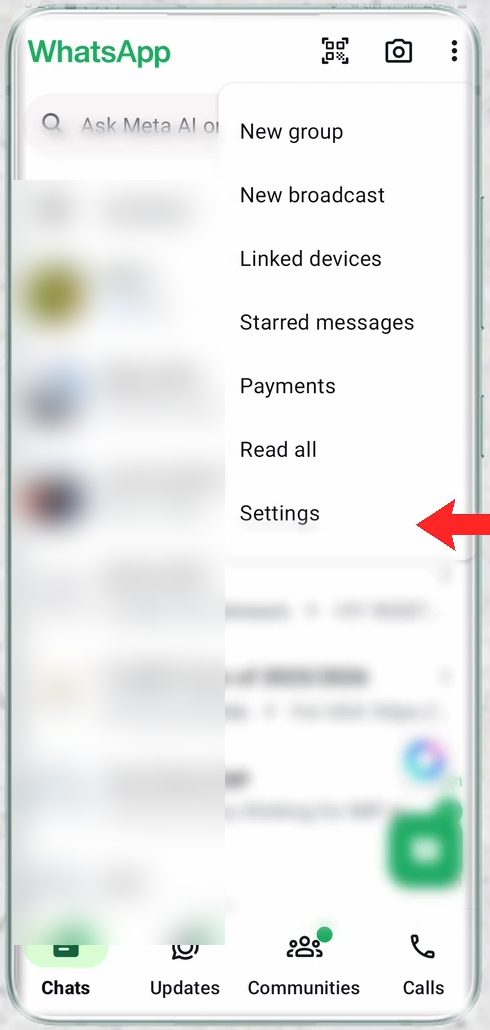
Open WhatsApp and tap the three dots at the top right of the Chats screen. Tap Settings at the bottom of the menu.
2Tap Chats
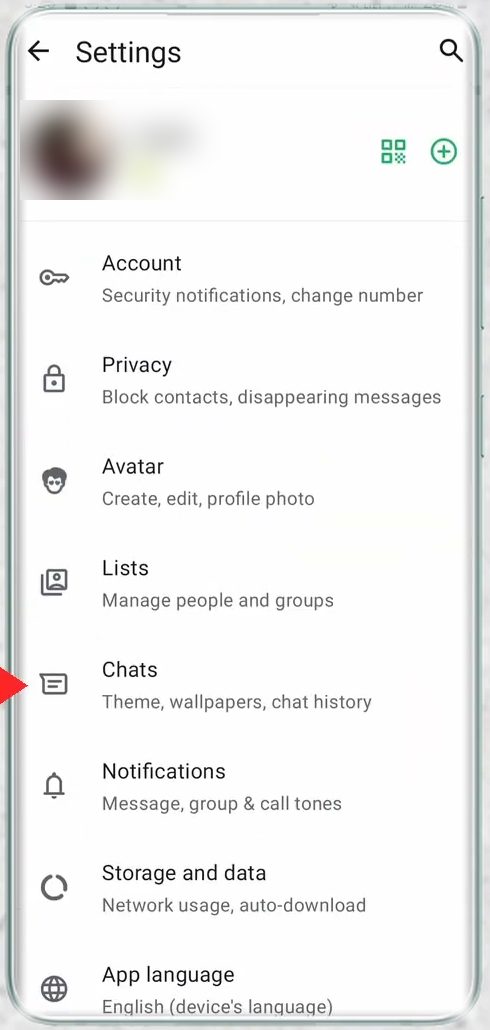
In Settings, tap Chats. Its description reads "Theme, wallpapers, chat history", which is where all the look-and-feel options live.
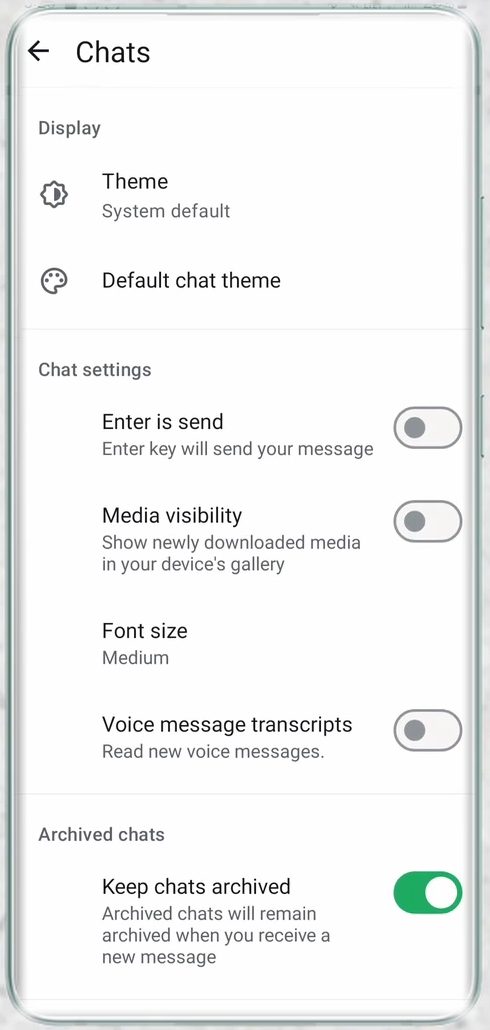
3Open Default chat theme
Under Display, tap Default chat theme. Don't confuse it with Theme just above it: that one only switches the whole app between light, dark and system default.
4Pick a theme
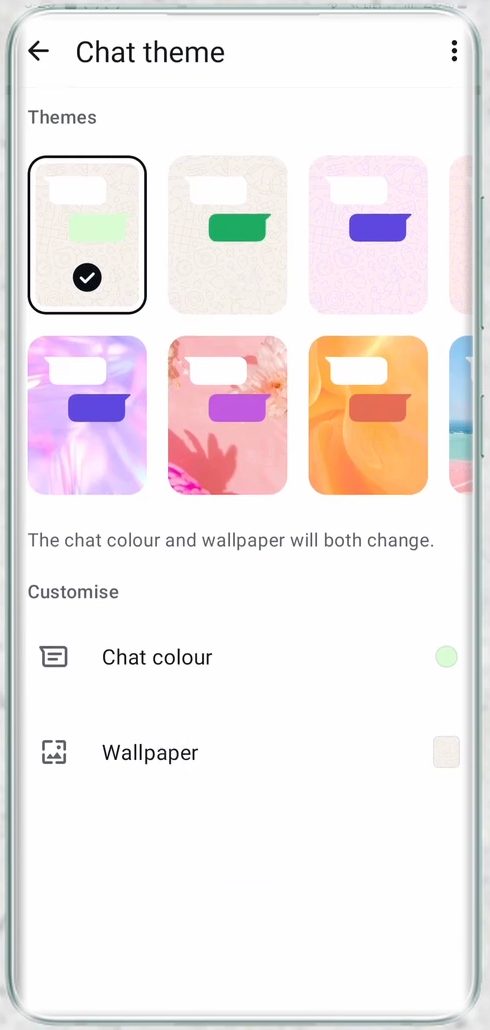
The Chat theme page shows a grid of ready-made themes. Swipe sideways to see more. Each theme is a combination of a bubble colour and a wallpaper, and as the page says, "The chat colour and wallpaper will both change." Tap the one you like.
5Check the preview
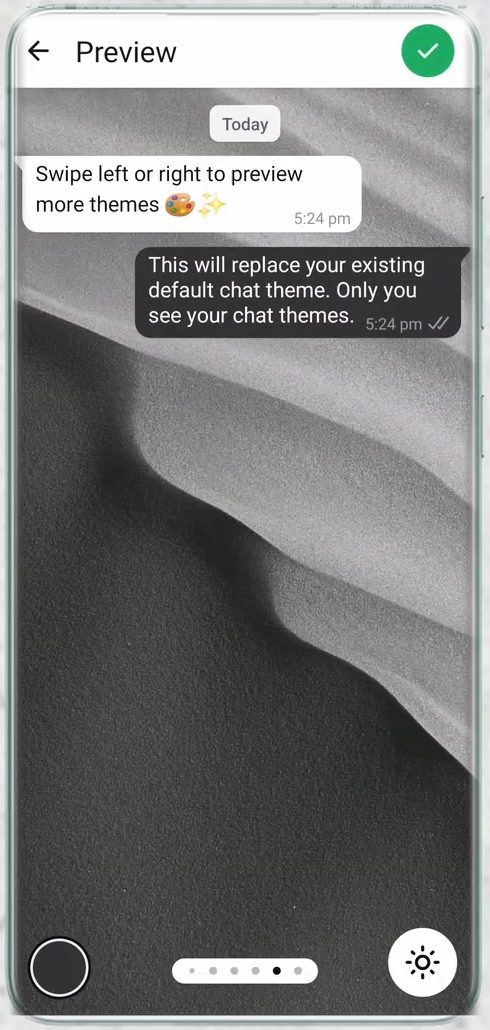
WhatsApp opens a Preview of a sample chat with the new theme. You can swipe left or right here to preview other themes without going back. The sample message also points out that only you see your chat themes.
6Change the bubble colour
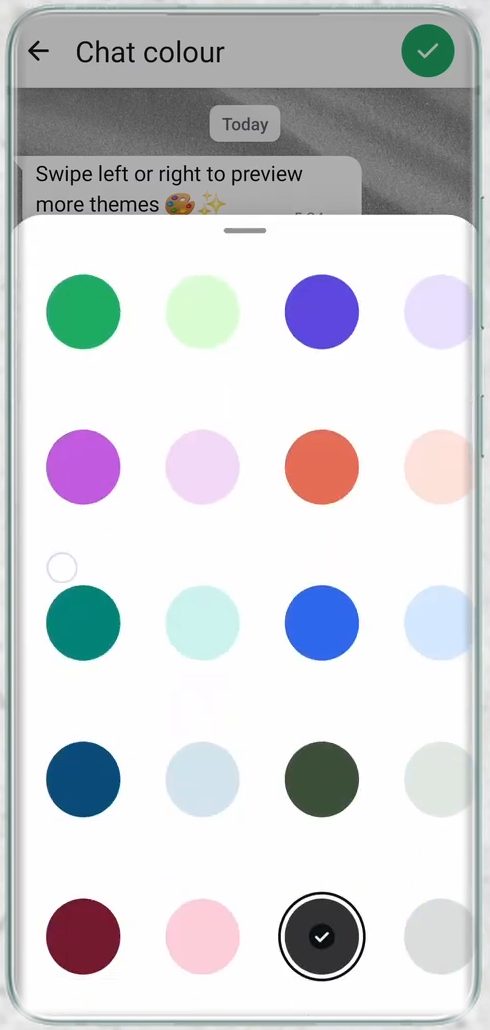
Tap the round colour button at the bottom left. A palette of about 20 colours opens. Tap one and the bubbles in the preview change straight away.
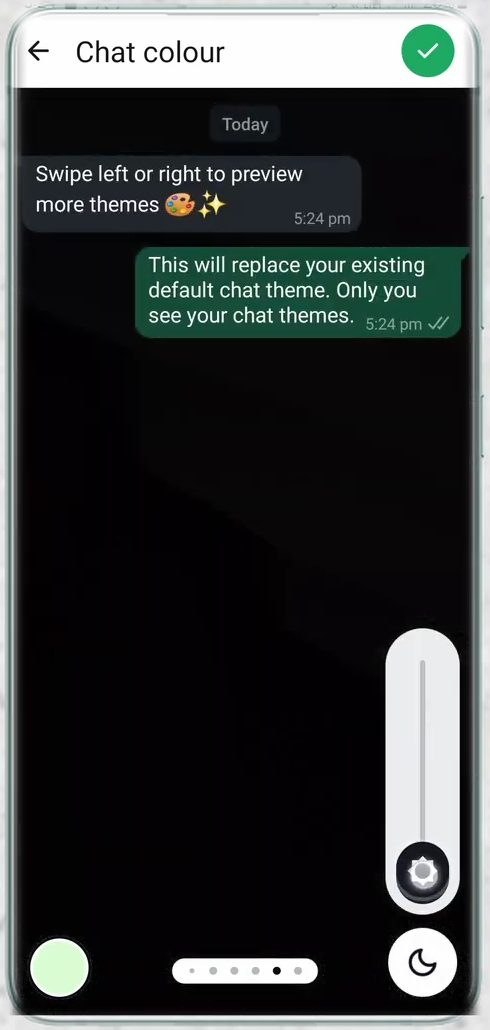
7Adjust the wallpaper brightness
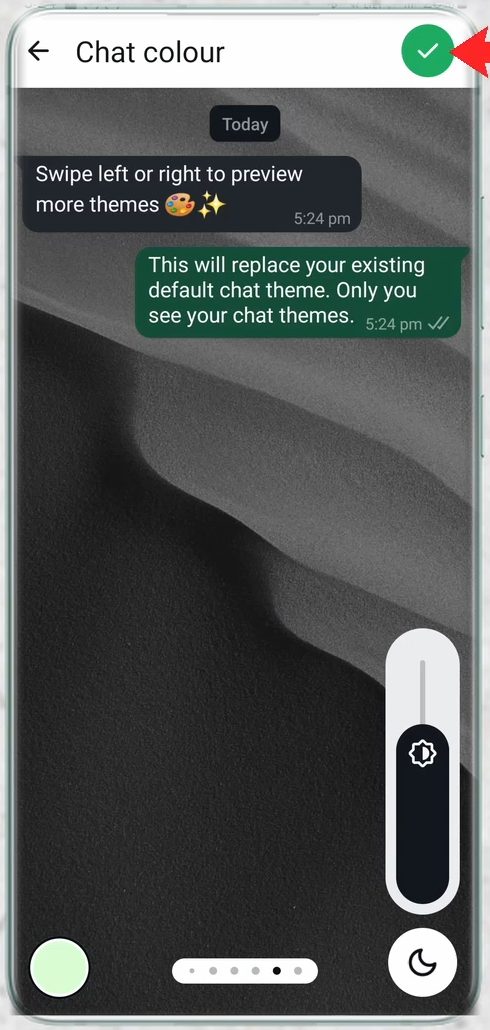
Tap the button at the bottom right to open the brightness slider. Drag it down to make the wallpaper darker, or up to make it lighter. A darker wallpaper makes messages easier to read, especially in dark mode.
8Save the theme
When it looks right, tap the green tick at the top right. The theme now applies to your chats. Open any chat to see the new colours and background.
9Use your own wallpaper or a single colour
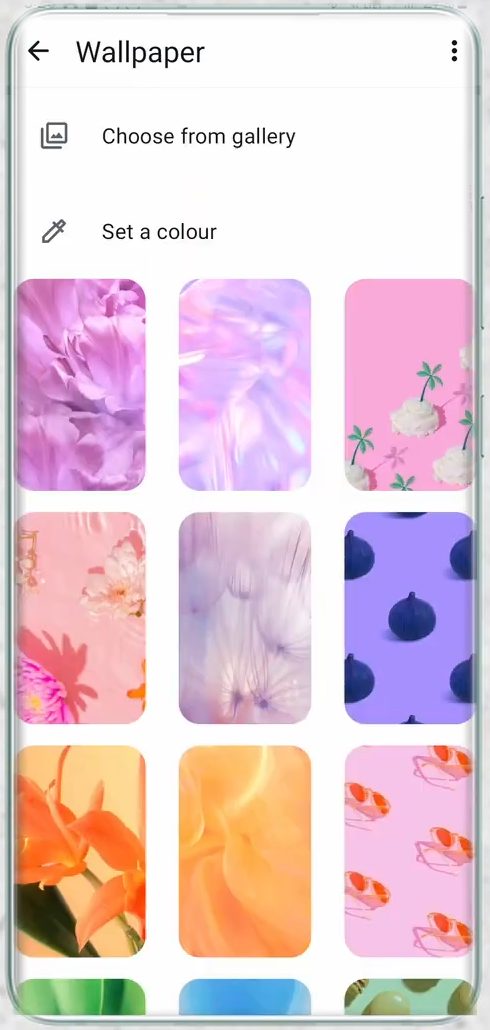
Back on the Chat theme page, the Customise section lets you change just one part. Tap Chat colour to change only the bubbles. Tap Wallpaper to change only the background: pick one of WhatsApp's wallpapers, choose Set a colour for a plain background, or tap Choose from gallery to use any photo from your phone.
Things to know
- Only you see it. A chat theme changes how WhatsApp looks on your phone. The other person still sees their own theme, so changing it doesn't affect anyone else.
- Default vs one chat. The steps above set the default theme for all chats. WhatsApp's help page How to change your app or chat theme also explains how to give a single chat its own theme: open the chat, tap the three dots, then Chat theme. That isn't shown in the video.
- The menu name may differ. WhatsApp moves settings between updates. On some newer versions, Default chat theme sits under Settings > Appearance rather than Settings > Chats. If you can't find it in one, check the other.
- Dark mode is separate. Theme (light, dark or system default) changes the whole app. A chat theme only changes the bubbles and wallpaper inside chats.
- You can go back any time. To return to the classic look, open Default chat theme again and pick the first theme, which is the standard WhatsApp style.
Troubleshooting
- No Default chat theme option. Update WhatsApp from the Play Store or App Store, then restart the app. Features like this roll out gradually, so it can take a few days to appear even on the latest version.
- Can't choose a photo from the gallery. WhatsApp needs permission to access your photos. Allow it when asked, or turn it on in your phone's app settings for WhatsApp.
- Messages hard to read on your photo. Use the brightness slider to dim the wallpaper, or pick a darker bubble colour.
Related guides: How to Turn Off Read Receipts on WhatsApp and How to Hide WhatsApp Chats With a Secret Code.
FAQ
How do I change the WhatsApp chat theme for all chats?
Tap the three dots, then Settings > Chats > Default chat theme. Pick a theme, adjust the colour or brightness, and tap the green tick. The theme becomes the default for every chat.
Can the other person see my WhatsApp chat theme?
No. Chat themes only change the look on your phone. The preview itself says "Only you see your chat themes."
Does the WhatsApp chat theme work on iPhone?
Yes. Update WhatsApp from the App Store and look for chat themes in WhatsApp's settings. The video shows Android, so the exact menu layout on iPhone may differ slightly.
How do I set my own photo as the WhatsApp chat background?
Go to Default chat theme, tap Wallpaper under Customise, then Choose from gallery and pick any photo. Use the brightness slider if the text is hard to read.
Related guides