 Tech is Easy
How to Change WhatsApp Chat Wallpaper (and Chat Color)
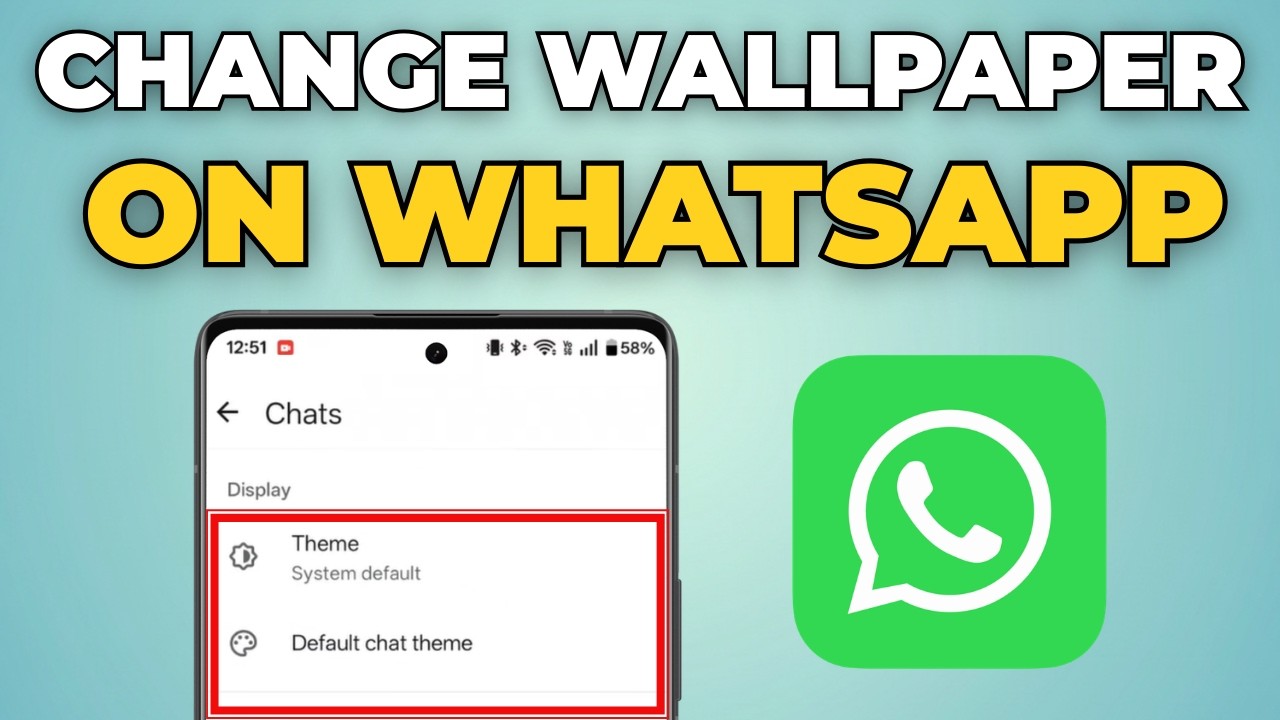
To change your WhatsApp chat wallpaper, tap the three dots at the top right, go to Settings > Chats > Default chat theme > Wallpaper, and pick a built-in wallpaper, a photo from your gallery, a solid color or an AI-made image. The same screen lets you change the chat color (the colour of your message bubbles) or apply a ready-made theme. It's for anyone who wants their chat screen background to look less plain.
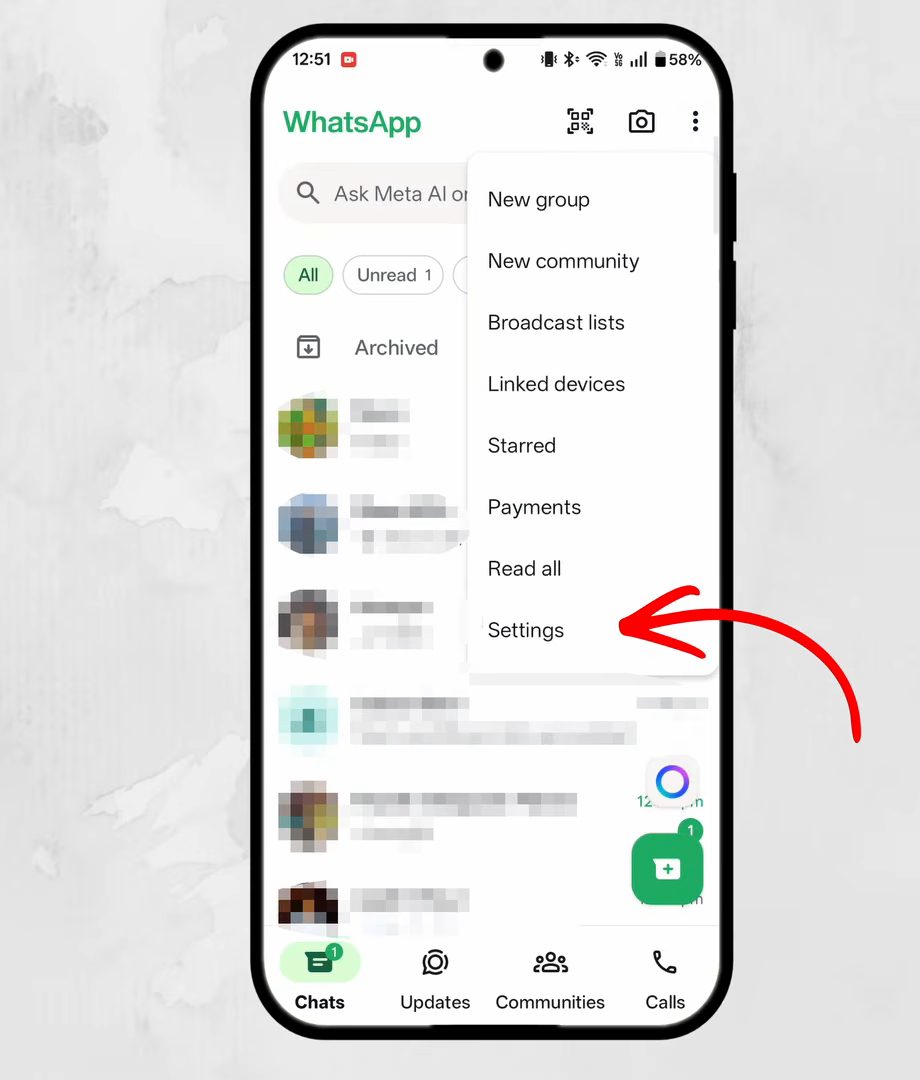
1Open WhatsApp Settings
Open WhatsApp, tap the three dots at the top right of the Chats screen and choose Settings.
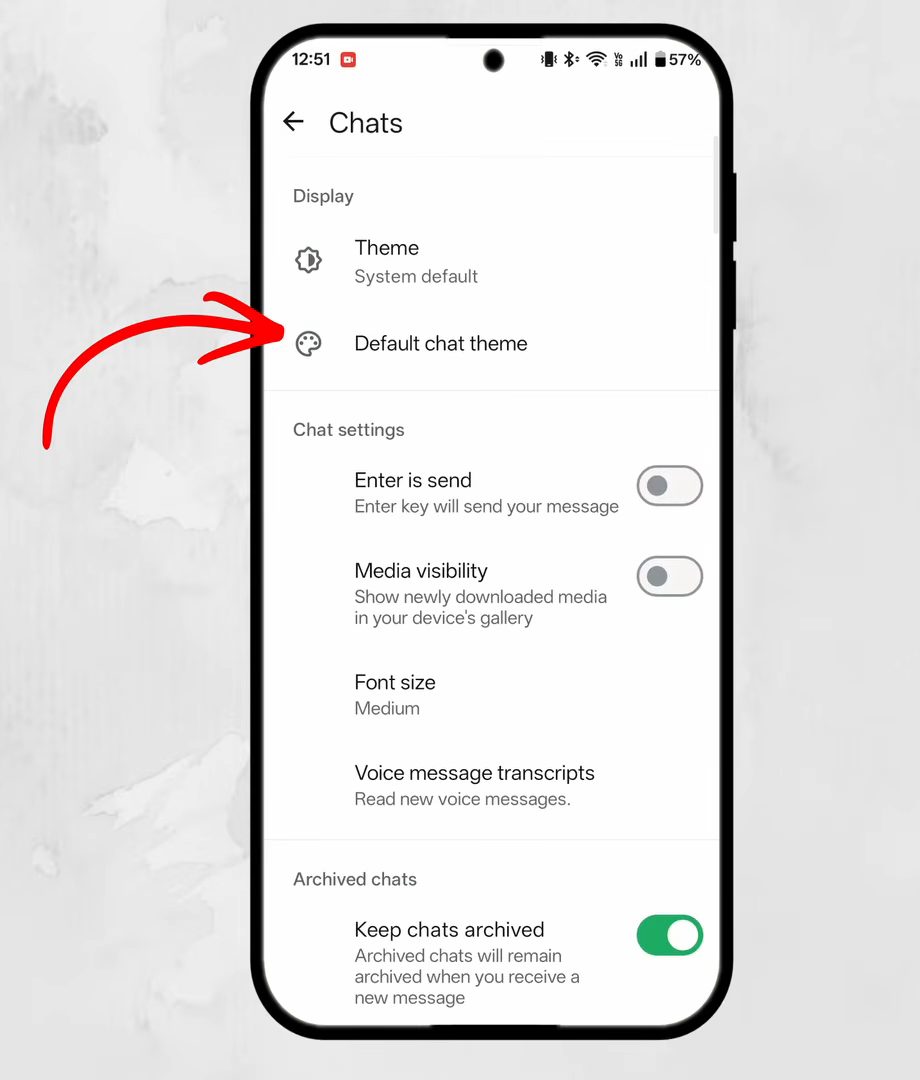
2Go to Chats > Default chat theme
In Settings, tap Chats (described as "Theme, wallpapers, chat history"). Then tap Default chat theme, the second option under Display.
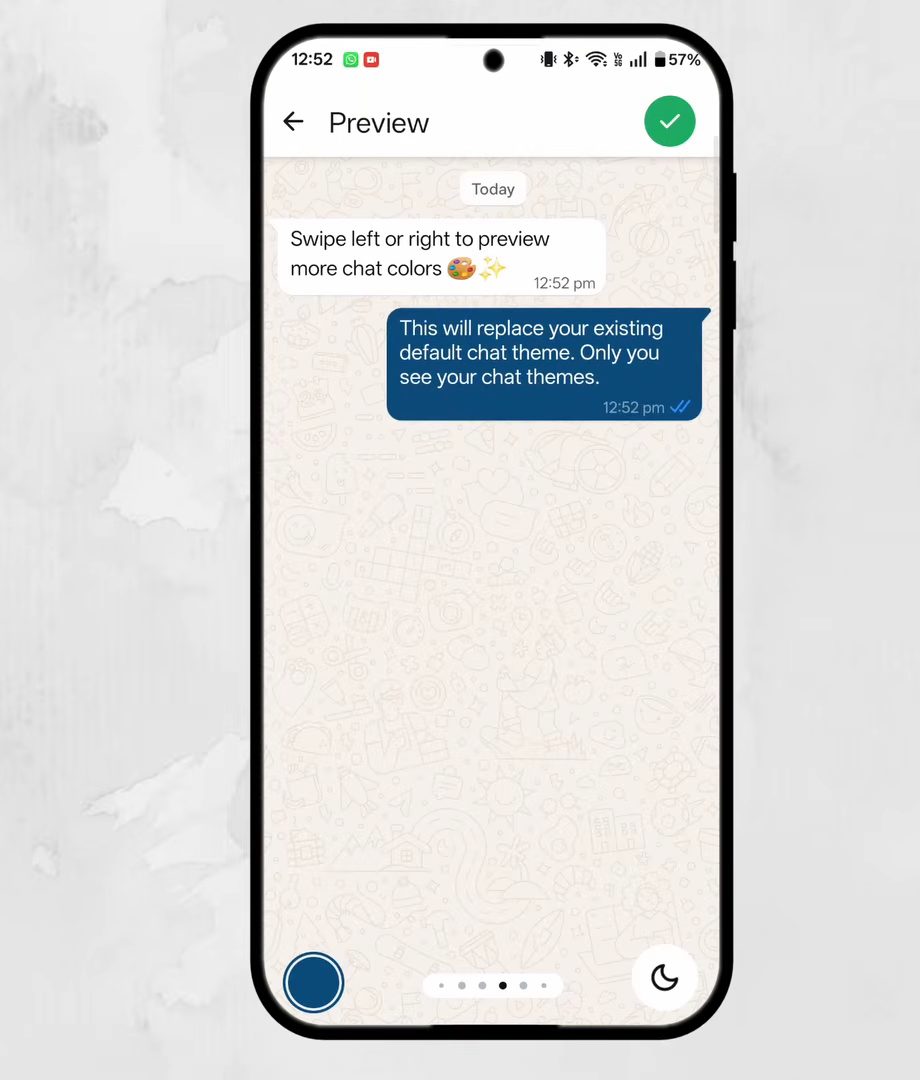
3Change the chat color (optional)
Under Customize, tap Chat color to change the colour of your message bubbles. Pick a colour from the grid and WhatsApp shows a Preview of how a chat will look. Swipe left or right on the preview to try other colours. When you like one, tap the tick at the top right and confirm with Set chat color. Only you see your chat theme; the other person's app stays the same.
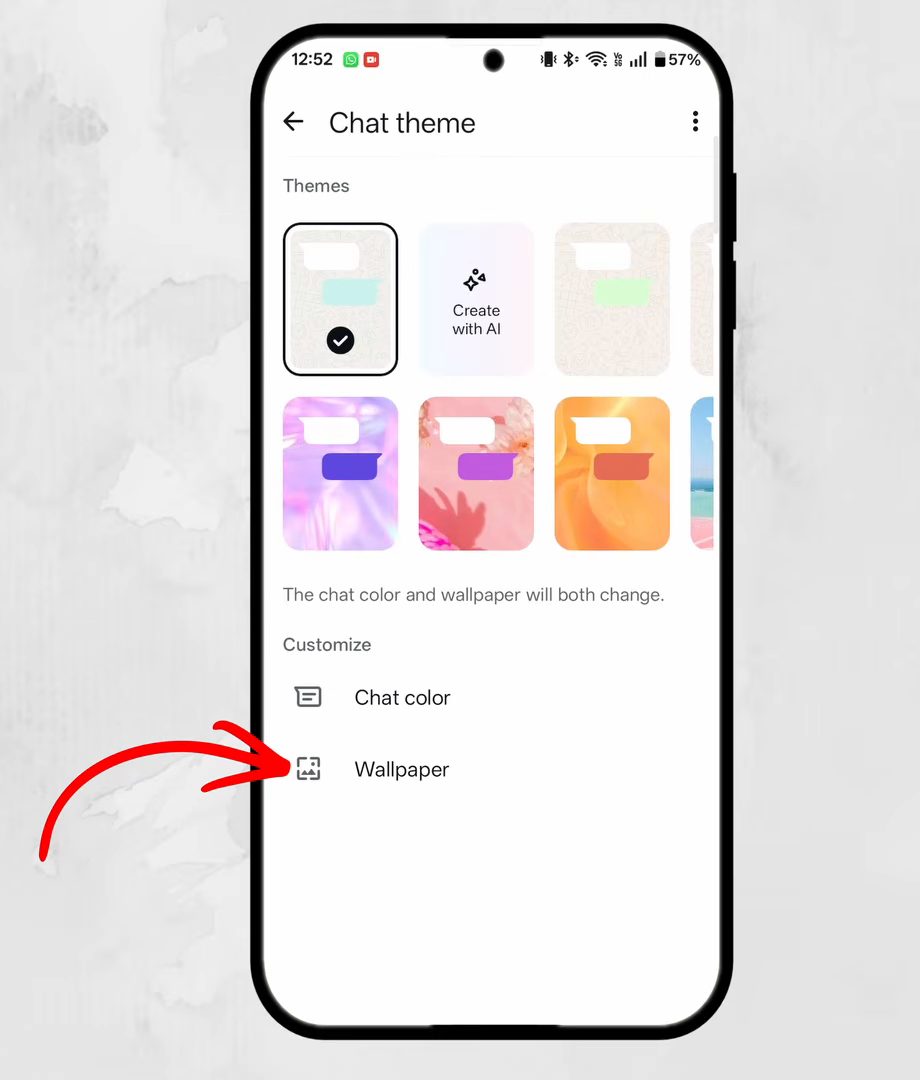
4Tap Wallpaper
Back on the Chat theme screen, tap Wallpaper, just below Chat color.
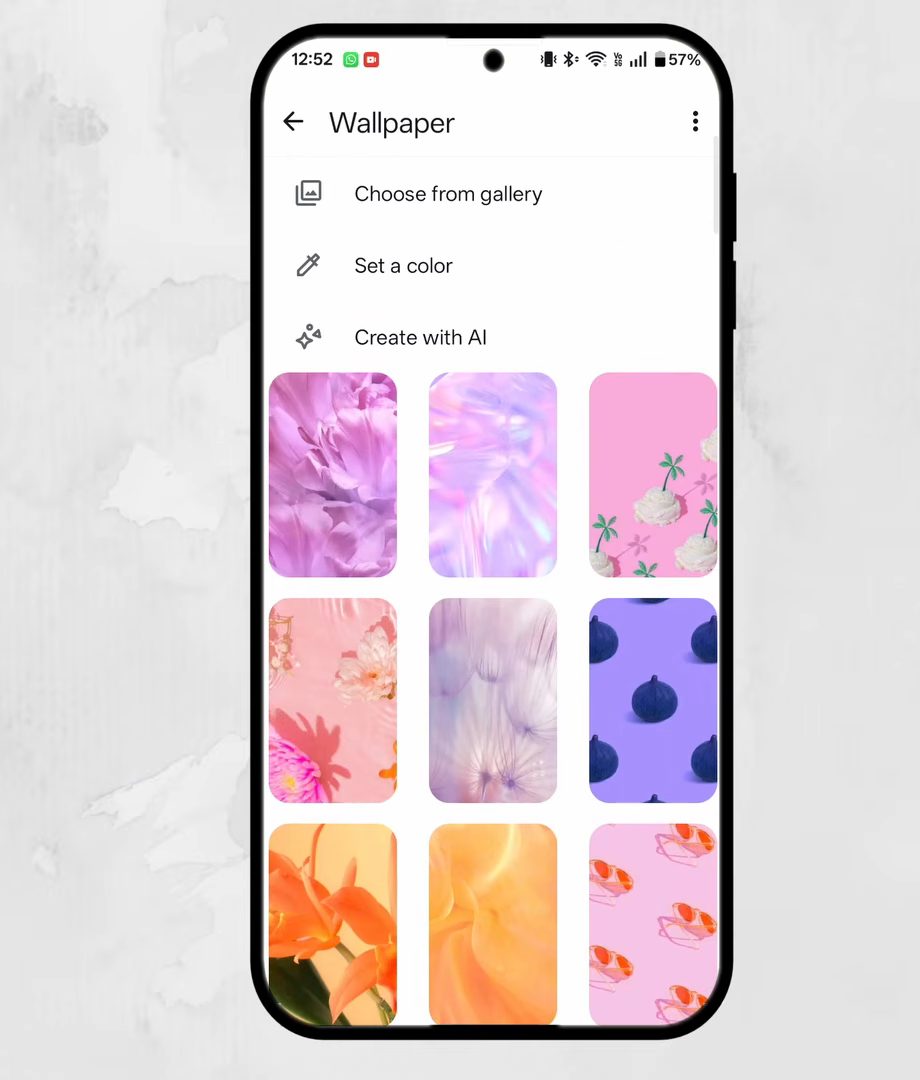
5Pick your wallpaper
The Wallpaper screen gives you four ways to set the chat background: - Built-in wallpapers: scroll down through WhatsApp's own designs, including a set of darker ones, and tap the one you want. - Choose from gallery: pick any photo saved on your phone. - Set a color: choose a plain Solid colours background, such as soft green or blue. - Create with AI: describe a picture and WhatsApp generates a wallpaper for you.
After you choose, confirm on the preview screen and the new wallpaper shows behind your chats.
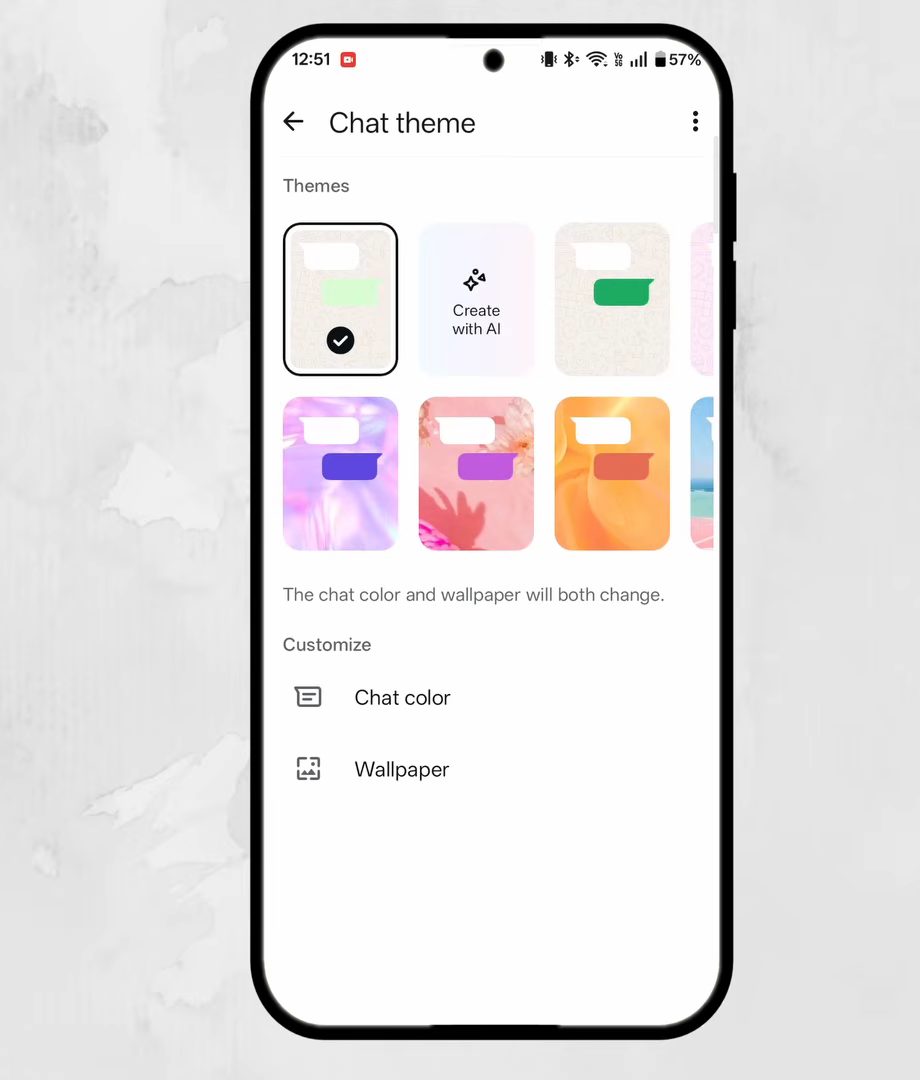
6Or apply a full theme
At the top of the Chat theme screen there's a row of Themes. Each one changes the chat color and the wallpaper together, as the note under them says. Scroll sideways to see more, including dark designs, and tap one to apply it. There's also a Create with AI tile here to generate a whole theme.
Change the wallpaper for just one chat
The steps above change the default for all your chats. WhatsApp's help page says you can also give a single chat its own look: open that chat, tap the three dots, choose Chat theme, then Wallpaper. That's handy for telling a family group apart from a work chat at a glance.
Tips / troubleshooting
- Can't find Default chat theme under Chats? WhatsApp moves menus between versions. WhatsApp's own help page now lists it under Settings > Appearance, so check there, and update WhatsApp if neither appears.
- Check it in dark mode. The preview screen has a moon button at the bottom right, so you can see how your choice looks with dark mode on before you confirm it.
- Gallery photo looks cropped? Chat wallpapers fill a tall phone screen, so wide landscape photos get cut at the sides. Portrait photos work best.
- Want the original back? Open Default chat theme again and tap the first theme (the default one with the tick in our video).
WhatsApp's help page How to change your app or chat theme covers themes and wallpapers on Android and iPhone.
Related guides: How to Create Stickers in WhatsApp and How to Hide WhatsApp Chats with a Secret Code.
FAQ
How do I change my WhatsApp chat wallpaper?
Tap the three dots > Settings > Chats > Default chat theme > Wallpaper, then pick a built-in wallpaper, a gallery photo, a solid color or an AI image.
Can the other person see my WhatsApp wallpaper?
No. Wallpapers, chat colors and themes only change how WhatsApp looks on your phone. The person you're chatting with keeps their own background.
How do I set a photo from my gallery as WhatsApp wallpaper?
On the Wallpaper screen, tap Choose from gallery, select the photo and confirm it on the preview.
How do I change the WhatsApp chat wallpaper on iPhone?
The video uses Android, but iPhone has the same chat theme and wallpaper options in WhatsApp Settings. WhatsApp's help page linked above lists the exact iPhone steps for the current version.
Related guides