Tech is Easy
How to Embed a Google Form in Your Website (WordPress Example)
To embed a Google Form in your website, open the form, get its Embed HTML code (the <> option when sharing the form), copy it, and paste it into an HTML block on your site. In WordPress that is the Custom HTML block. The form then appears right on your page, and every response still lands in Google Forms. This works well for contact forms, sign-up sheets and feedback forms on WordPress, Google Sites, Wix or any site that lets you add your own HTML.
Below we build a simple Contact Us form from scratch, embed it on a WordPress page, fix the inner scroll bar and link the responses to Google Sheets.
What you need
- A Google account to create the form
- Access to your website's editor, with permission to add HTML or embed code
1Create a blank form
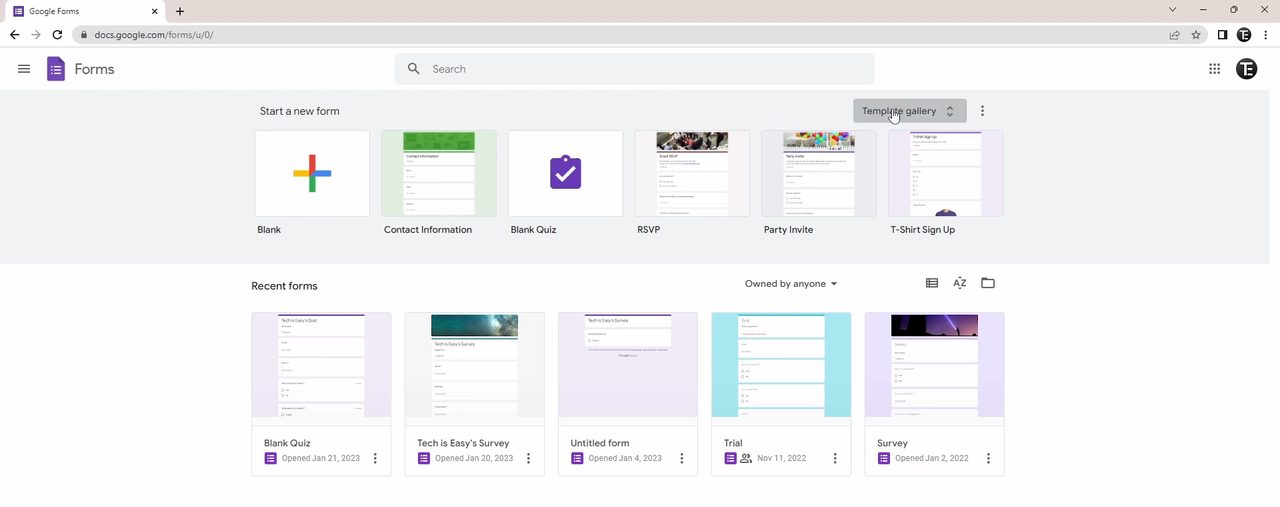
Go to forms.google.com. You can start from a template in the Template gallery (there is a ready-made Contact Information form), or click Blank to build your own. Click the title and type a name such as Contact Us. You can add a description under it if you like.
2Add your questions
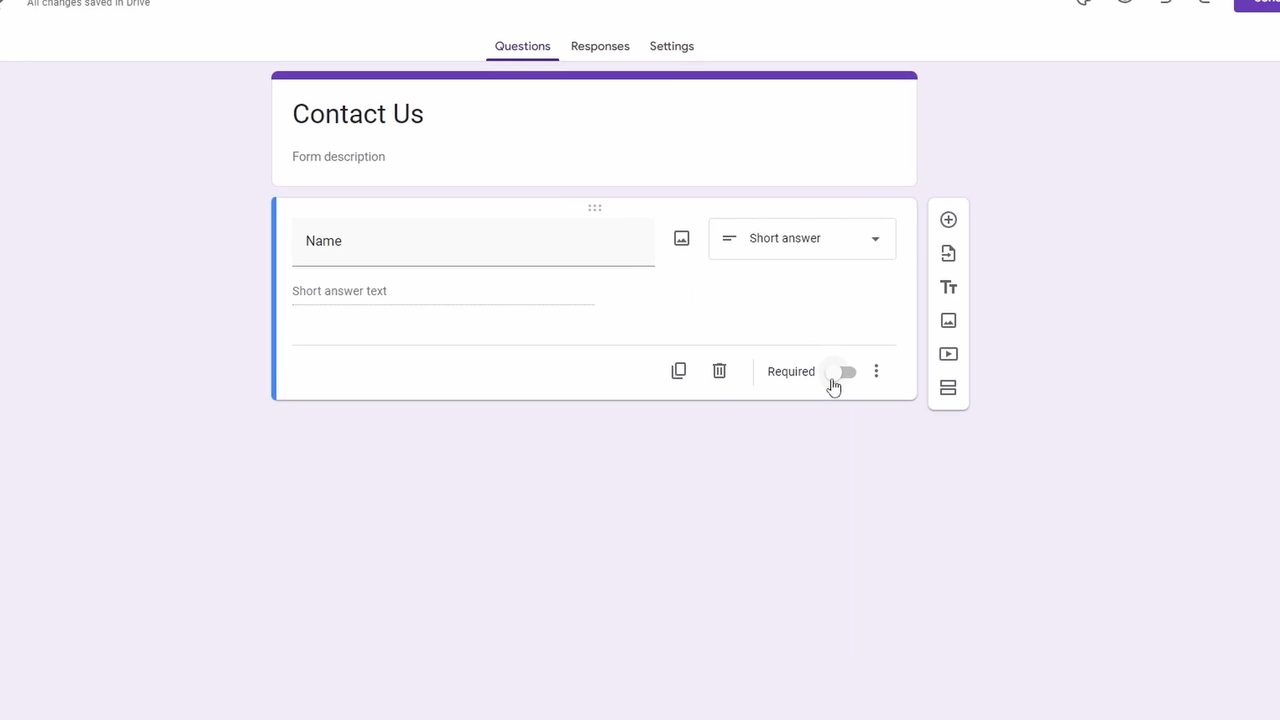
Click the first question box and type the question, for example Name. Google Forms guesses the answer type (here Short answer), and you can change it from the drop-down next to the question. Turn on Required if people must answer it before submitting. Click the + button on the right to add the next question, such as Email, Phone Number and Comments. For a longer reply like comments, use Paragraph.
Click the eye icon at the top right at any time to preview the form the way visitors will see it.
3Match the theme to your website
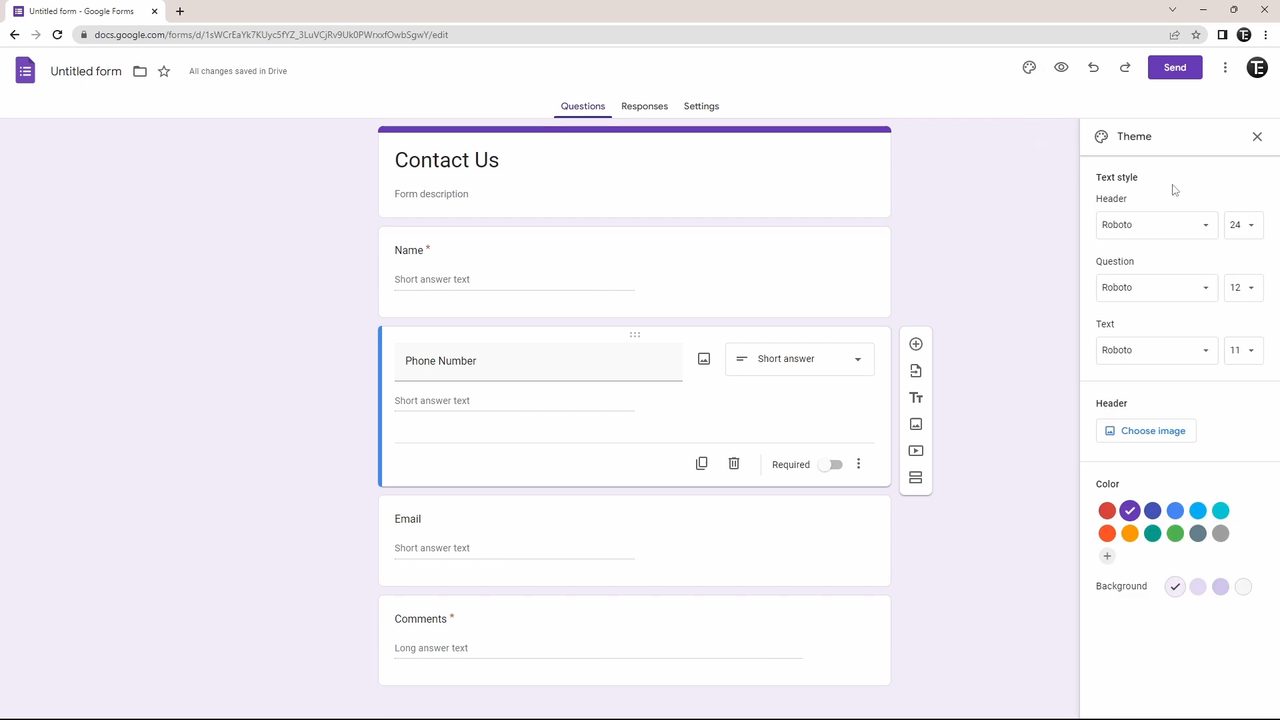
Click the palette icon (Customize theme) at the top right. You can change the font and size for the header, questions and text, add a header image with Choose image (one of Google's or your own via Upload), and pick the main color and the background color. Matching your site's colors makes the form look like part of the page rather than a pasted box.
4Copy the embed HTML code
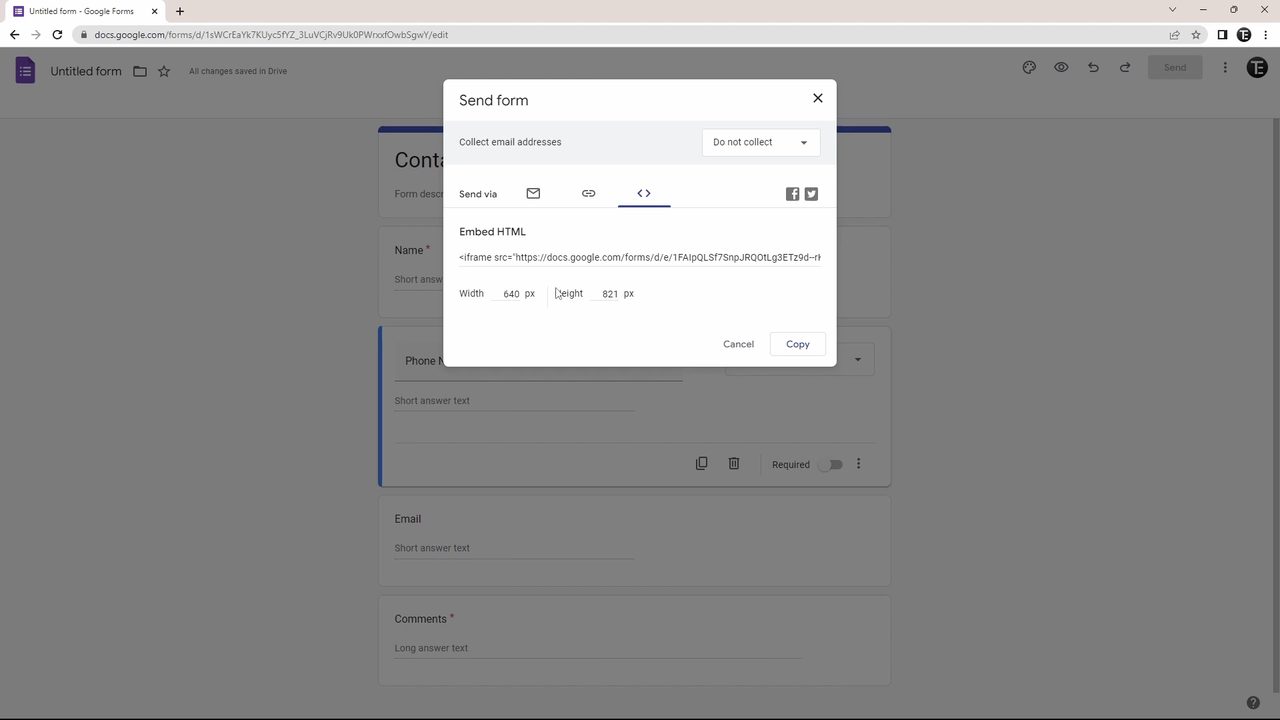
Click Send at the top right, then click the <> tab next to Send via. Google shows the Embed HTML code, an <iframe> tag. You can change the Width and Height here before copying. Click Copy (or select the code and press Ctrl + C).
5Create a page on your website
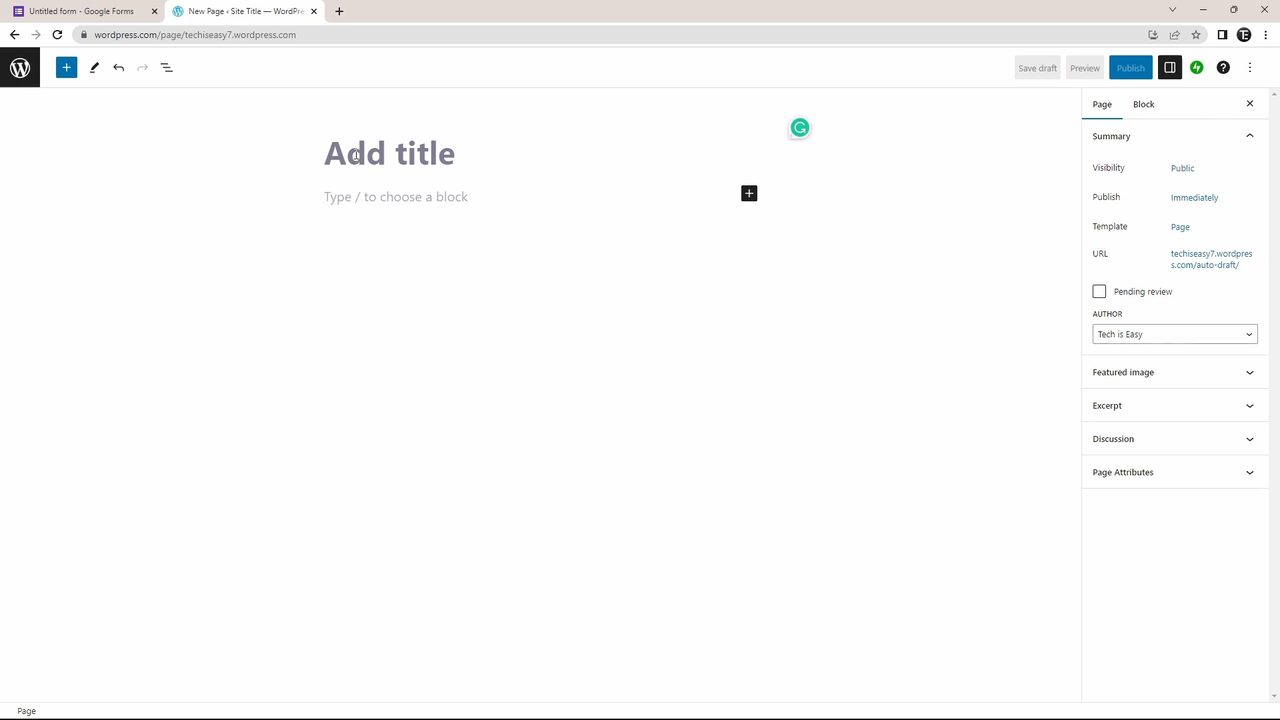
Open your site editor. In WordPress, go to Pages > Add New, choose a blank page and type the page title, for example Contact Us. Most website builders work the same way: you just need a place where you can paste HTML.
6Add a Custom HTML block and paste the code
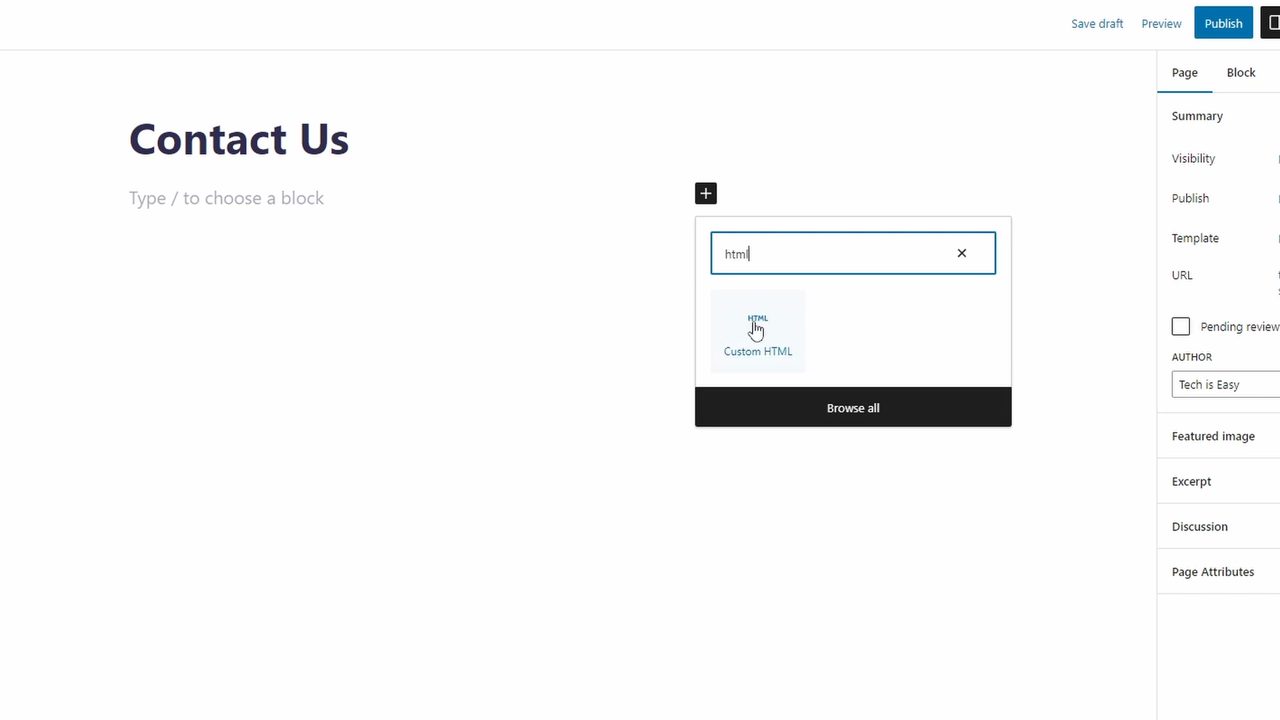
Click the + button below the title, search for html and choose Custom HTML. Paste the code you copied with Ctrl + V. The editor only shows the code, not the form itself.
7Preview the page
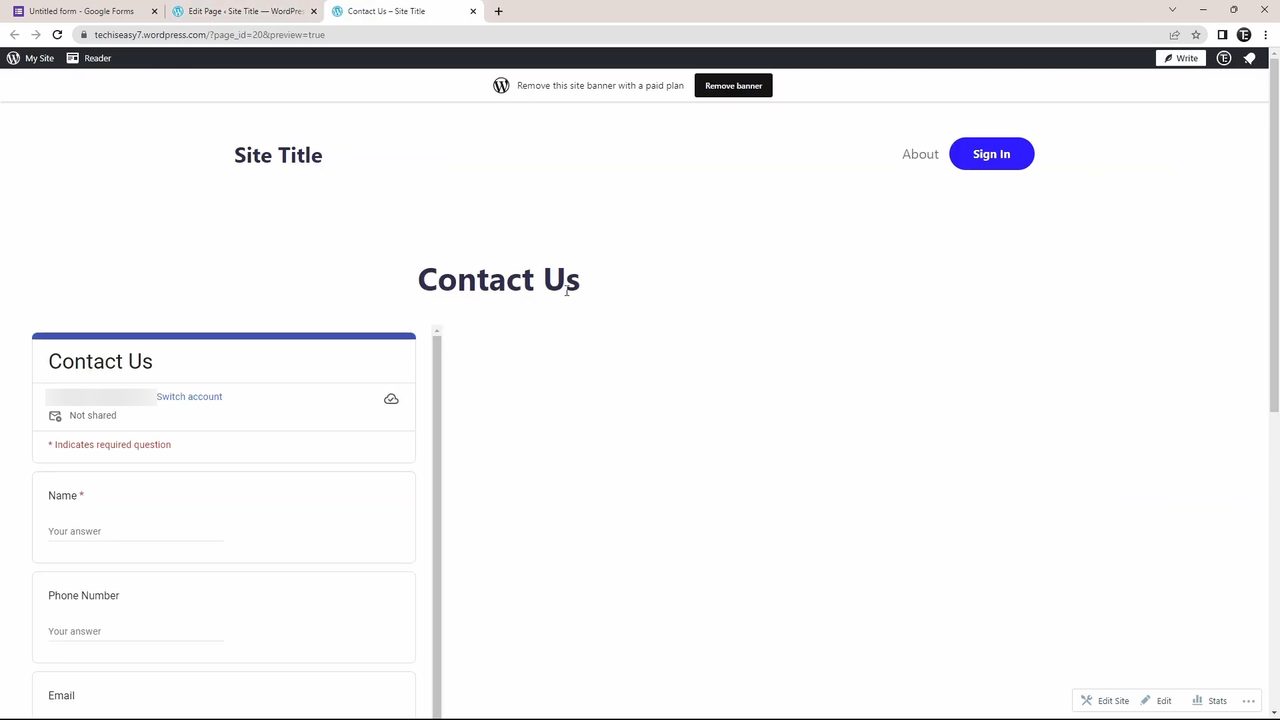
Click Preview at the top right to see the page as visitors will. The form you built in Google Forms appears under your page title, with the same questions and theme.
8Remove the inner scroll bar by raising the height
If the form is taller than the height in the code, it gets its own scroll bar inside the page, which looks awkward. Go back to the editor and find height="821" (or whatever number you got) in the Custom HTML block. Increase it, for example to 1021, and preview again. Keep raising it until the scroll bar disappears. When it looks right, click Publish.

9Submit a test response
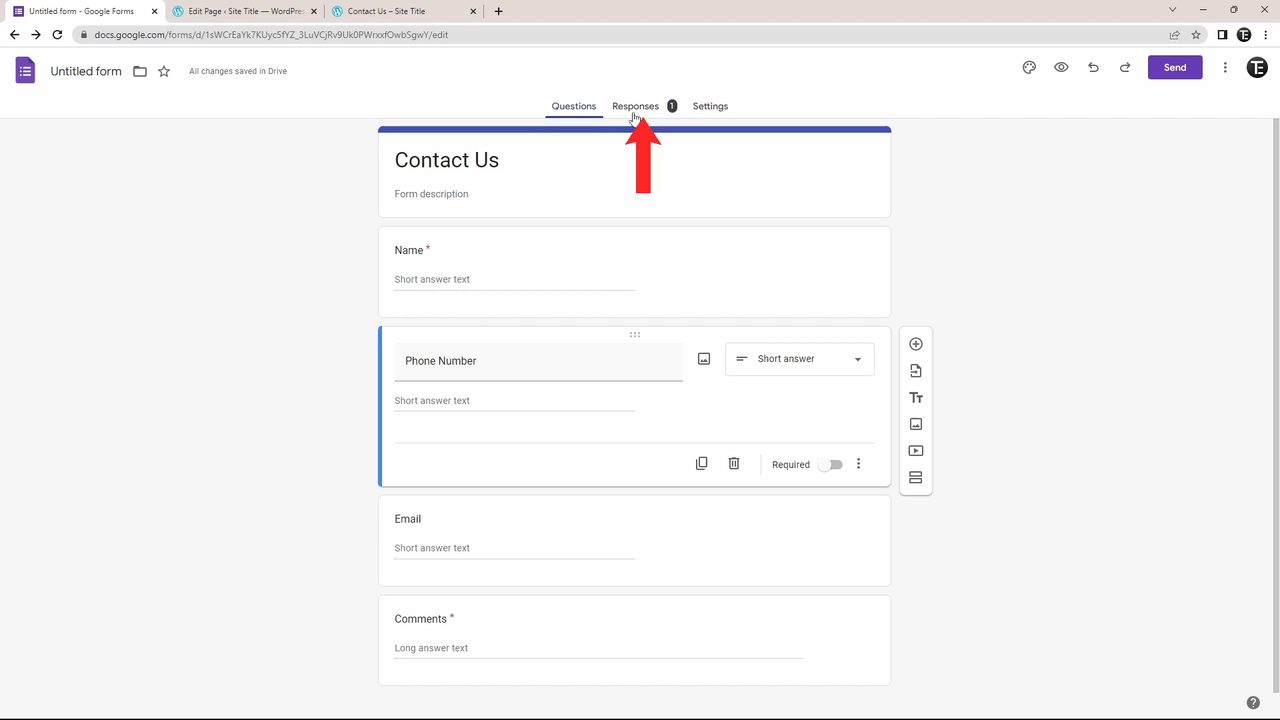
Open the preview or the published page, fill in the form and click Submit. Then go back to Google Forms. The Responses tab shows a count for the new answer. Inside it you can view a Summary, look at answers Question by question, or read each Individual response.
10Link the responses to Google Sheets
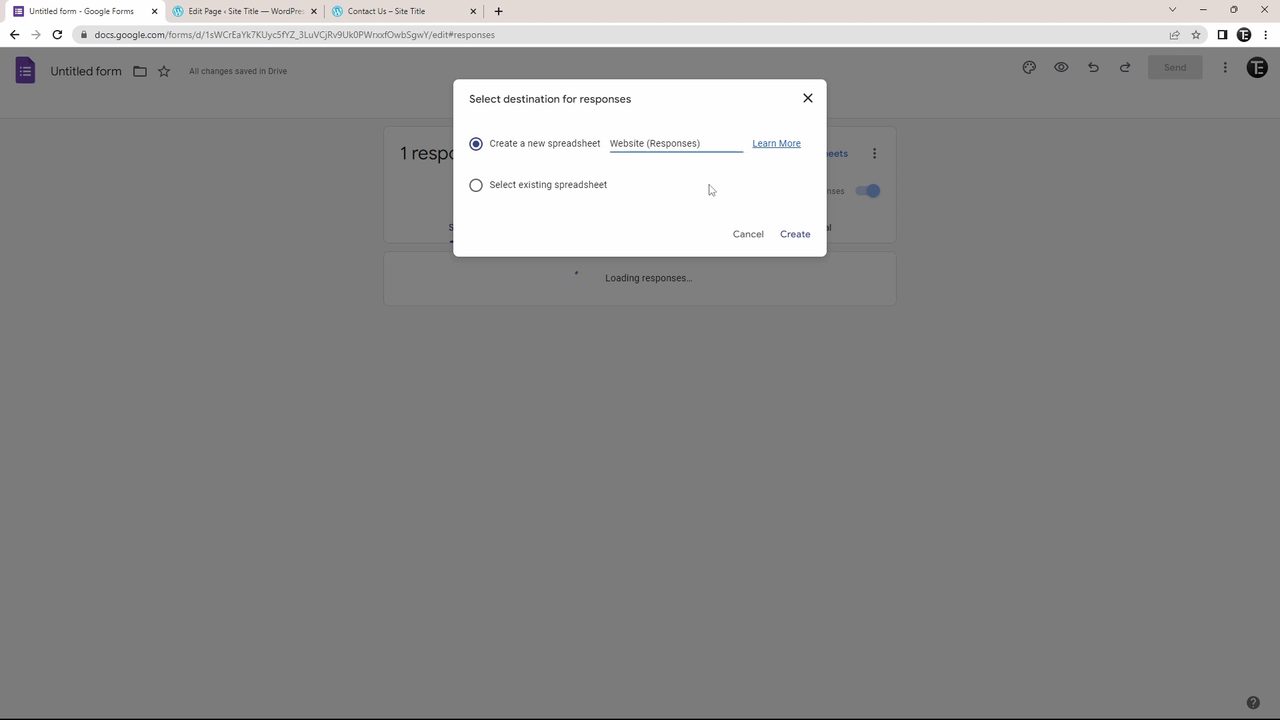
On the Responses tab, click Link to Sheets. Choose Create a new spreadsheet, give it a name if you want and click Create. A spreadsheet opens with one column per question and one row per response. It updates automatically every time someone submits the form on your website.
Tips and troubleshooting
- Can't find Send or the
<>tab? Google has been changing the Forms layout. Its help page Publish & share your form with responders now says to click the More menu at the top right of the form, select Embed HTML, and click Copy. The same page notes that a form has to be published before responders can open it, so publish it first if your embedded form says it is not accepting responses. - Form looks cut off or too narrow on phones? The embed code uses a fixed width in pixels (640 by default). Many site owners change
width="640"towidth="100%"so the form fits the screen. Test the page on a phone after any change. - Nothing shows in the WordPress editor? That is expected. The Custom HTML block shows code, and the form only renders in Preview or on the published page. You can also switch the block to its Preview tab.
- Other website builders: look for a block or element called HTML, Embed or Custom code, then paste the same code. If your site only lets you add a link, use the link option in the Send dialog instead.
- Changes appear automatically. If you edit questions in Google Forms later, the embedded version updates on its own. You only need new code if you change the size.
- Getting spam? In Forms Settings under Responses, you can turn on Limit to 1 response. Google's help page points out that this makes people sign in to a Google account to fill in the form. Weigh that before turning it on for a public contact form.
Related guides: How to Link Google Forms to Google Sheets and How to Create a Website in Google Sites.
FAQ
How do I embed a Google Form in my website using HTML?
In Google Forms, click Send, open the <> tab and copy the Embed HTML code. Paste that <iframe> code into an HTML block or embed element on your website, then preview the page.
How do I embed a Google Form in a WordPress website?
Create or edit a page, click +, search for Custom HTML and add that block. Paste the embed code into it, preview the page, adjust the height if needed, and publish.
Why does my embedded Google Form have a scroll bar?
The form is taller than the height set in the embed code. Increase the height number in the code until the scroll bar disappears.
Where do responses from the embedded form go?
They go to the same place as any other response: the Responses tab in Google Forms, and the linked Google Sheet if you connected one.
Related guides