 Tech is Easy
How to Install Any Website as an App on PC (Chrome)
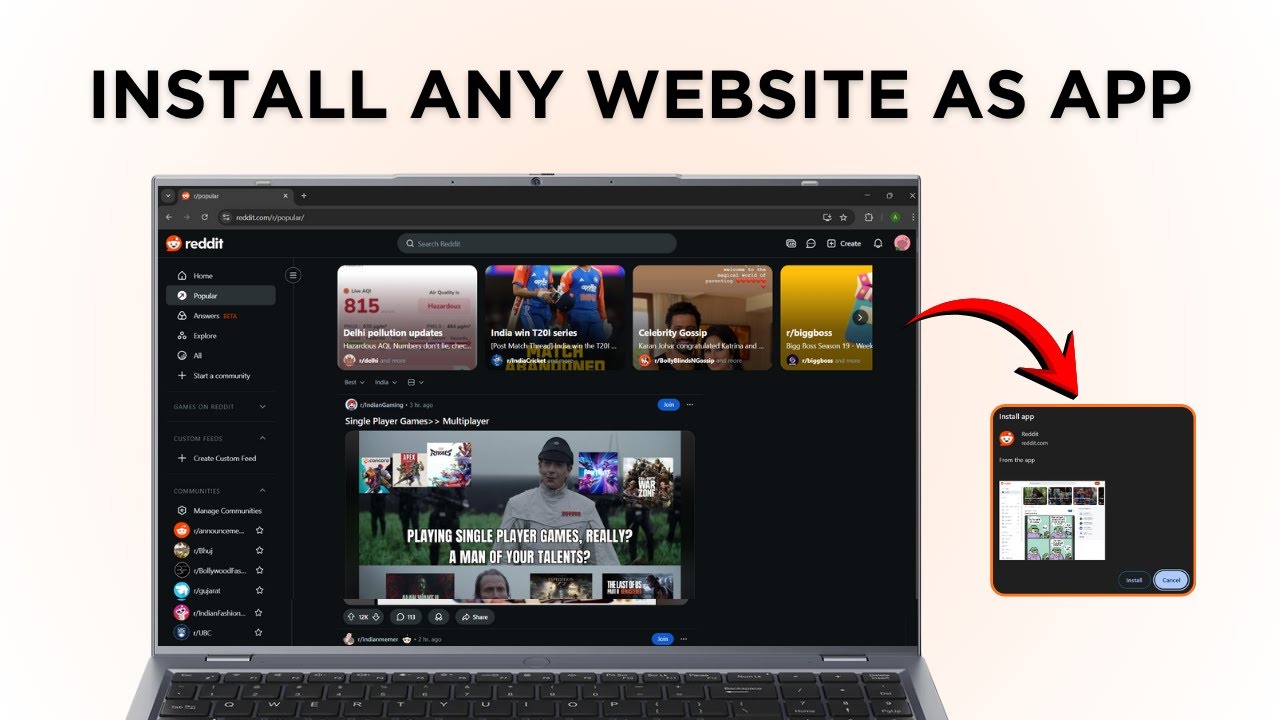
To install any website as an app on your PC, open the site in Chrome, click the three dots at the top right, go to Cast, save, and share and choose Install page as app, then click Install. The site gets its own window and a desktop icon, and you can pin it to the taskbar like any other program. People also call this downloading a website as an app. It works for Gmail, work tools, or a daily game like Wordle, which is what we use as the example here.
What you need
- Google Chrome on a Windows PC (Mac and Linux work the same way in Chrome)
- The website you want to turn into an app
Chrome calls these web apps. Google's help page Use web apps explains that a web app lets a website work like an app on your computer, and that some web apps add extras such as notifications, offline use and icon badges.
1Open the website you want to install
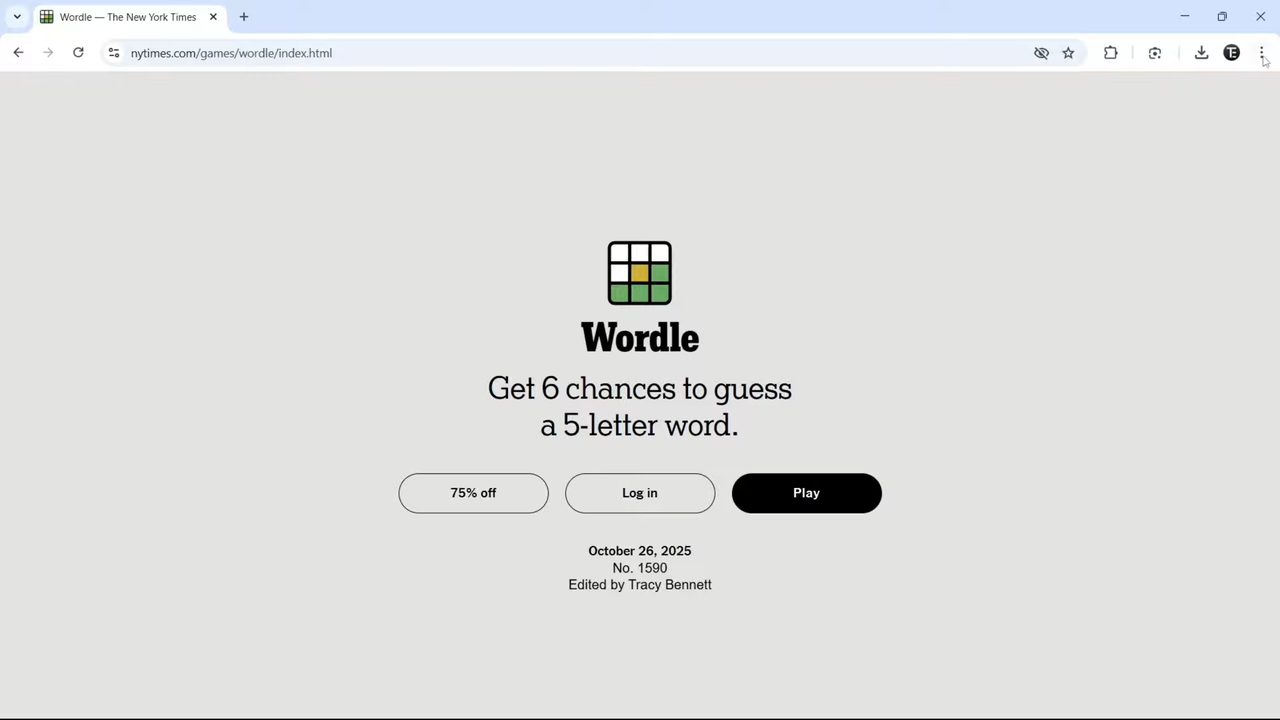
Open Chrome and go to the website. Navigate to the exact page you want the app to open on, because Chrome installs the page you are on. We opened the Wordle page on nytimes.com.
2Click Install page as app
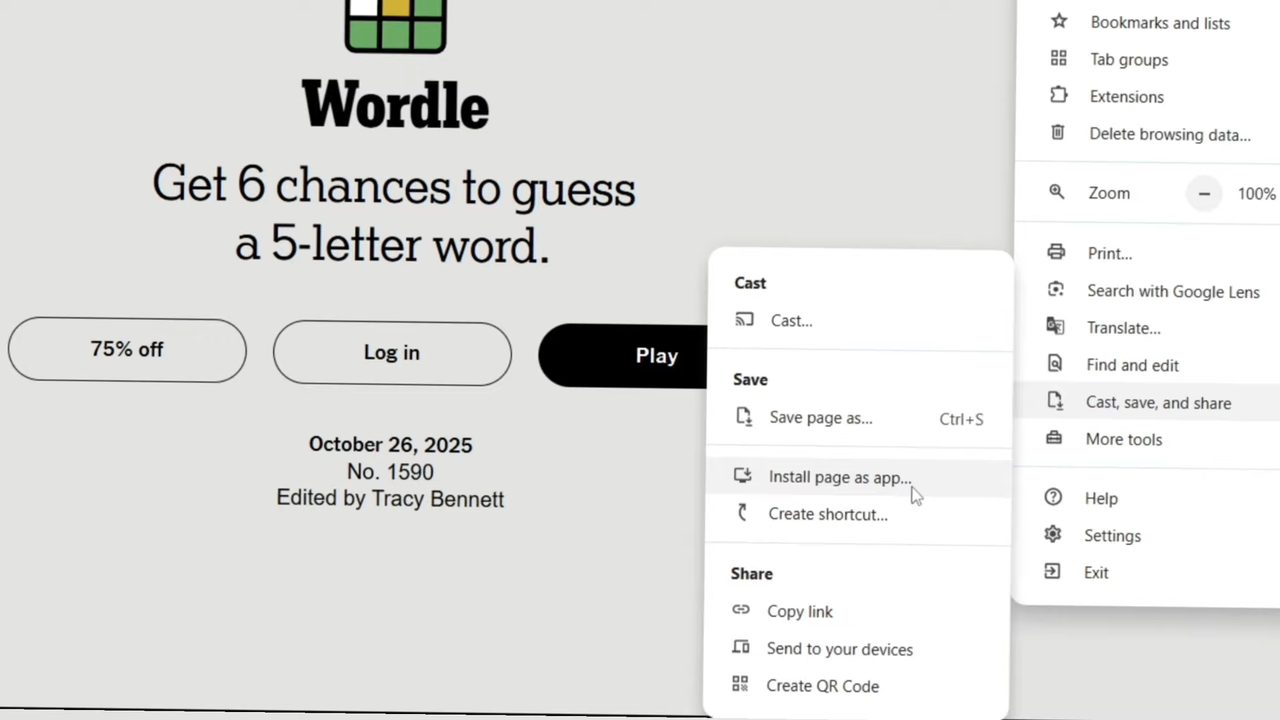
Click the three dots at the top right of Chrome, point to Cast, save, and share, and select Install page as app... under Save. Some websites also show an Install icon at the right end of the address bar, which does the same thing.
3Name the app and click Install
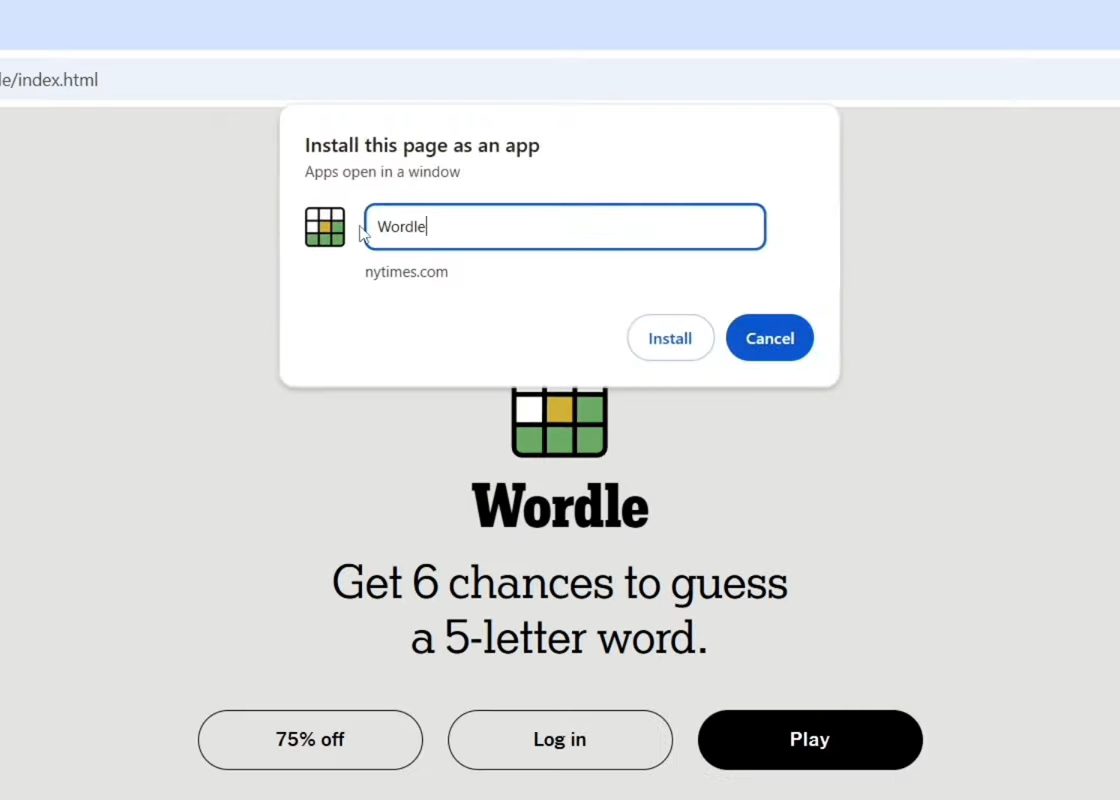
An Install this page as an app box appears. It suggests a name based on the site, here Wordle. Type a different name if you like, since this is what you'll see on the icon and in the Start menu. Then click Install.
4Open the app from its icon
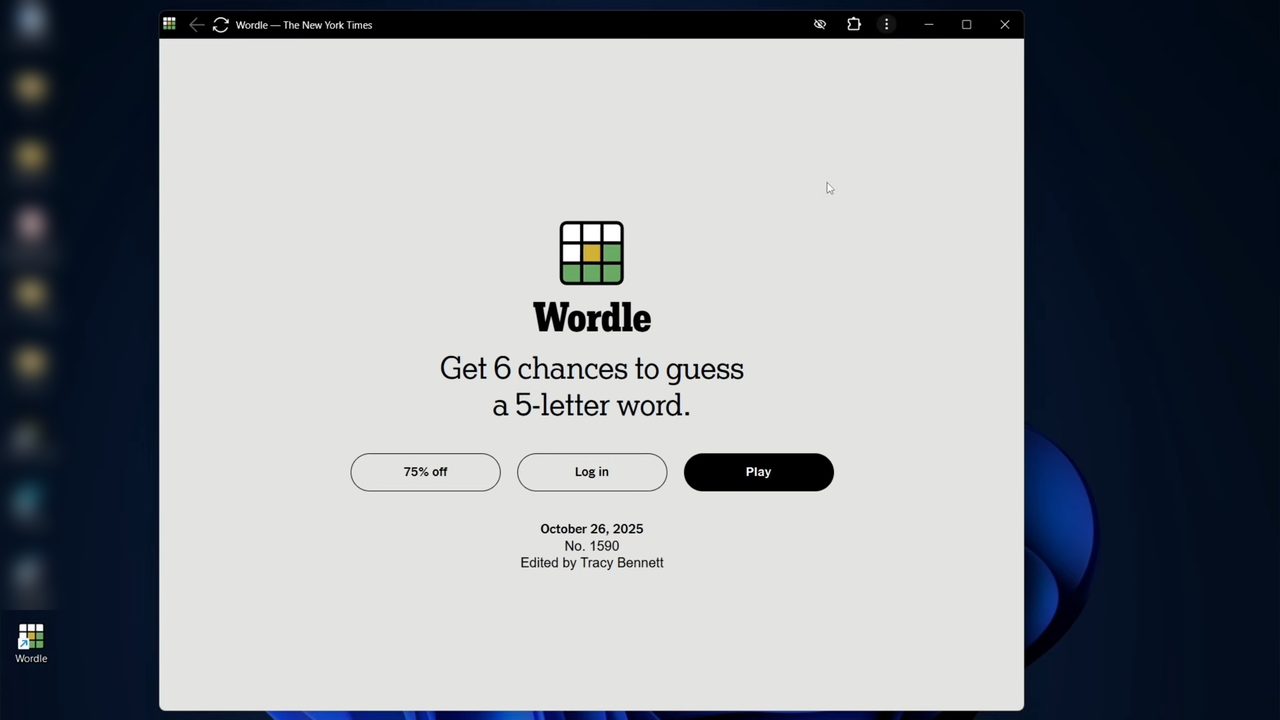
The site immediately opens in its own window without tabs or the address bar, and an icon appears on your desktop. Close the window and double-click the desktop icon: the site opens as an app again. You can also find it by searching its name in the Start menu.
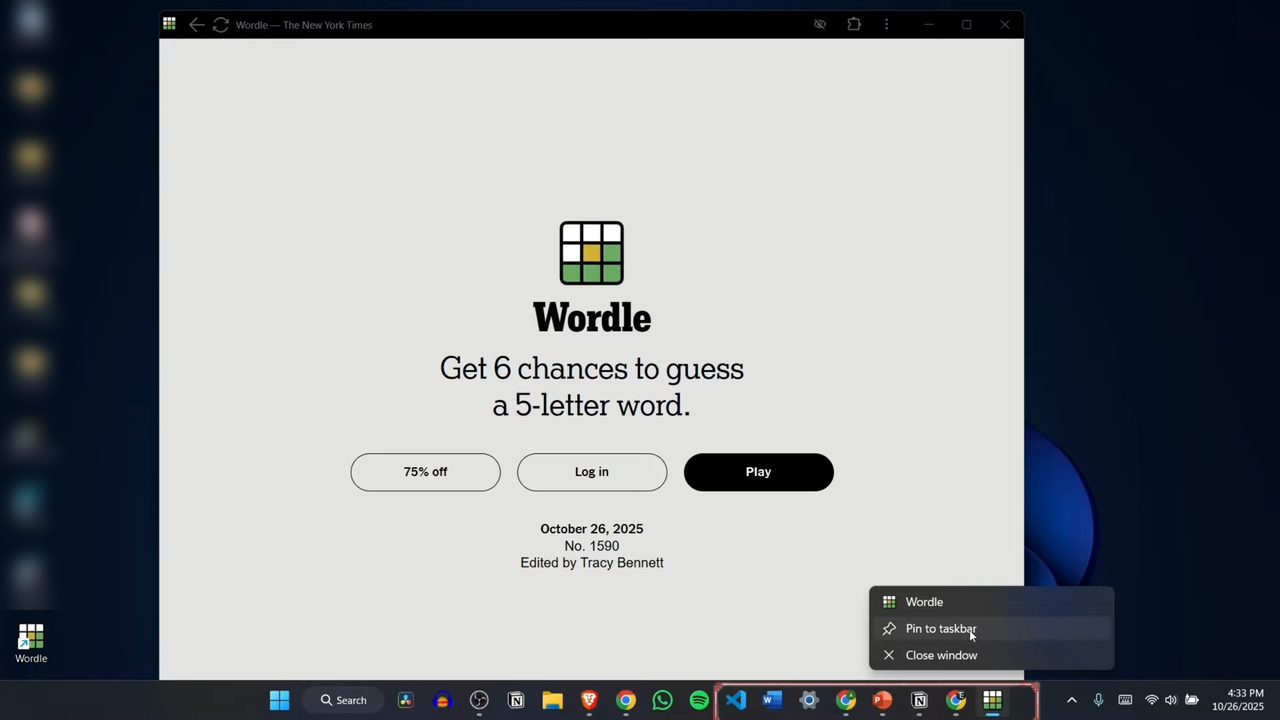
5Pin the app to the taskbar
With the app open, find its icon on the taskbar at the bottom of the screen. Right-click it and select Pin to taskbar. The icon now stays on the taskbar even after you close the app, so it is always one click away.
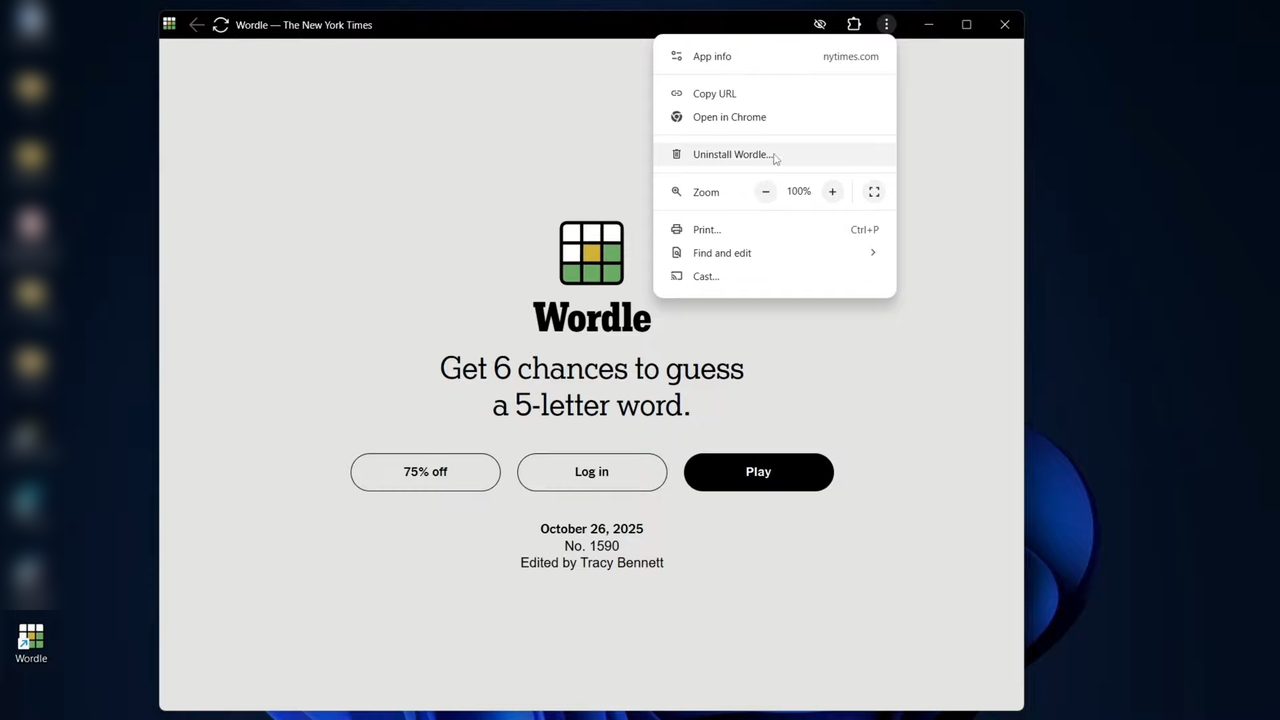
6Uninstall the app
To remove it later, open the app and click the three dots in its own title bar. Select Uninstall Wordle... (the menu shows your app's name). The same menu has App info, Copy URL and Open in Chrome if you need the normal browser tab.
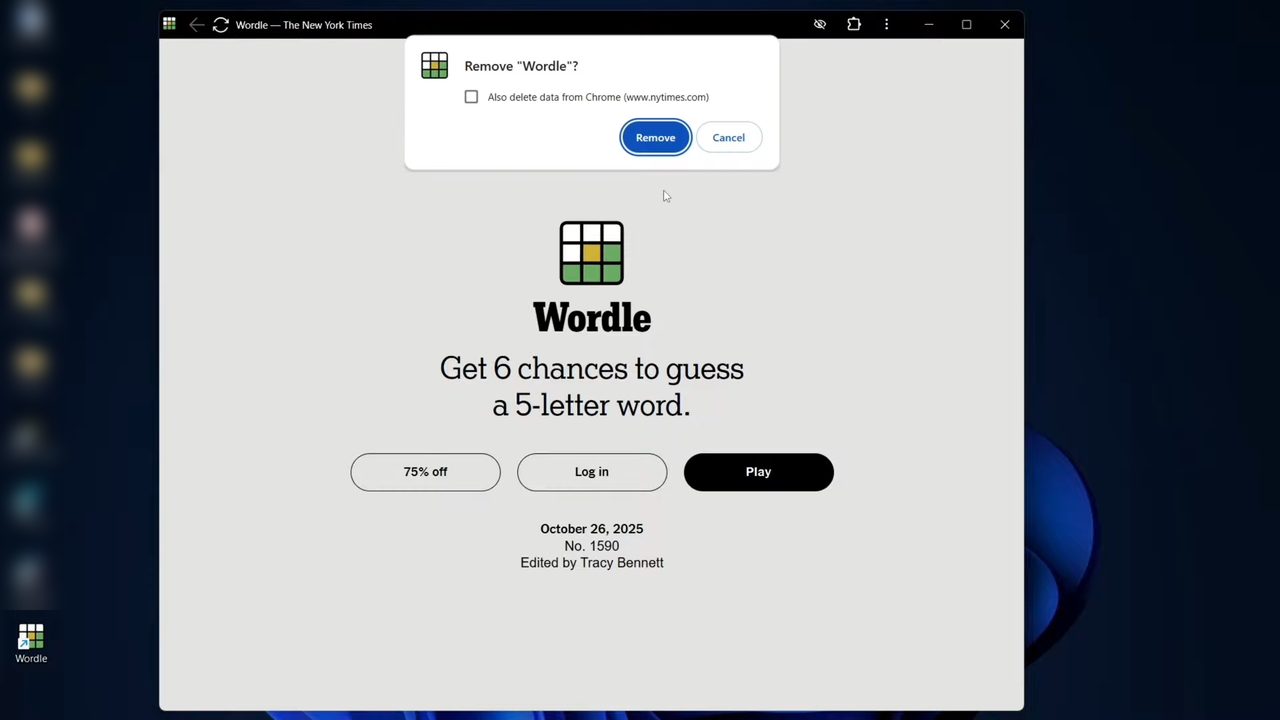
7Confirm with Remove
A Remove "Wordle"? box asks you to confirm. Tick Also delete data from Chrome if you also want to clear the site's saved data, such as logins and settings. Click Remove and the app, its desktop icon and its Start menu entry are gone.
Why install a website as an app?
- Fewer distractions. The app has no tab strip or bookmarks, so a site like Gmail or a project tool feels like a separate program.
- Faster to open. One click from the taskbar, desktop or Start menu, without hunting through tabs.
- Easy to switch to. It shows up as its own window in Alt+Tab and on the taskbar.
- Nothing extra to download. The app runs on Chrome, so it uses your existing Chrome logins and updates with the website itself.
Tips / troubleshooting
- Install page as app is missing: update Chrome from three dots > Help > About Google Chrome.
- The app opens on the wrong page: some websites set their own start page for their app. For others, uninstall it, go to the page you want and install again from there.
- You're logged out in the app: the app shares Chrome's cookies for that profile, so sign in once in the app window and it remembers you, unless you delete Chrome's data.
- Managing several web apps: Google's help page notes you can see all of them at chrome://apps.
- Not every site works offline. Google points out that some web apps need an internet connection to work fully, so don't count on it for sites that are online-only.
- Microsoft Edge has a similar feature under its Apps menu if you use Edge instead of Chrome.
Related guides: How to Install the YouTube App on PC and How to Make Chrome Your Default Browser on Windows.
FAQ
How do I download a website as an app on Windows 11?
Open the site in Chrome, click the three dots, then Cast, save, and share > Install page as app, and click Install. You get a desktop icon and a Start menu entry for the site.
Is a website app different from a desktop shortcut?
Yes. A shortcut opens the site in a normal browser tab. An installed web app opens in its own window without tabs and the address bar, and you can pin it to the taskbar as a separate app.
How do I uninstall a website app?
Open the app, click the three dots in its window, choose Uninstall [app name] and click Remove. Tick Also delete data from Chrome if you want the site data gone too.
Can I rename the app?
Yes, when you install it. The name in the Install this page as an app box is editable before you click Install.
Related guides