Tech is Easy
How to Use Nearby Share in Windows 11 (Android to PC)
To use Nearby Share in Windows 11, install Google's Nearby Share app from android.com on your PC, sign in, set Receiving to Your devices, then on your Android phone open Files by Google, tap Nearby Share > Send and pick your PC. It lets you transfer photos, videos and documents between an Android phone and a Windows laptop wirelessly, in both directions, with no cable and no emailing files to yourself.
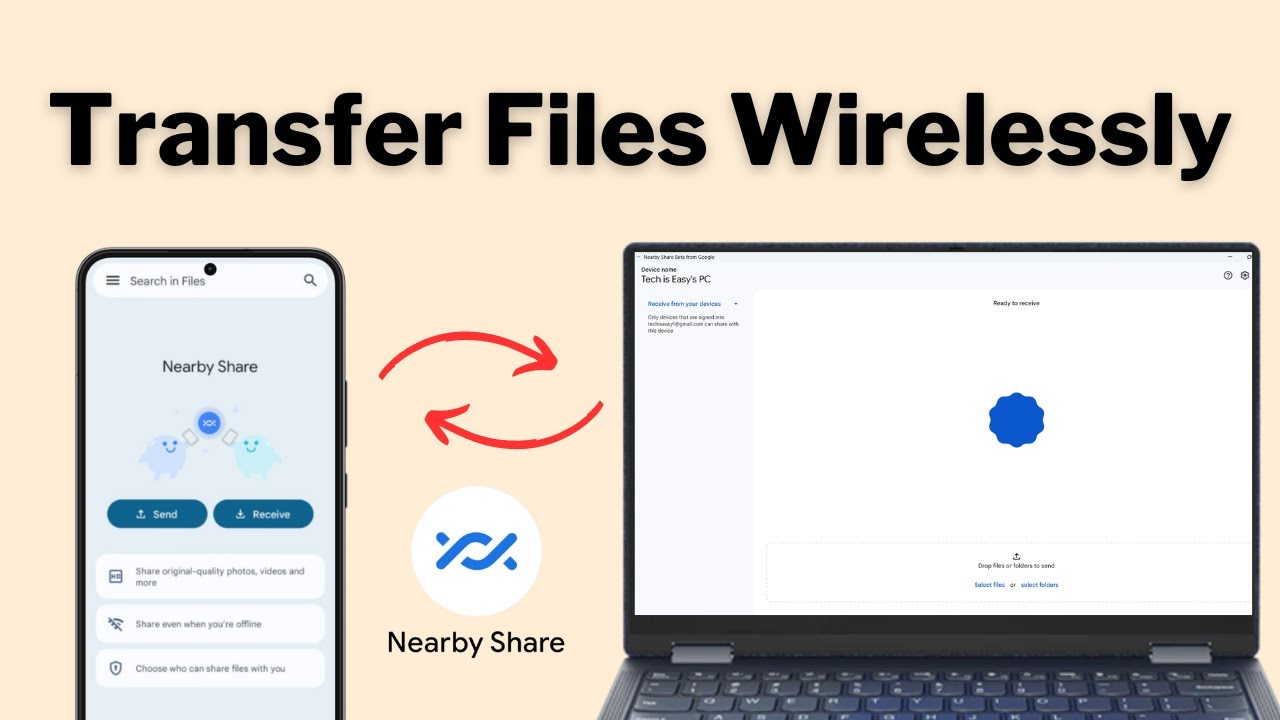
Google has since renamed Nearby Share to Quick Share. The app, the buttons and the steps are the same; only the name has changed, so if you see Quick Share on your PC or phone, follow the same steps. The video was recorded in 2023 on Windows 11, so screens may look slightly different now.
What you need
- A Windows PC running a 64-bit version of Windows 10 or 11 (Google's page says ARM-based PCs need Windows 11)
- Wi-Fi and Bluetooth turned on, on both the PC and the phone
- An Android phone with the Files by Google app, or any Android phone with Quick Share in its Share menu
- Ideally the same Google account on both devices
Method 1: Set up Nearby Share on your Windows PC
1Download the app from android.com
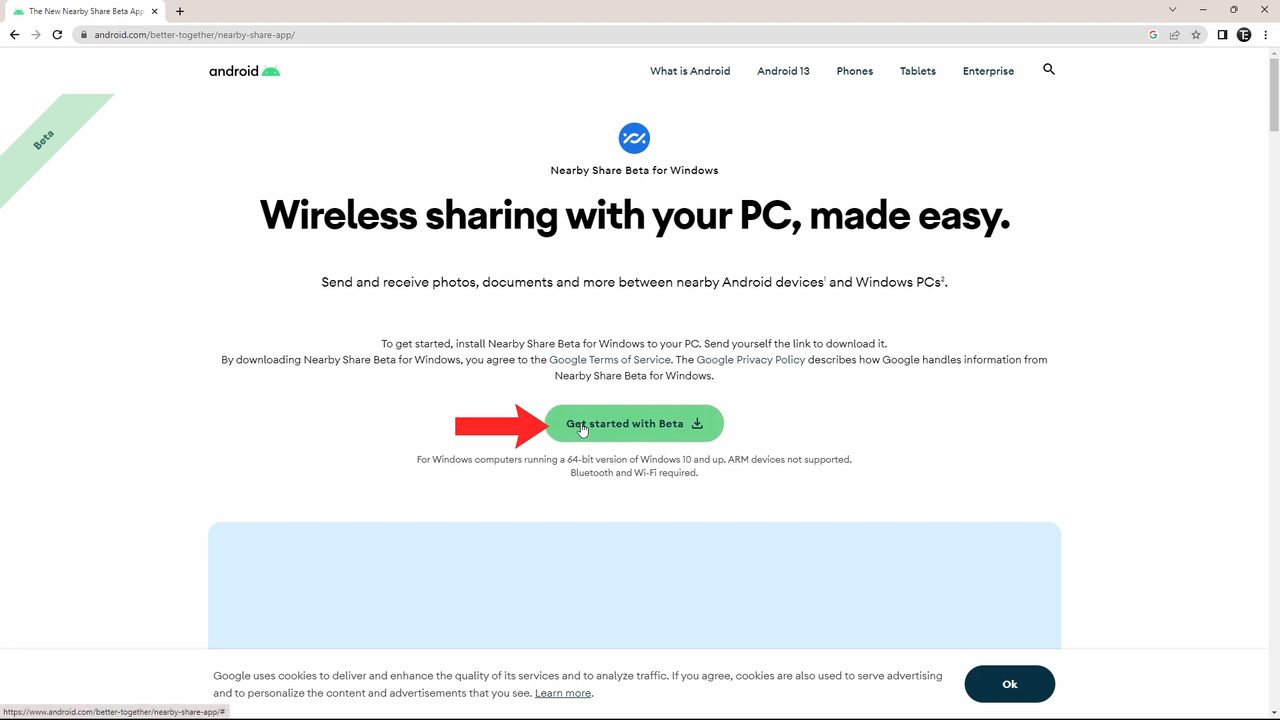
Open your browser and search for nearby share windows. Click the result from android.com, which opens the Nearby Share for Windows page. Click Get started with Beta to download the installer, then open the downloaded file.
2Open the app and sign in
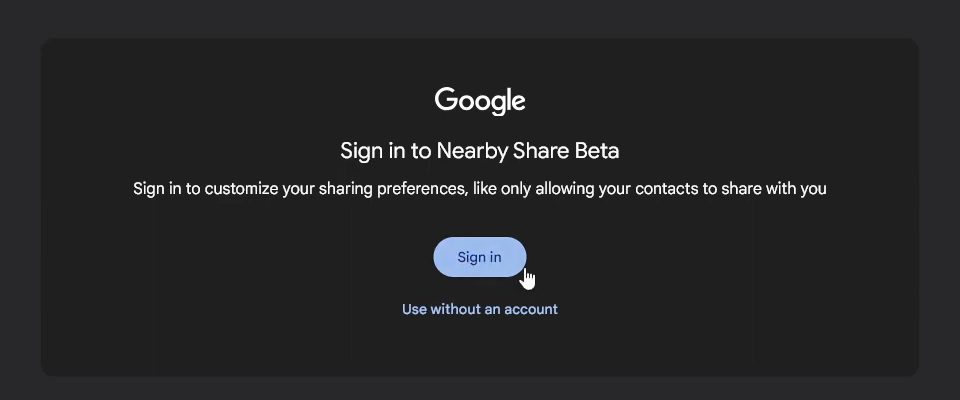
Click Start, type nearby and open Nearby Share Beta from Google. You can click Sign in to use your Google account, or Use without an account. Transfers work either way, but signing in lets you limit sharing to your own devices or your contacts. We signed in.
3Name your PC
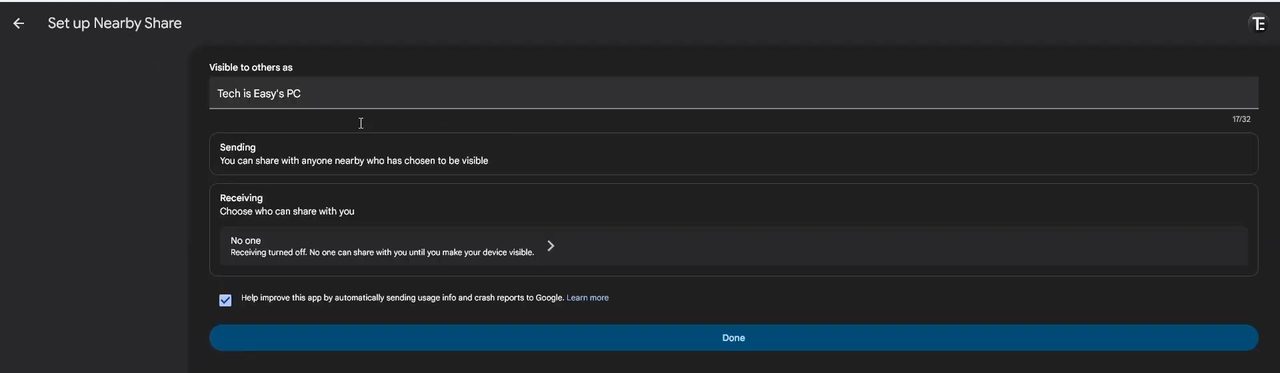
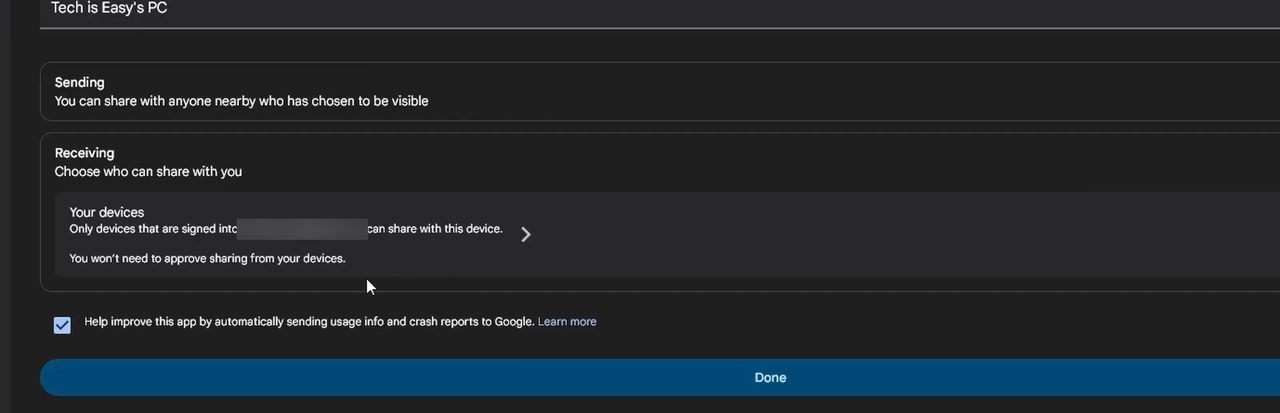
On the setup screen, the box under Visible to others as is the name your phone will see when it looks for devices. Change it to something you'll recognise, like "Tech is Easy's PC".
4Choose who can send you files
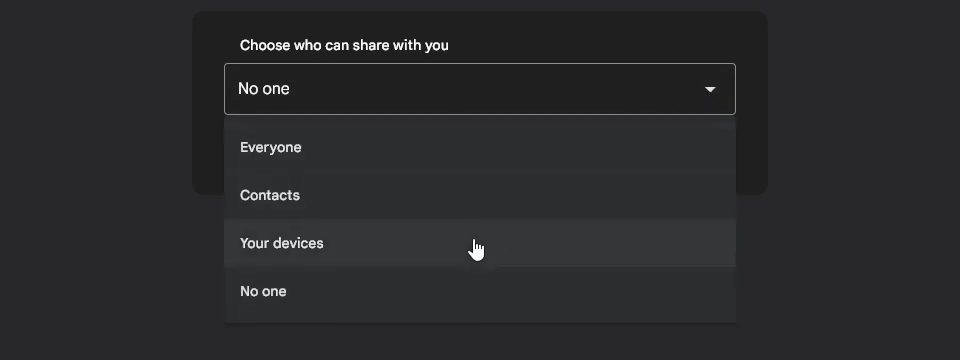
Under Receiving, it starts on No one, which means nothing can reach your PC. Click it, open the drop-down and choose one of the four options: Everyone, Contacts, Your devices or No one. We picked Your devices, so only phones signed in with the same Google account can send files to this PC.
5Click Done
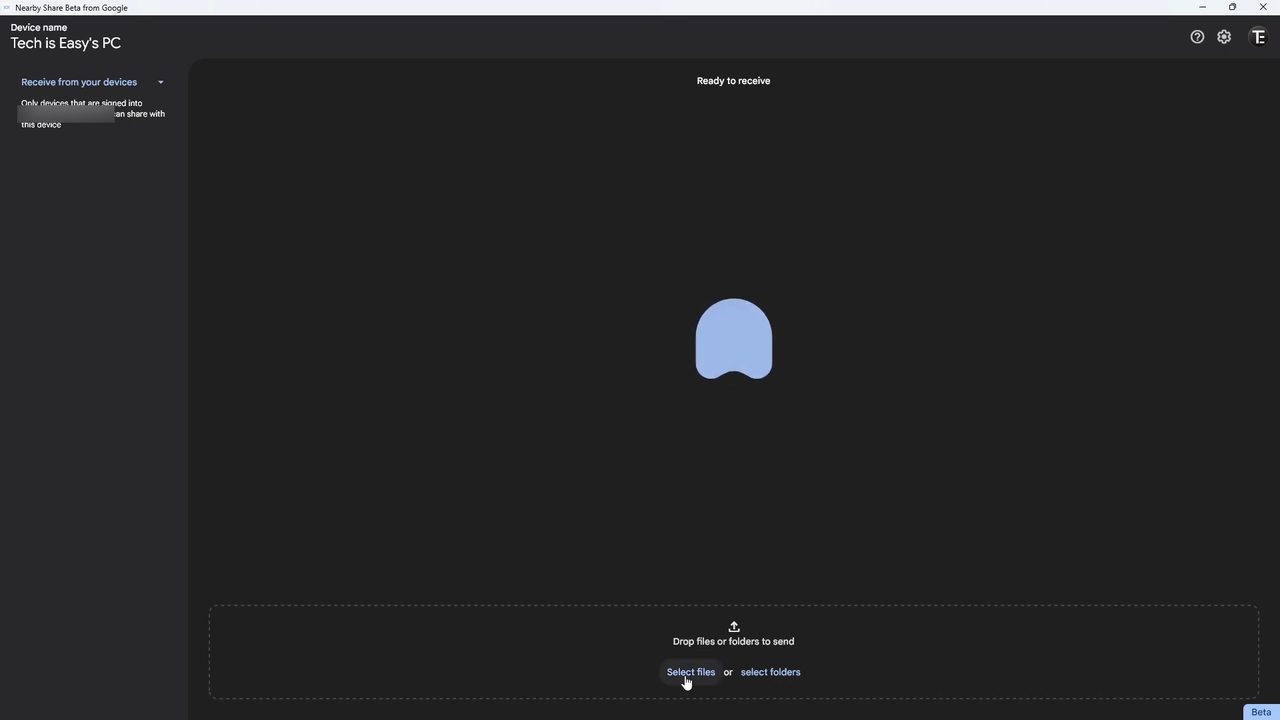
Go back to the setup screen. It now explains that only devices signed in to your Google account can share with this PC. Click Done. The main window shows Ready to receive, with a box at the bottom for sending files the other way.
Method 2: Send files from your Android phone to your PC
6Open Nearby Share in the Files app
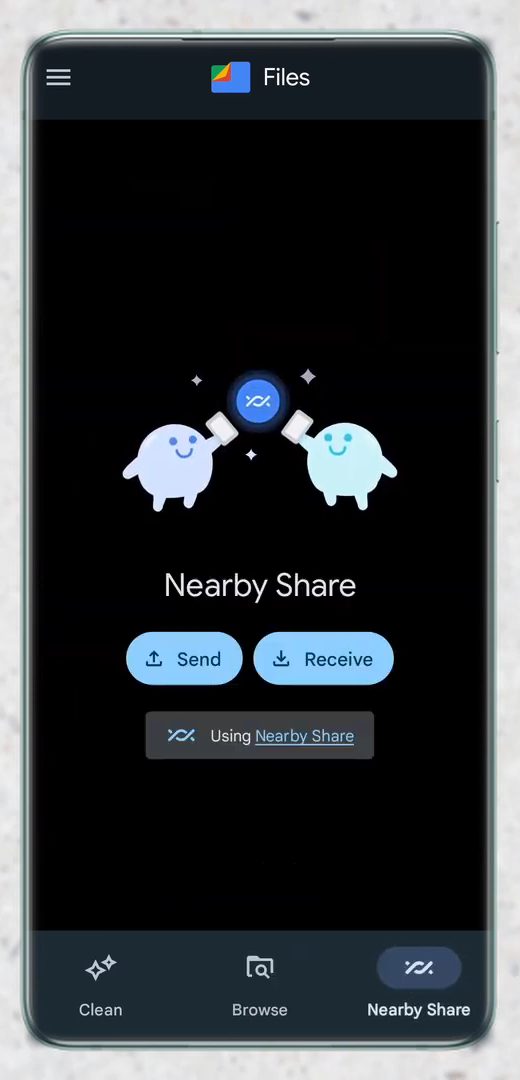
On your phone, install Files by Google from the Play Store if you don't have it, then open it. Tap Nearby Share at the bottom right. You'll see two buttons, Send and Receive.
7Pick the files to send
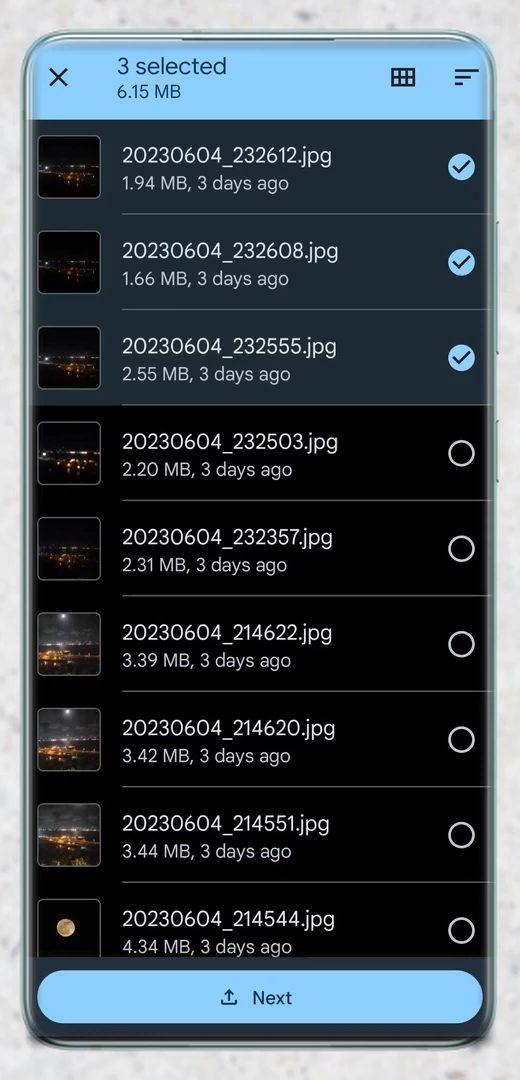
Tap Send. Choose a category at the top, such as Downloads, Videos, Apps, Images or Documents. We opened Images and ticked the three newest photos. Tap Next at the bottom.
8Turn on Nearby Share and tap your PC
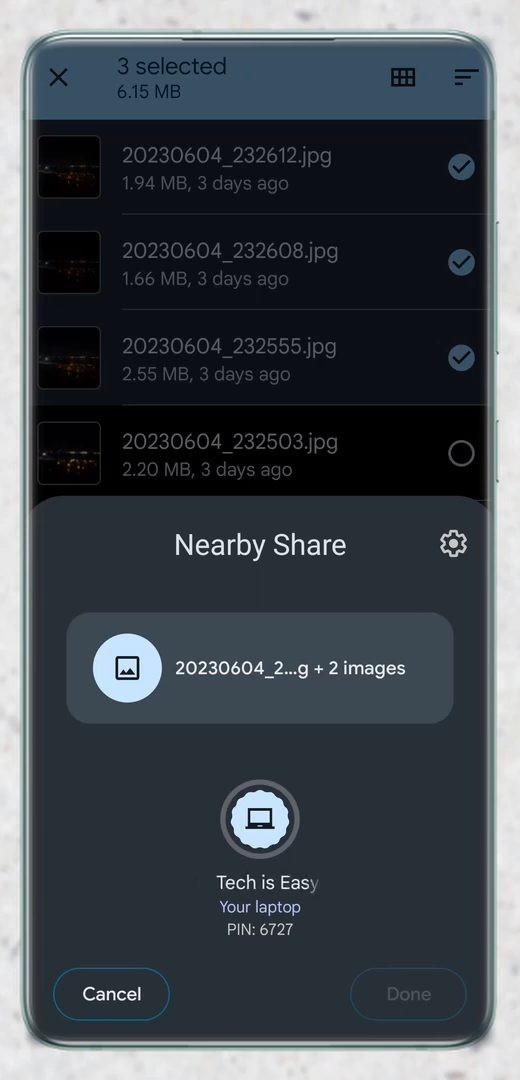
The first time, the phone asks you to Turn on Nearby Share. Check that the account icon next to Device name is the same Google account you used on the PC. The phone then searches and your laptop appears under its name. Tap it to start the connection.
9Accept the files on your PC
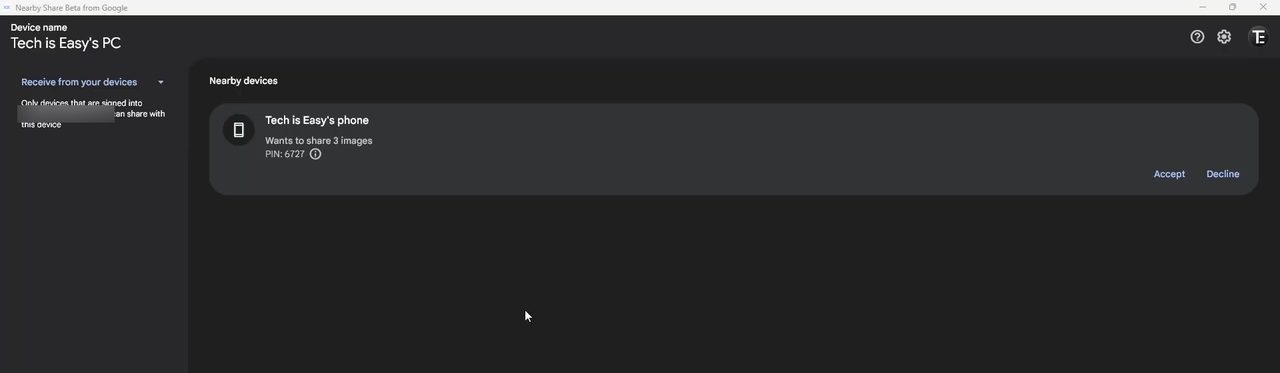
Switch to your PC. A card appears saying your phone Wants to share 3 images, with a PIN. Check the PIN matches the one on your phone, then click Accept. The files download and the card shows where they were saved (the Downloads folder by default). Click Open to view them.
Method 3: Send files from your PC to your phone
10Select files and pick your phone
In the Nearby Share app on your PC, drag files into the box at the bottom, or click Select files (or select folders). Then click Send and choose your phone's name from the list. If your phone asks, accept the incoming files there. Your phone must be visible to the PC, so keep Nearby Share or Quick Share turned on there.
Change where received files are saved
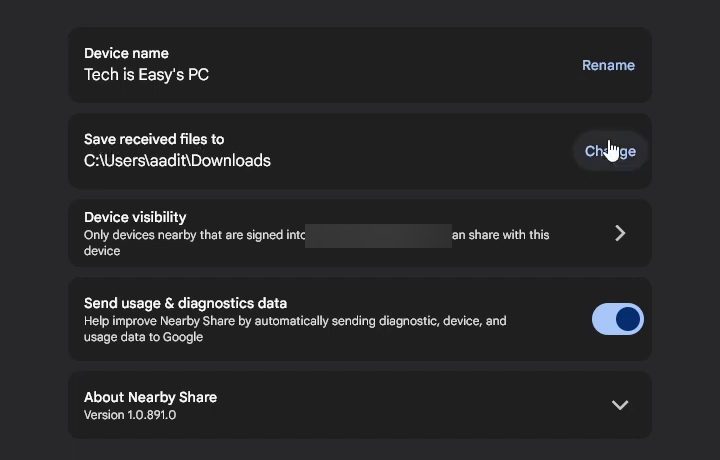
Click the Settings gear at the top right of the PC app. Next to Save received files to, click Change and pick any folder.
Troubleshooting
Google's help page Share files between Android & Windows with Quick Share lists these fixes, and they match the most common problems: - The phone can't find the PC. Check the PC's Receiving or Device visibility setting. If it's on Your devices, the phone must be signed in to the same Google account. Try Everyone for a quick test. - Both devices on Wi-Fi but still nothing. Some networks, like office Wi-Fi, block device-to-device sharing. Turn on your phone's hotspot and connect the PC to it, then try again. - Bluetooth is off. Both devices need Bluetooth on, and they should be close together. - Drag and drop does nothing. Google says this happens if the app was opened as administrator. Open it normally. - No notification on the PC. Turn off Focus Assist or Do not disturb in Windows, and allow notifications from the app.
Related guides: How to Transfer Files from Android to PC and How to Transfer Files Between Phone and PC Using Phone Link.
FAQ
How do I use Nearby Share in Windows 11 to send files to Android?
Open the Nearby Share (Quick Share) app on your PC, drag files into the box at the bottom or click Select files, then choose your phone from the list of nearby devices. Accept the transfer on the phone.
Is Nearby Share the same as Quick Share?
Yes. Google renamed Nearby Share to Quick Share, and the Windows app is now called Quick Share from Google. The setup and sharing steps work the same way. Google also notes that Samsung PCs should use Samsung's own Quick Share app from the Microsoft Store.
Does Nearby Share work on Windows 10?
Yes. Google's download page says the app works on PCs running a 64-bit version of Windows 10 and up. The app is built for sharing between Windows PCs and Android devices; the video doesn't cover iPhone.
Do I have to sign in with a Google account?
No. You can click Use without an account and transfers still work. Signing in is needed if you want the Contacts or Your devices options, which are more private than Everyone.
Related guides